CWCloud AI agent as Gitlab webhook for issue's comments

The cwc is OpenSource but for the on premises instances of CWCloud, you need to have the Enterprise Edition (EE) to use the AI agent features. Please contact us for more information.
In our previous blogpost, we explained how to use the cwc CLI as a web agent and how to use it in the CWAI features like the chat or the FaaS engine.
In this blogpost, we will see how to use the cwc CLI as a web agent as Gitlab webhook triggered by issue's comments and keywords.
So first, we need to configure the cwc with the following environment variables:
CWC_AGENT_NAME: the name of the agent which will be used as trigger (e.g:cwc-prodto be triggered by comments containing!cwc-prodin Gitlab issues)CWC_GITLAB_TOKEN: a Gitlab token with the permission for pushing comments on issuesCWC_GITLAB_BASE_URL: the URL of the Gitlab instance (e.g:https://gitlab.cwcloud.tech)
Of course you can also use the CLI configure command like this:
$ cwc configure set agent_name cwc-prod
$ cwc configure set gitlab_token <your_gitlab_token>
$ cwc configure set gitlab_base_url https://gitlab.cwcloud.tech
Then you have to configure the webhook in Gitlab like this:
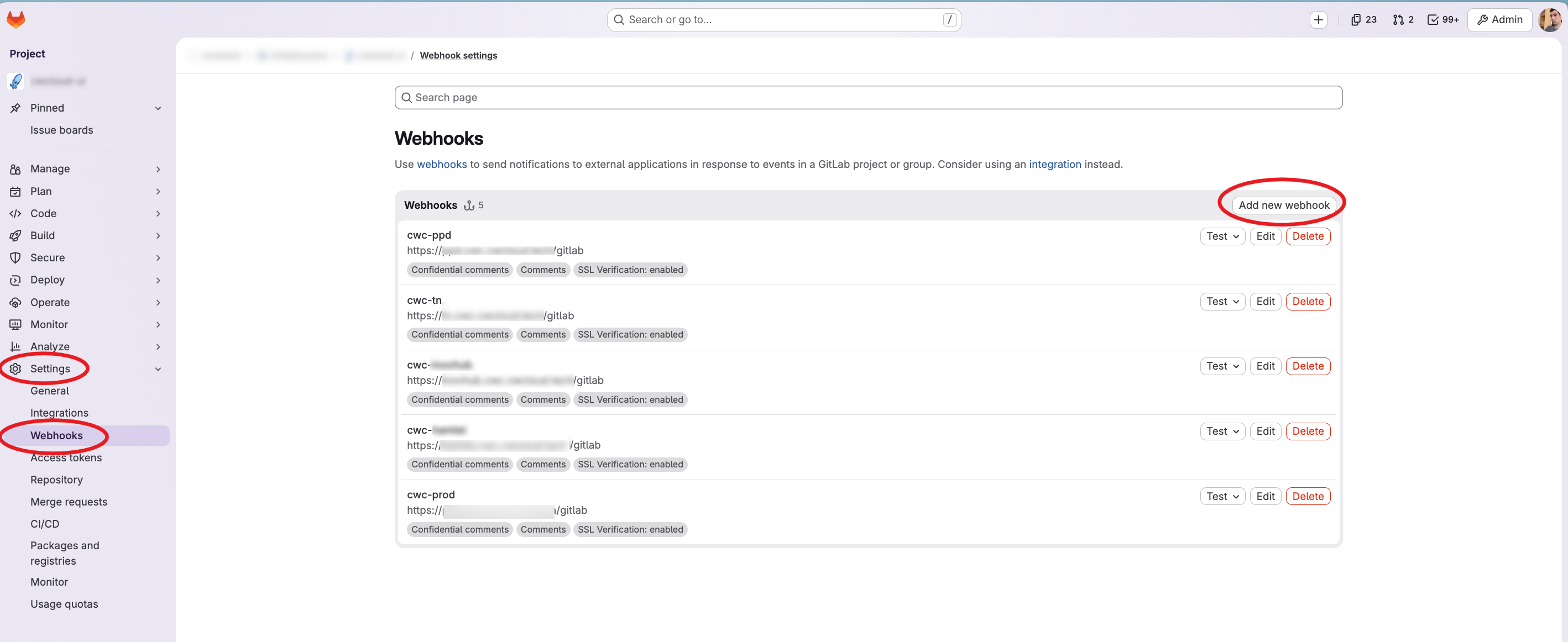
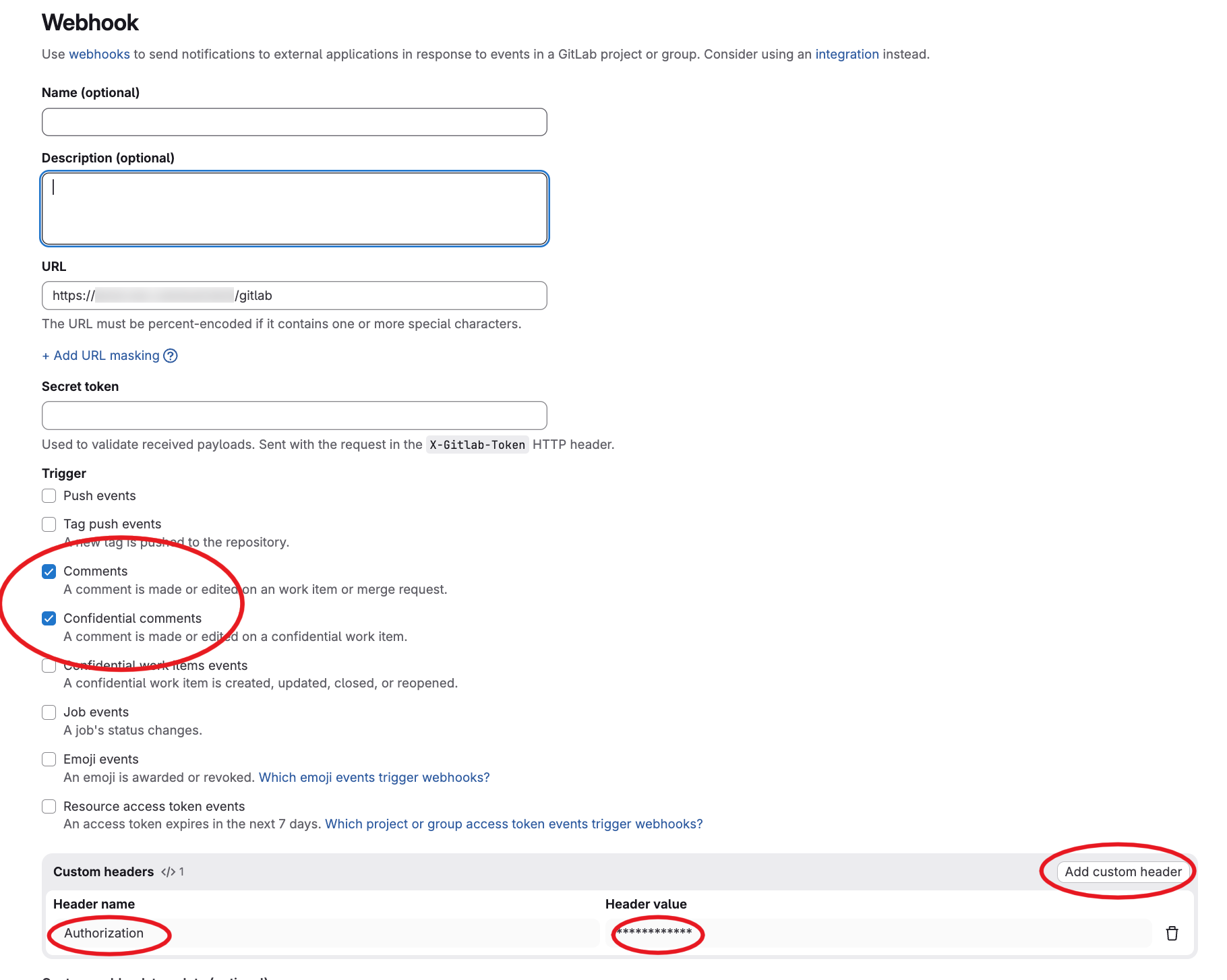
As you can see we configured the /gitlab endpoint path and we set also an Authorization header set with our reverse proxy. However, the web agent is also supporting the gitlab webhook secret for authentication (it's optional but remind that you have to setup an authentication one way or another).
And finally here's what we got in the Gitlab issue's when we comment !{agent name}:
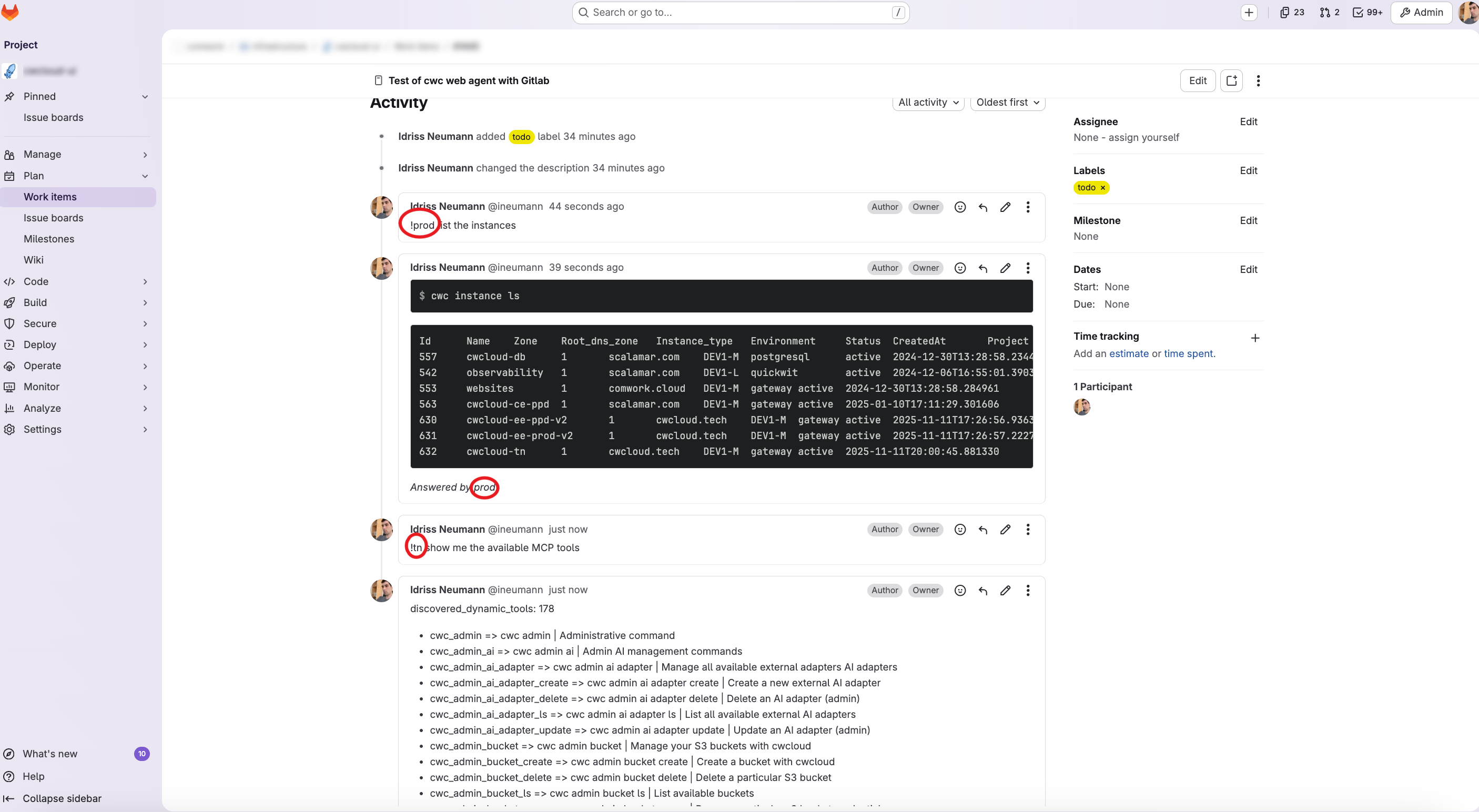
Again be caution with what you will prompt. In the coming release we will add a confimation mode in our agent.
In conclusion, users can work and intervene in production while staying in the central ticket board.