6 posts tagged with "ai"

View All Tags

CWCloud AI Chat on Mobile

· 2 min read
Idriss Neumann
founder cwcloud.tech

Still focused on making CWCloud features quickly accessible from anywhere with our AI agents, we now provide a mobile application to interact with the CWAI API, which itself allows invoking our web agent as shown in this blog post.

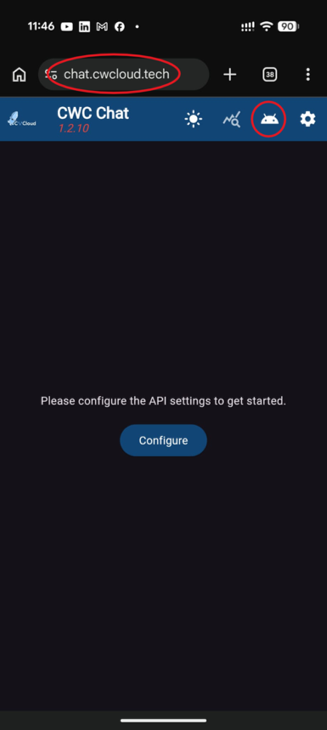
The application is available in web mode on chat.cwcloud.tech and can also be downloaded for Android by clicking the "Download" button highlighted in red below:

cwc-chat-mobile

warning

The mobile application is Open Source and available on our GitLab, but to consume the CWAI API you need the Enterprise Edition (EE). Please contact us for more information.

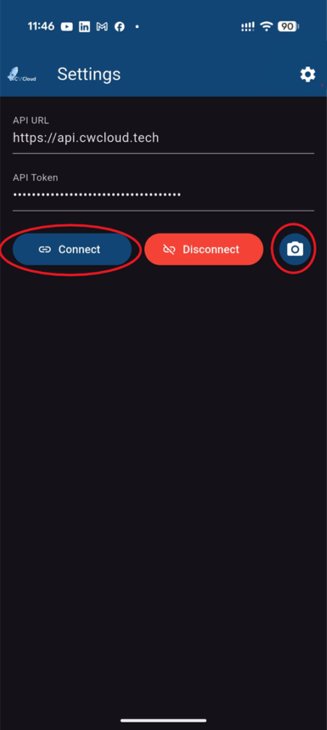
Then, you can log in with an API key and configure it by clicking the "Configure" or "Settings" button highlighted in red below:

cwc-chat-credentials

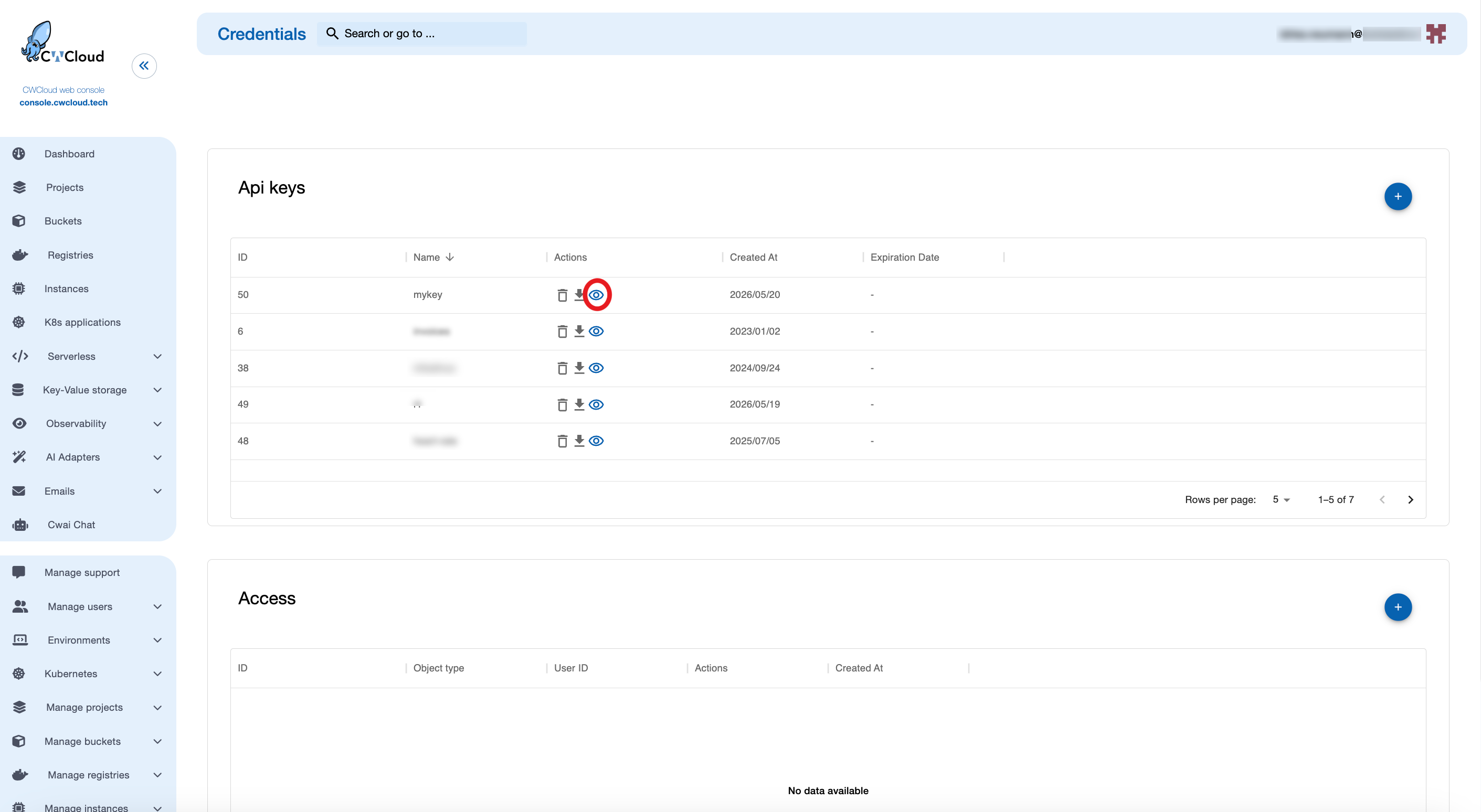
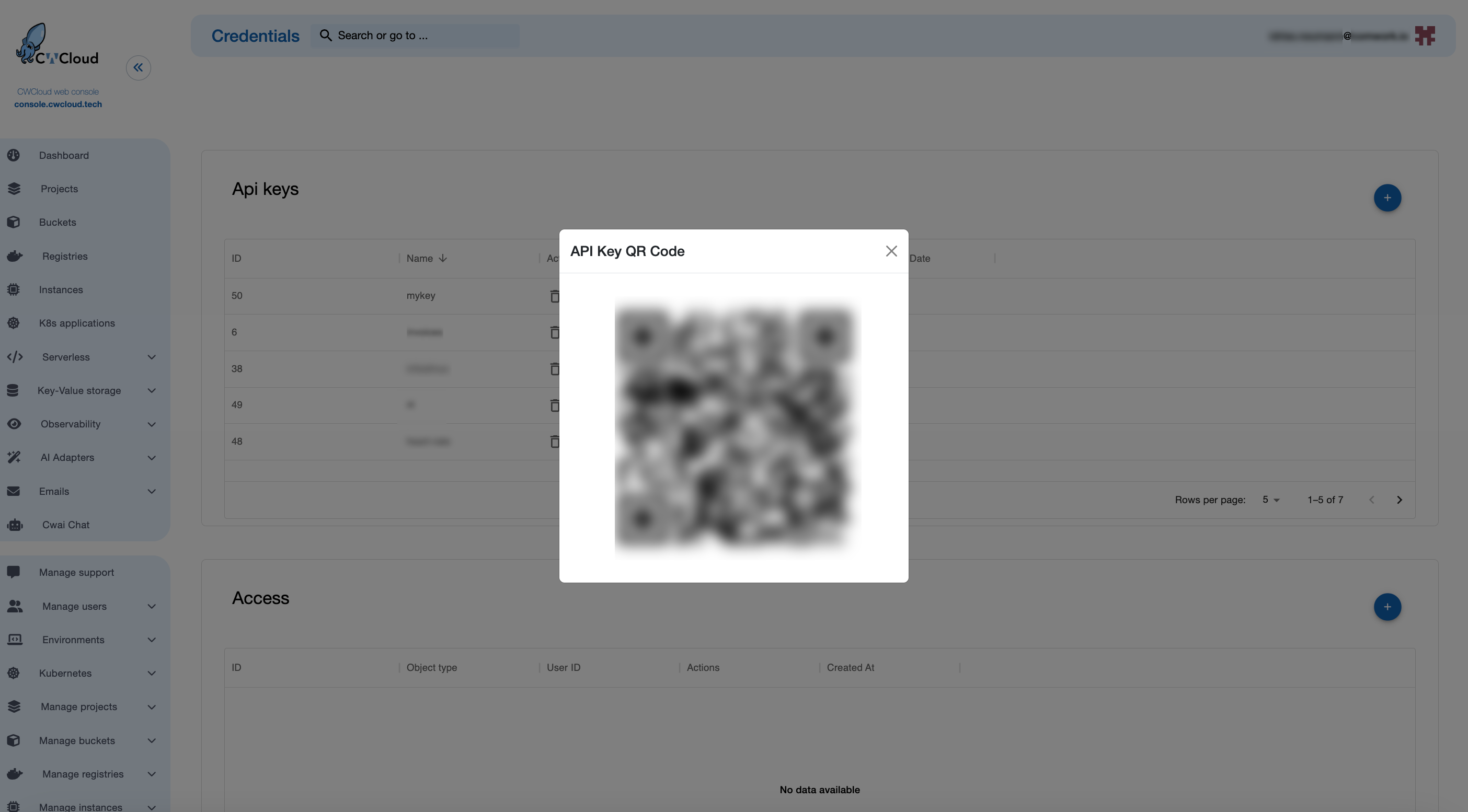
On the mobile version, it is possible to scan the API key QR code directly to configure it automatically through the console, as follows:

cwc-chat-credentials-qr-1

Then:

cwc-chat-credentials-qr-2

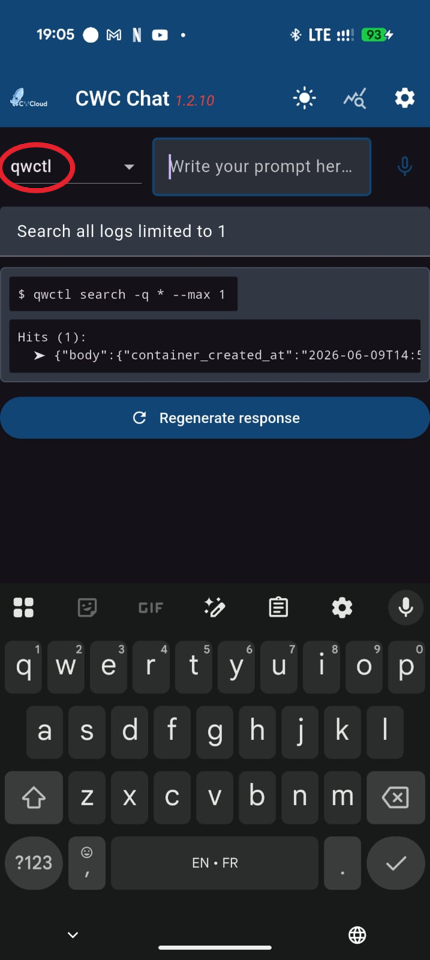
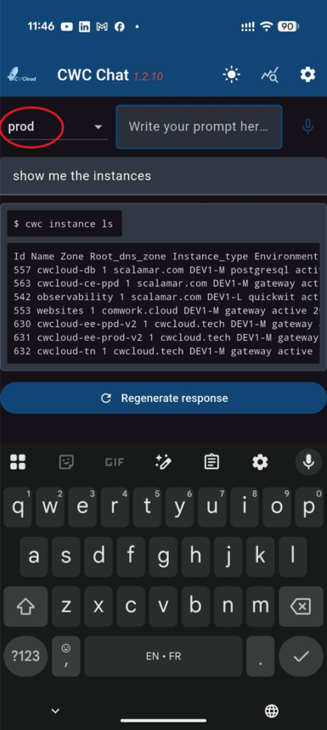
Finally, you can chat with the different models and agents interfaced with CWCloud external adapters:

cwc-chat-prompt

As you might notice, the mobile version is also implementing speech-to-text :

Conclusion: as we said in our previous blogpost, it still seems very important for the UX that the AI agents are printing repeatable and understandable CLI commands even more on mobile to be able to share screenshots with other people during incidents.

CWCloud AI agent as Gitlab webhook for issue's comments

· 2 min read
Idriss Neumann
founder cwcloud.tech
warning

The cwc is OpenSource but for the on premises instances of CWCloud, you need to have the Enterprise Edition (EE) to use the AI agent features. Please contact us for more information.

In our previous blogpost, we explained how to use the cwc CLI as a web agent and how to use it in the CWAI features like the chat or the FaaS engine.

In this blogpost, we will see how to use the cwc CLI as a web agent as Gitlab webhook triggered by issue's comments and keywords.

So first, we need to configure the cwc with the following environment variables:

  • CWC_AGENT_NAME: the name of the agent which will be used as trigger (e.g: cwc-prod to be triggered by comments containing !cwc-prod in Gitlab issues)
  • CWC_GITLAB_TOKEN: a Gitlab token with the permission for pushing comments on issues
  • CWC_GITLAB_BASE_URL: the URL of the Gitlab instance (e.g: https://gitlab.cwcloud.tech)

Of course you can also use the CLI configure command like this:

$ cwc configure set agent_name cwc-prod
$ cwc configure set gitlab_token <your_gitlab_token>
$ cwc configure set gitlab_base_url https://gitlab.cwcloud.tech

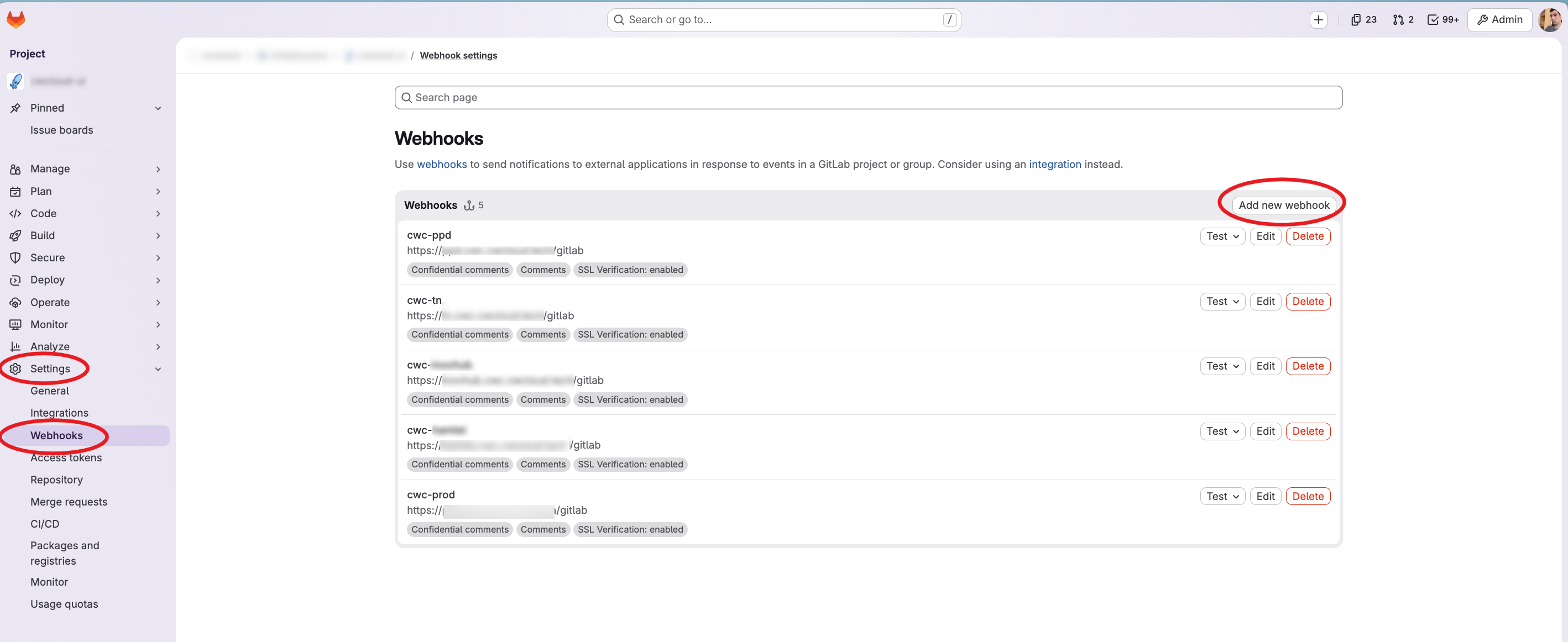
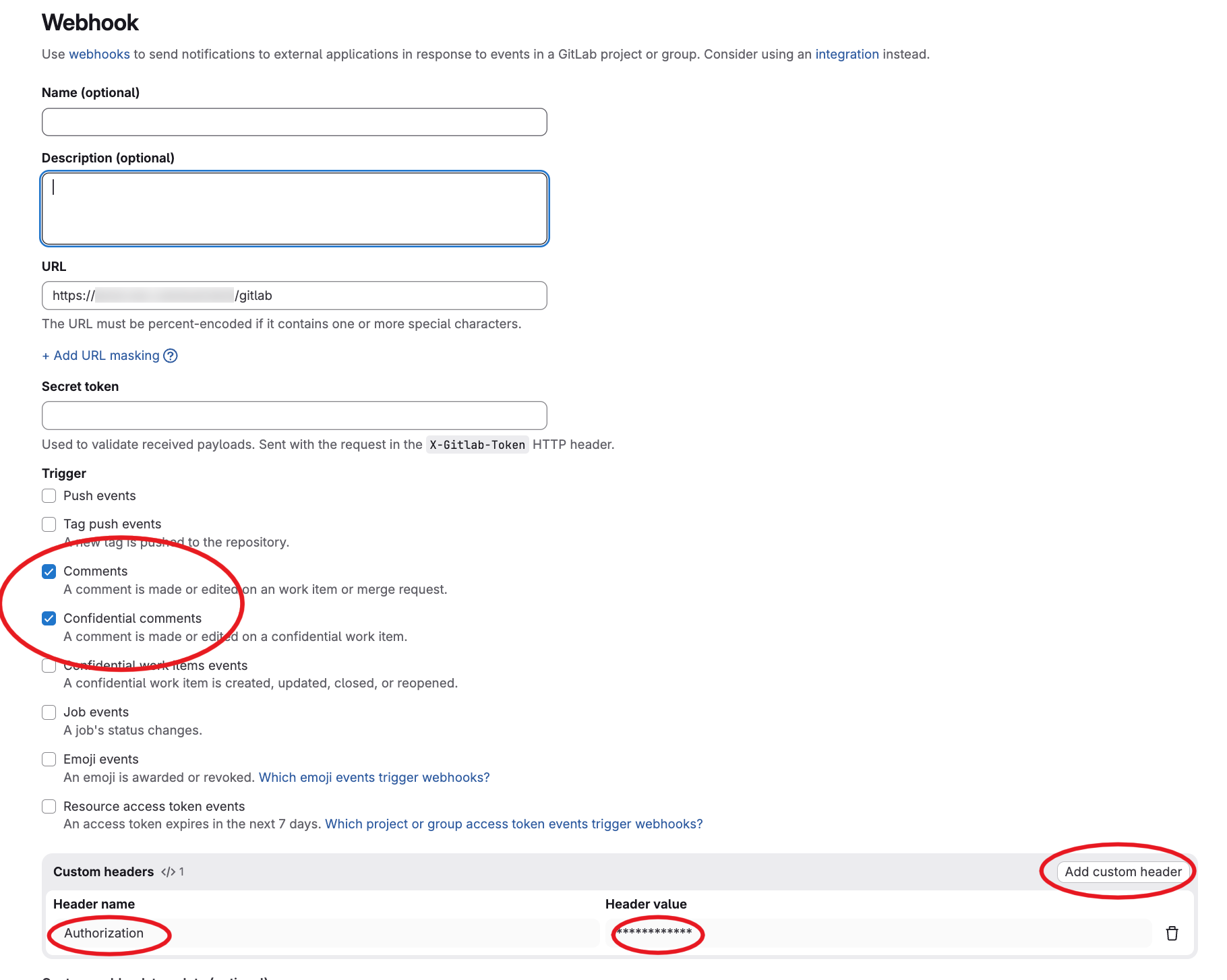
Then you have to configure the webhook in Gitlab like this:

gitlab-webhooks

gitlab-webhook-config

As you can see we configured the /gitlab endpoint path and we set also an Authorization header set with our reverse proxy. However, the web agent is also supporting the gitlab webhook secret for authentication (it's optional but remind that you have to setup an authentication one way or another).

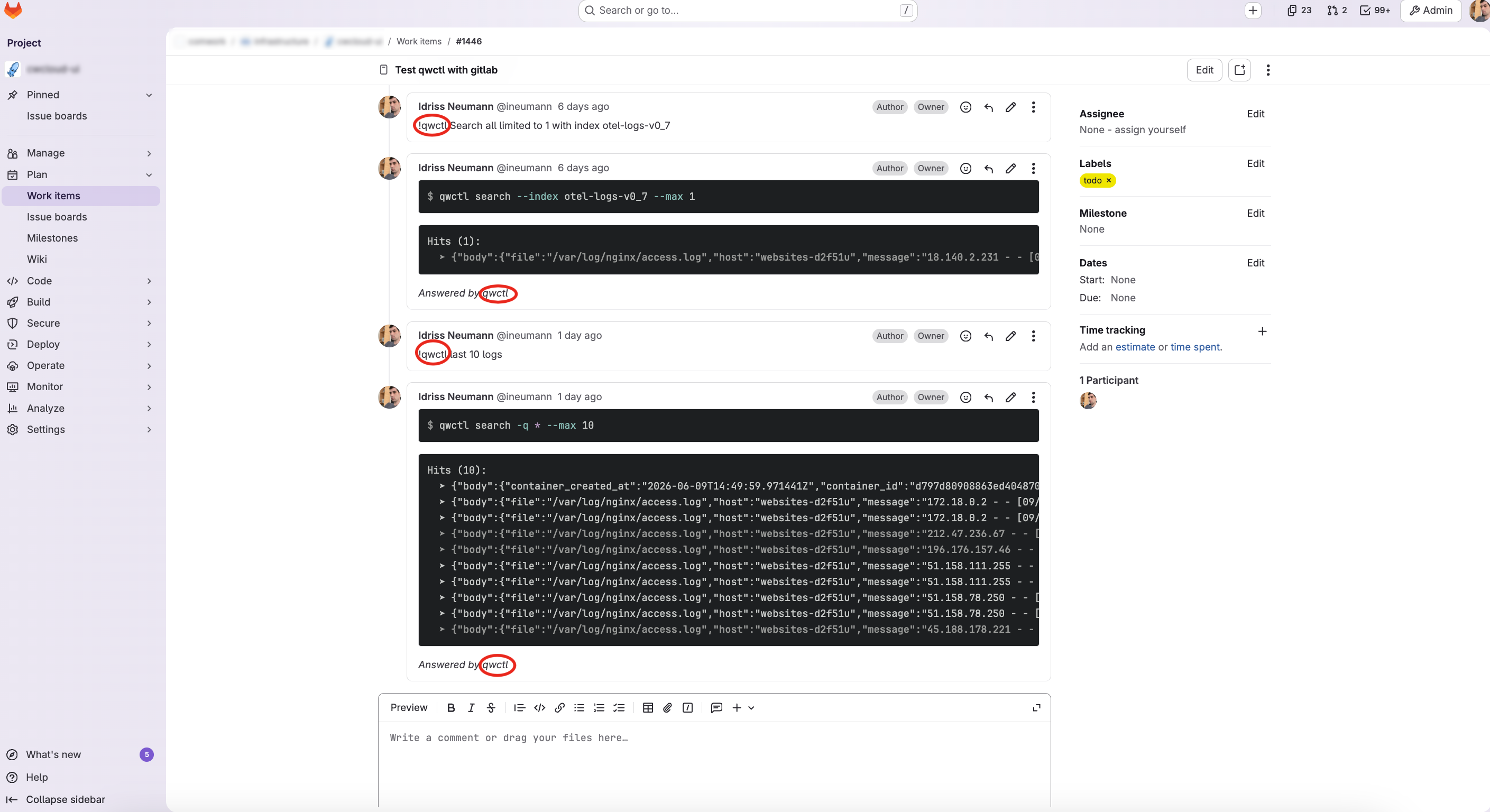
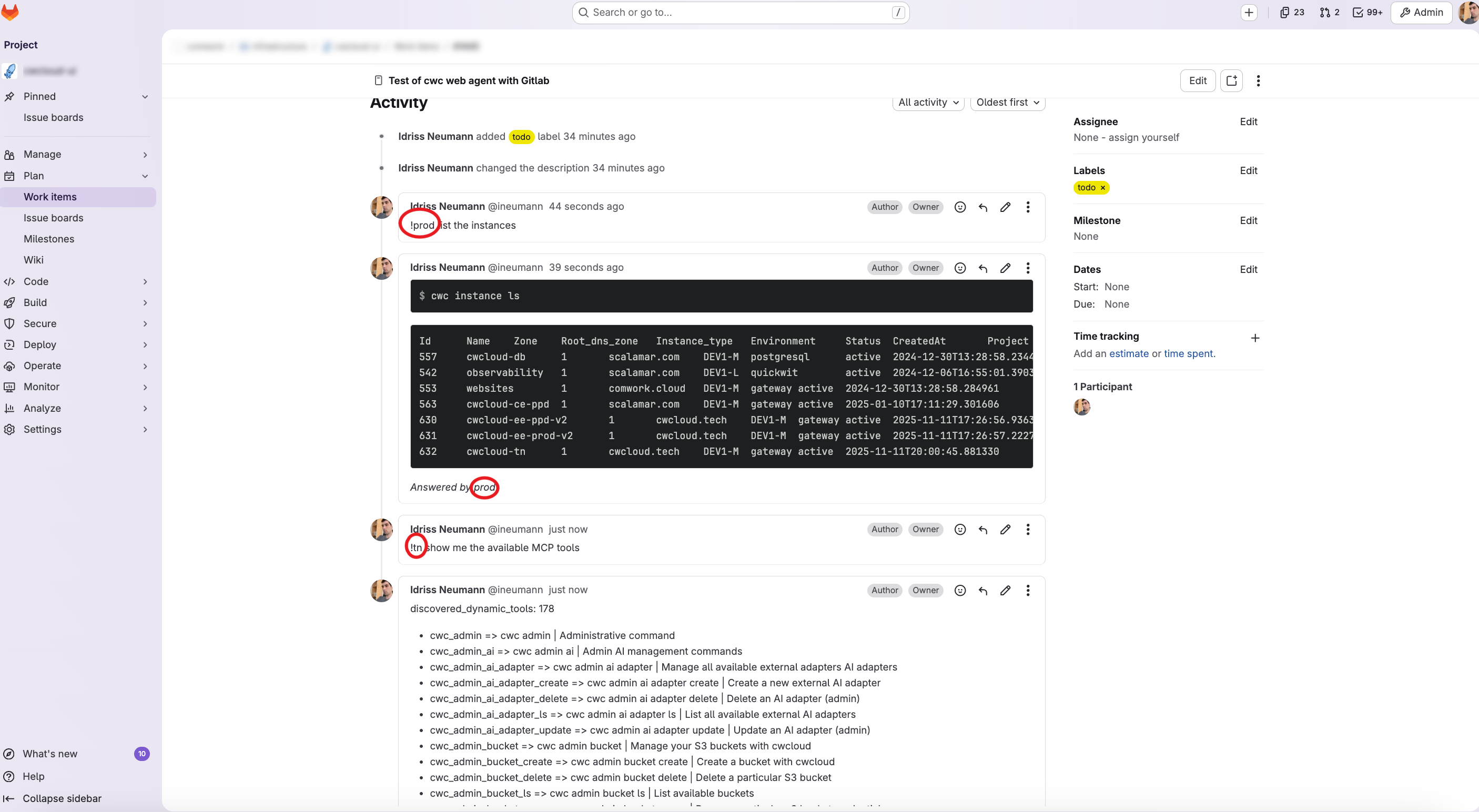
And finally here's what we got in the Gitlab issue's when we comment !{agent name}:

gitlab-issue-agent

warning

Again be caution with what you will prompt. In the coming release we will add a confimation mode in our agent.

In conclusion, users can work and intervene in production while staying in the central ticket board.

CWCloud AI agent as a Restful adapter for CWAI API

· 2 min read
Idriss Neumann
founder cwcloud.tech
warning

The cwc is OpenSource but for the on premises instances of CWCloud, you need to have the Enterprise Edition (EE) to use the AI agent features. Please contact us for more information.

In our previous blogpost, we introduced the CWCloud MCP server and agent. We explained how we implemented the MCP server and how to use it with an AI agent in cli mode.

In this blogpost, we will see how to use cwc as an external web agent compliant with CWAI API.

First, here's how the cwc CLI can be started as a web agent:

$ cwc ai web-agent

We can also specify the port and listen address:

$ cwc ai web-agent -a 0.0.0.0 -p 8081 -s http://localhost:8080/mcp

And then we can send http POST query like this to the web agent:

$ curl -X POST http://localhost:8081 -H "Content-Type: application/json" -d '{ "settings": { "max_tokens": 500 }, "message": "Hello"}'

The web agent will answer like this (following the external adapter contract):

{
"status": "ok",
"message": "Hello! How can I assist you today?",
"usage": {
"prompt_tokens": 8,
"completion_tokens": 10,
"total_tokens": 18
}
}

In order to host the cli as MCP server and web agent at the same time, here's an example of docker compose file:

services:
cwc_mcp:
image: "rg.fr-par.scw.cloud/cwcloud-ce-u7u1q0/cwc:1.19.8"
restart: always
container_name: cwc_mcp
env_file:
- .env.cwc
volumes:
- "/etc/ssl/certs/ca-bundle.crt:/etc/ssl/certs/ca-bundle.crt:ro"
- "/etc/ssl/certs/ca-bundle.trust.crt:/etc/ssl/certs/ca-bundle.trust.crt:ro"
command: ["ai", "mcp", "-l", "0.0.0.0", "-p", "8080"]
networks:
- cwc_network
cwc_agent:
image: "rg.fr-par.scw.cloud/cwcloud-ce-u7u1q0/cwc:1.19.8"
restart: always
container_name: cwc_agent
env_file:
- .env.cwc
volumes:
- "/etc/ssl/certs/ca-bundle.crt:/etc/ssl/certs/ca-bundle.crt:ro"
- "/etc/ssl/certs/ca-bundle.trust.crt:/etc/ssl/certs/ca-bundle.trust.crt:ro"
command: ["ai", "web-agent", "-a", "0.0.0.0", "-p", "8081", "-s", "http://cwc_mcp:8080"]
ports:
- "8081:8081"
networks:
- cwc_network

networks:
cwc_network:
driver: bridge

In the .env.cwc you can set all the required environment variables for the cwc CLI, such as the API key and the default model to use. You can refer to this documentation to get more details.

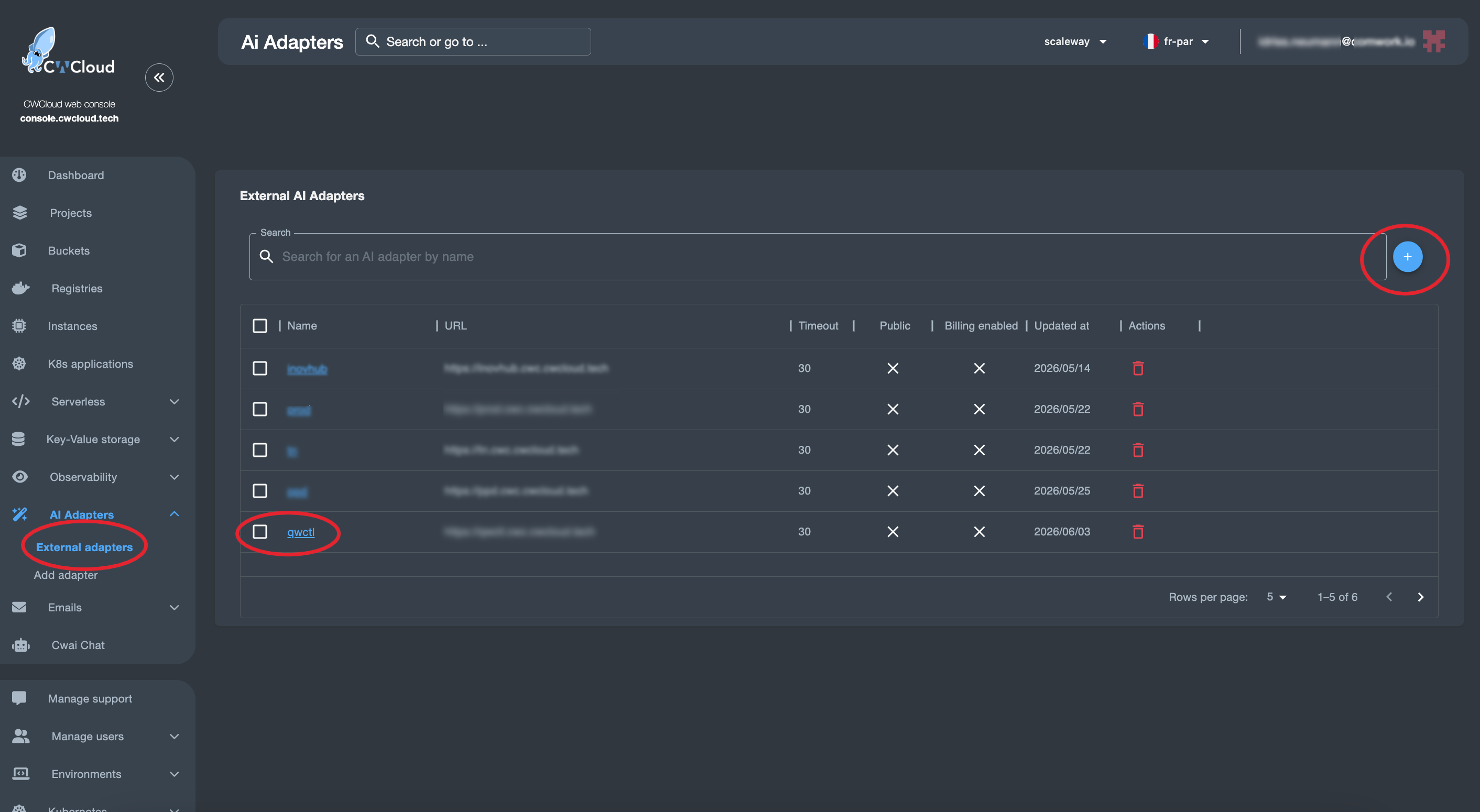
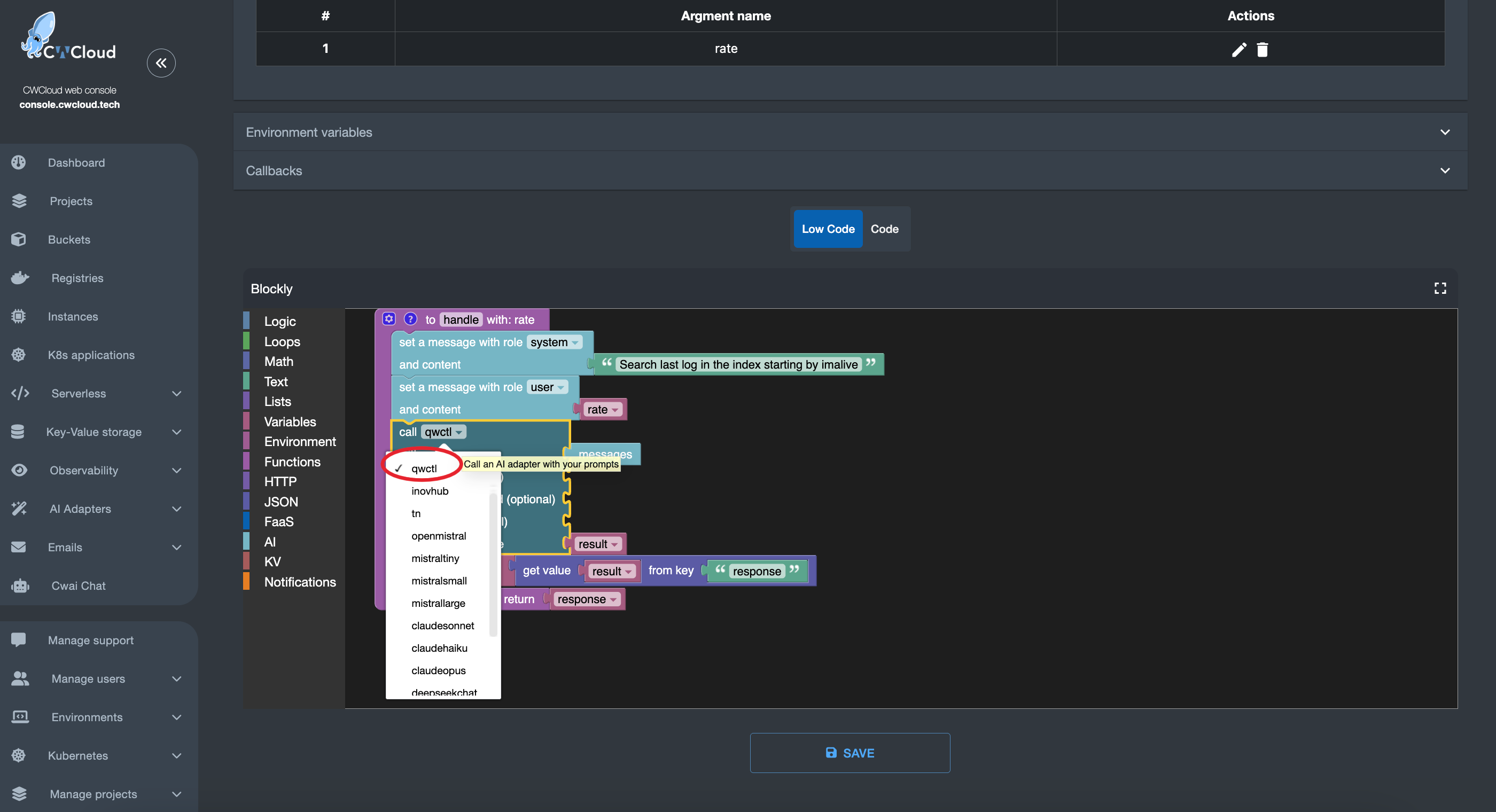
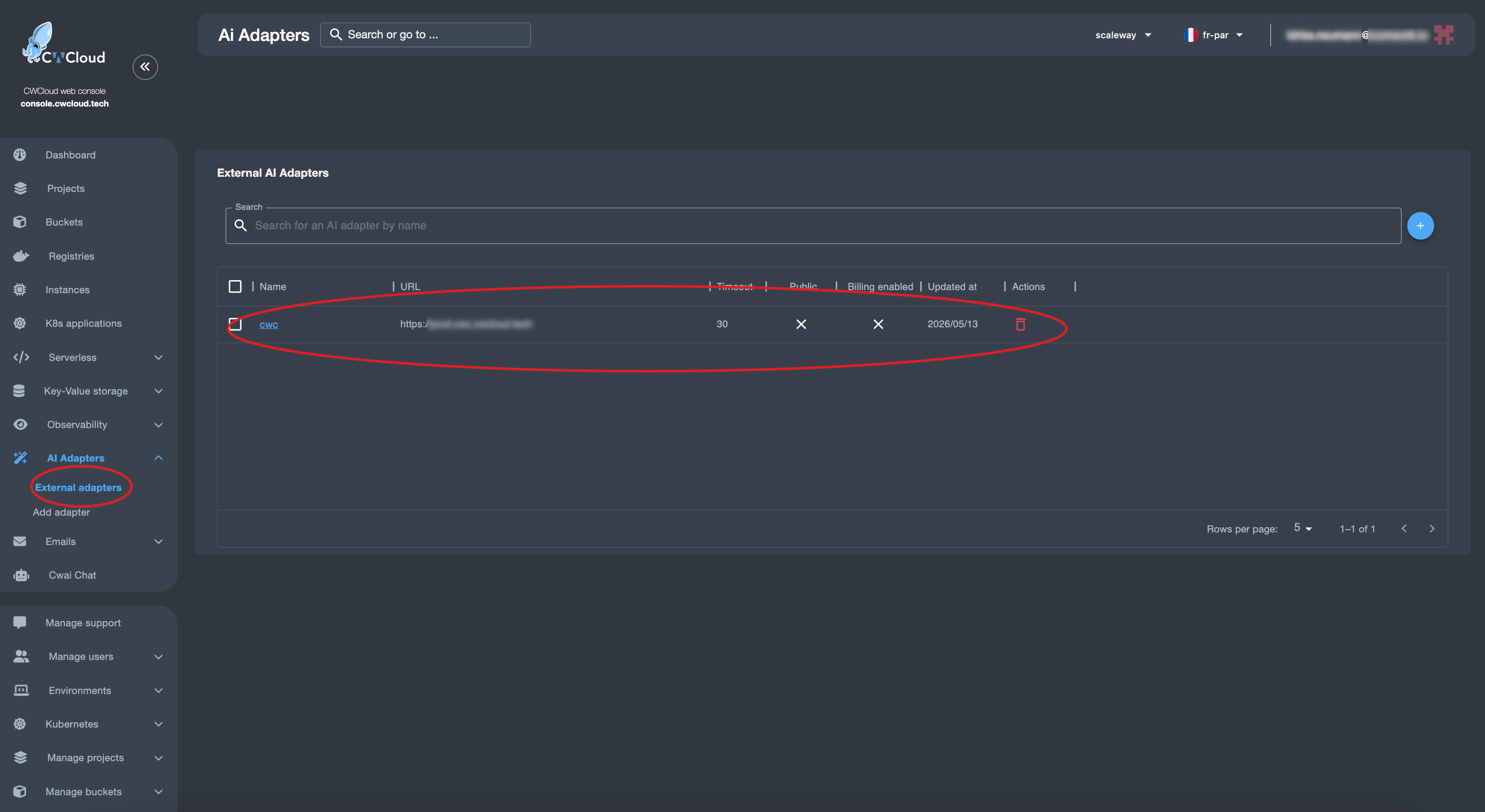
Then we can add the web agent as an external adapter:

cwc-external-adapter

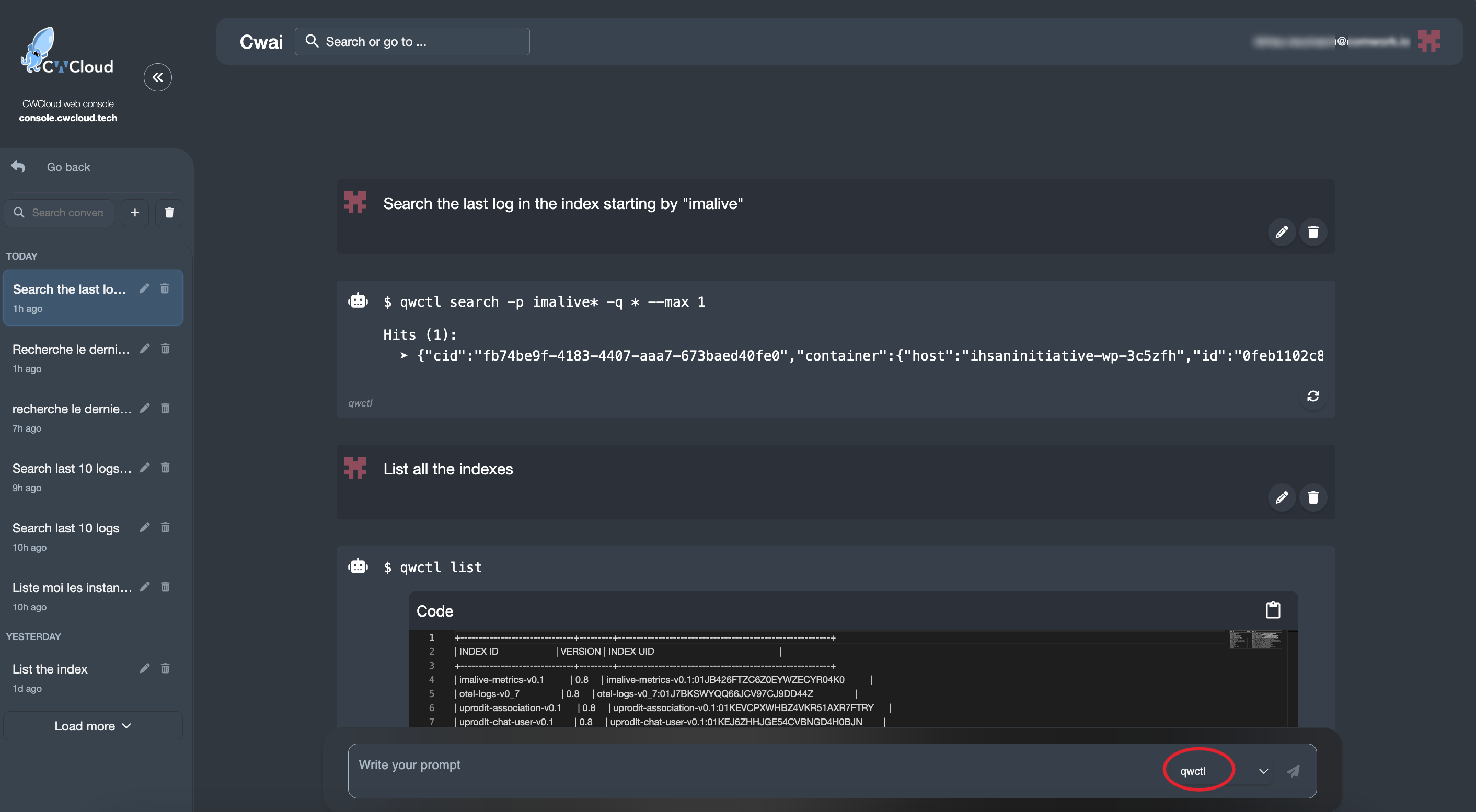
And then we can use it with the CWAI's chat:

cwc-web-agent-chat

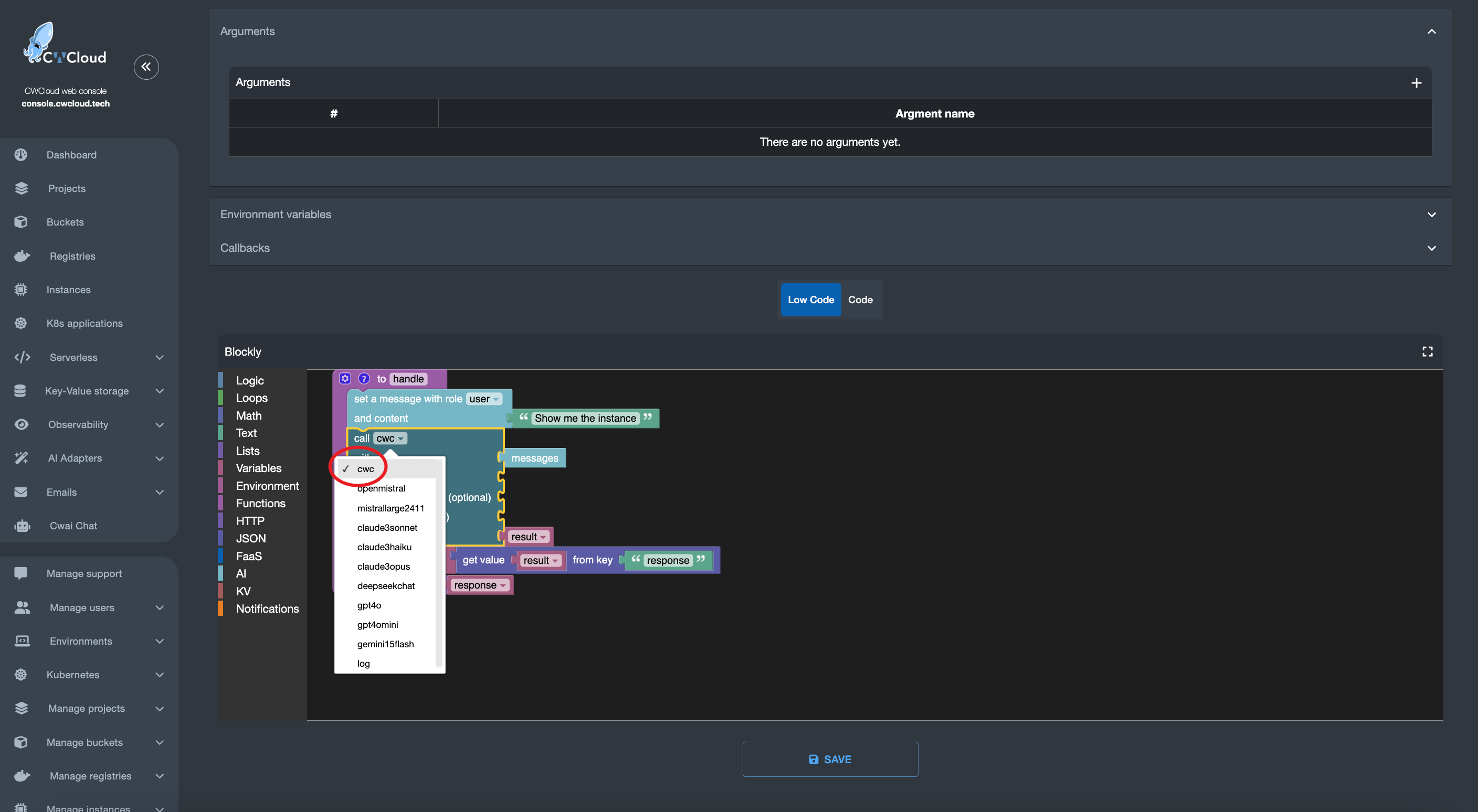
And of course you'll also be able to use it in the FaaS engine like this:

cwc-web-agent-faas

And that's how you can use cwc web agent as an external adapter for CWAI!

CWCloud MCP server and AI agent

· 4 min read
Idriss Neumann
founder cwcloud.tech

You might ask why we're still discussing MCP1 in 2026 when a lot of people repeatedly mention it's no longer useful and that AI agents can easily use the CLI instead of maintaining MCP servers.

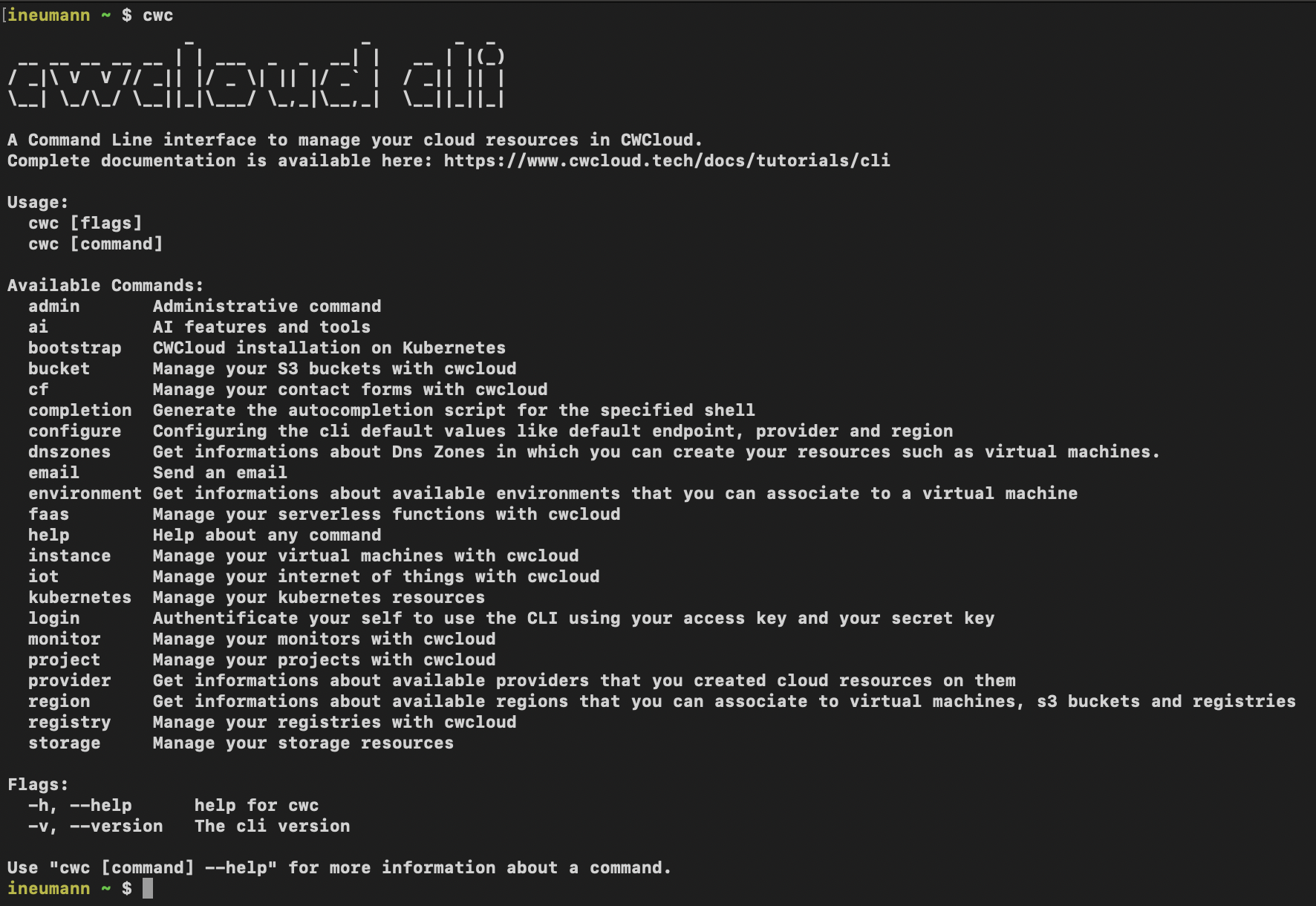
That's the main reason it took us so long to deliver an MCP server: we already maintain the cwc CLI2 and didn't want to duplicate the work by maintaining both a CLI and an MCP server.

cli

Initially, we tried to package all CLI features in Go packages that could be included in the MCP server. However, we quickly realized it was too much work and would require maintaining both artifacts each time we added a new feature.

After a few attempts, we realized we could dynamically generate the MCP server with tool definitions directly from the CLI, which is implemented in Go and Cobra. This way, we could compute all tool definitions from the CLI documentation and generate the MCP server on the fly without maintaining two separate codebases.

ai-cwc

Even better: developers can add subcommands and the MCP server will dynamically use them without any extra work.

And that's it, you just run this subcommand to start the MCP server:

$ cwc ai mcp
Starting cwc MCP server on http://127.0.0.1:8080/mcp

Of course, you can change the port and listen address like this:

$ cwc ai mcp -p 8081 -l 0.0.0.0
Starting cwc MCP server on http://0.0.0.0:8081/mcp

And we have a tool list_mcp_dynamic_tools that is listing all the available tools on the server.

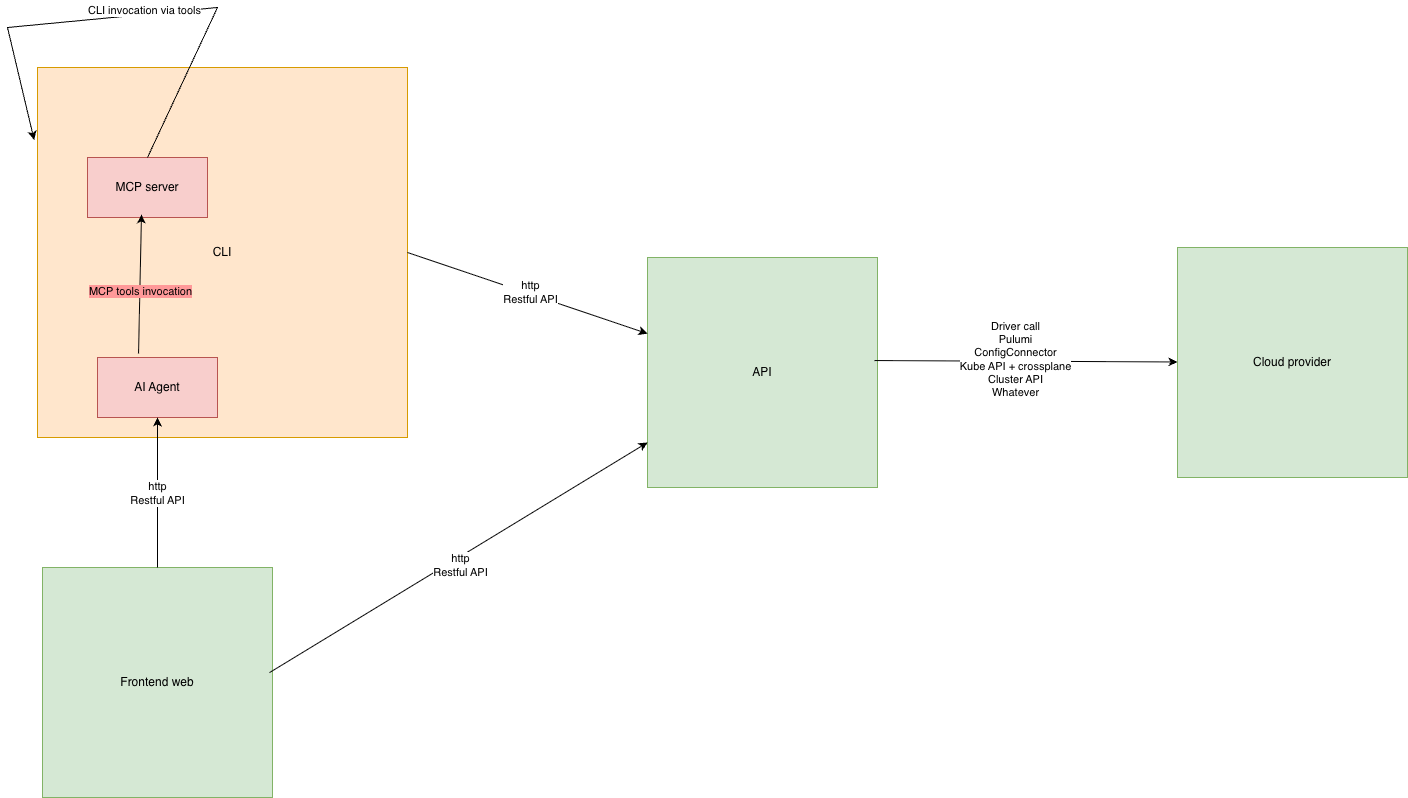
Now you might ask, "OK, fine, but why should I use the MCP server instead of directly using the CLI with an agent?". In our opinion, they're compatible and can work together. We believe providing MCP tools for your agents requires less effort than implementing a custom agent that calls the CLI and parses its output.

And of course we also provide a way to create agents that are able to call the MCP server with the cwc ai agent command:

$ cwc ai agent -p "your prompt"

The command works with OpenAI's gpt4omini by default but also supports any models from OpenAI, Anthropic, Google Gemini, Deepseek, Mistral or OpenRouter (which provides open-source models from Meta):

$ cwc ai agent -p "your prompt" --provider openrouter --model "meta-llama/llama-3.3-70b-instruct"

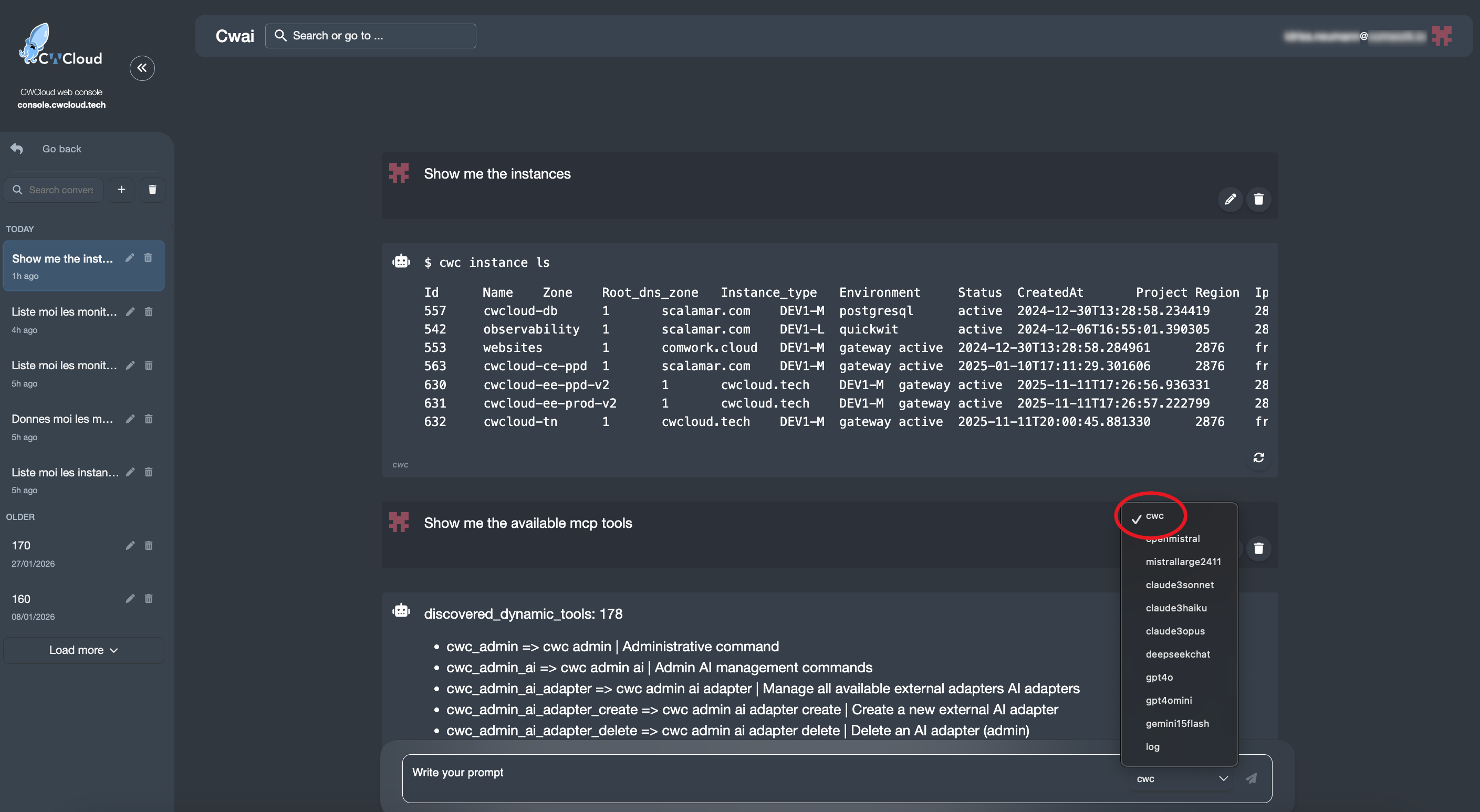
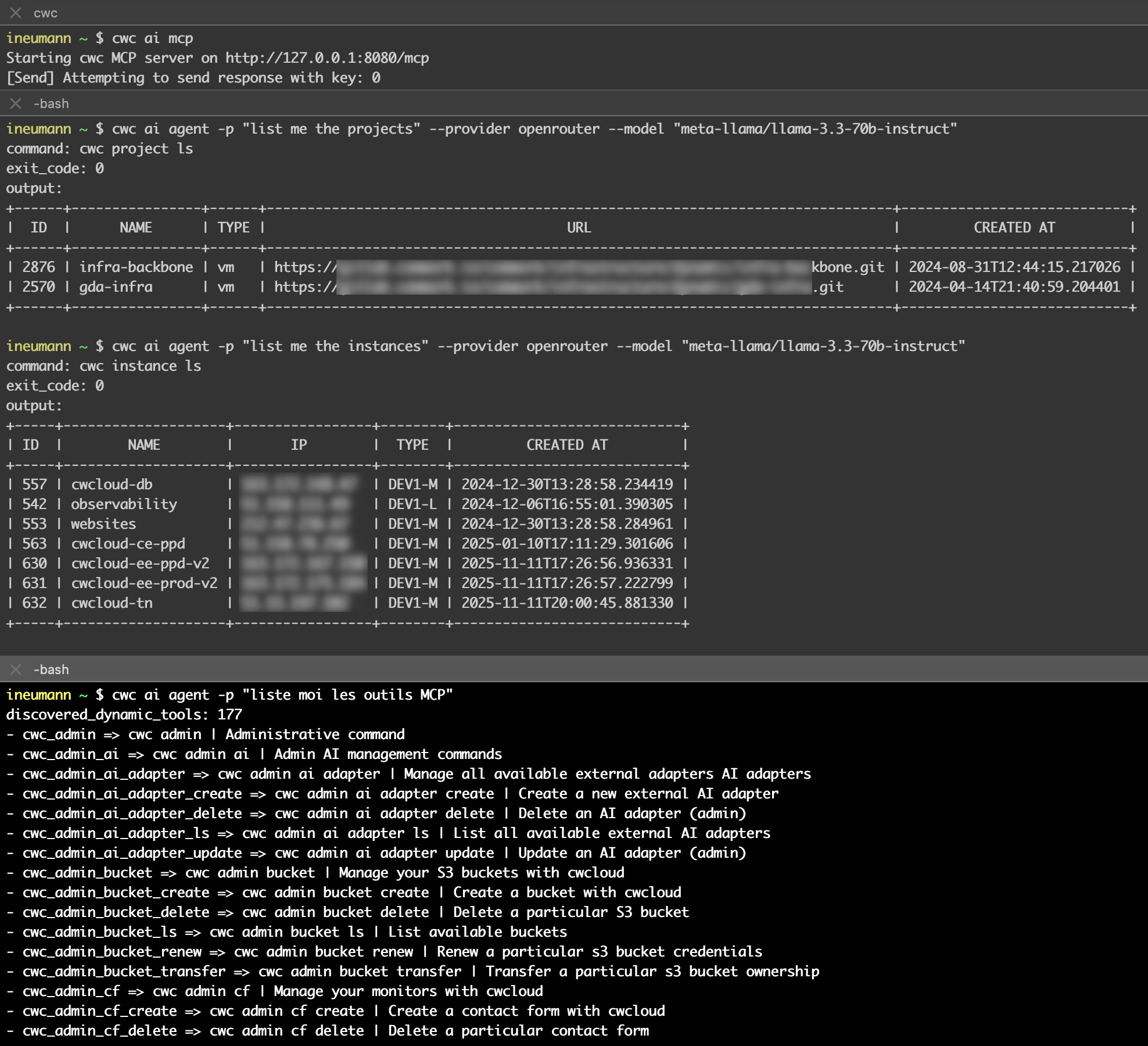
Here's a demo on how to use the MCP server with an agent to list the projects and instances and available MCP tools:

demo-mcp

Notes:

  • You can prompt in other languages like French, as shown in the demo.
  • You must expose the MCP server in a separate terminal. This allows you to target a remote MCP server using the -s flag (we'll add authentication later):
    cwc ai agent -p "list me the projects" -s "http://127.0.0.1:8081/mcp"
  • Complete documentation is available here.
warning

Don't forget that the CLI can also update or delete resources like instances, monitors, projects and anything else. So be careful with your prompts !

We also provide an interactive/REPL3 mode for the agent that allows execute multiple prompts in the same session (with -i or --interactive flag):

$ cwc ai agent -i
Using model: gpt-4o-mini (provider: openai)
Interactive mode enabled. Type your prompt and press Enter.
Type 'exit' or 'quit' to leave.
> get me the monitors
> list me all the available MCP tools

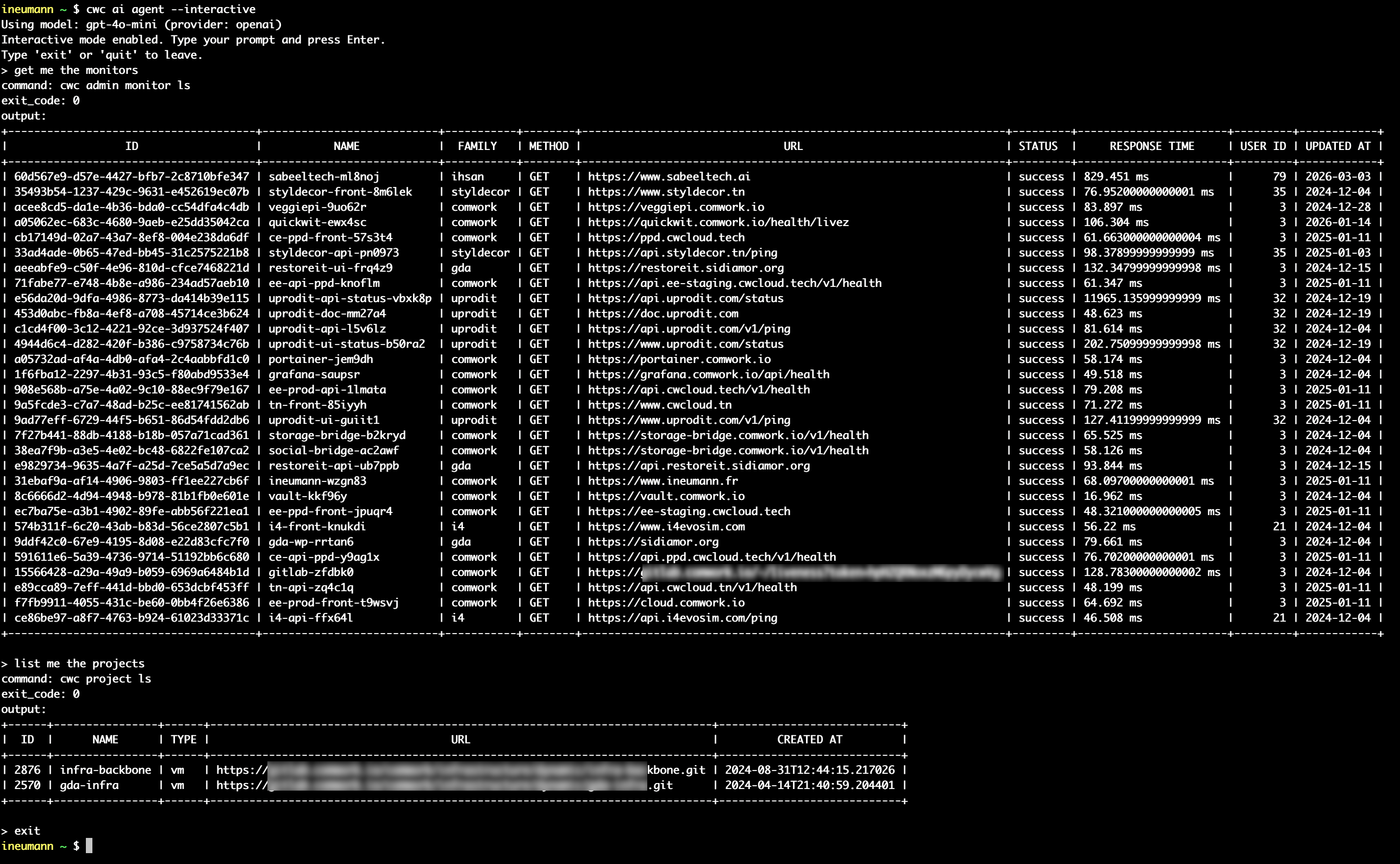
Demo:

demo-agent-repl

Conclusion: we anticipate that AI agents are the future face of platform engineering. Therefore, it seems important to us in this context that they are embedded in your CLI and prefer to invoke repeatable and understandable commands (in order to have them confirmed by the human) rather than opaque MCP tools that would be directly associated with your API endpoints definition or SDK (which are most of the time not easily repeatable).

Moreover, having the MCP server and the Agent in the same binary but running in different processes allows us to provide simple execution agents that can work with the least powerful and cheapest models on the market such as gpt-4o-mini, mistral-small, gemini-1.5-flash, deepseek (the cheapest) or a self-hosted llama. Indeed, these agents don't need a lot of reasoning capability to interpret language and transform it into command line invocation by selecting the right MCP tool. However it also allows to invoke this same MCP server in more complex agents that work with more powerful models that would produce more advanced troubleshooting reasoning and workflows coupled with possibly other MCP servers for observability tools for example.

We'll add many more features so stay tuned!

Footnotes

  1. MCP stands for "Model-Context Protocol" documented here.

  2. You can find here the installation documentation for cwc with our operating system.

  3. REPL stands for "Read-Eval-Print Loop", an interactive interface that allows you to execute commands and see the results in real-time.

Get your Apple Watch data using CWCloud FaaS engine

· 6 min read
Idriss Neumann
founder cwcloud.tech

This blog post will help us illustrate a concrete use case for using CWCloud's FaaS1 engine — both to expose serverless functions as public webhooks, and to show how to interact with LLMs2.

Besides IT, I enjoy doing sports regularly, especially running and powerlifting. For some time now, I’ve been using an Apple Watch SE to collect metrics and track my progress, especially in terms of endurance and cardio.

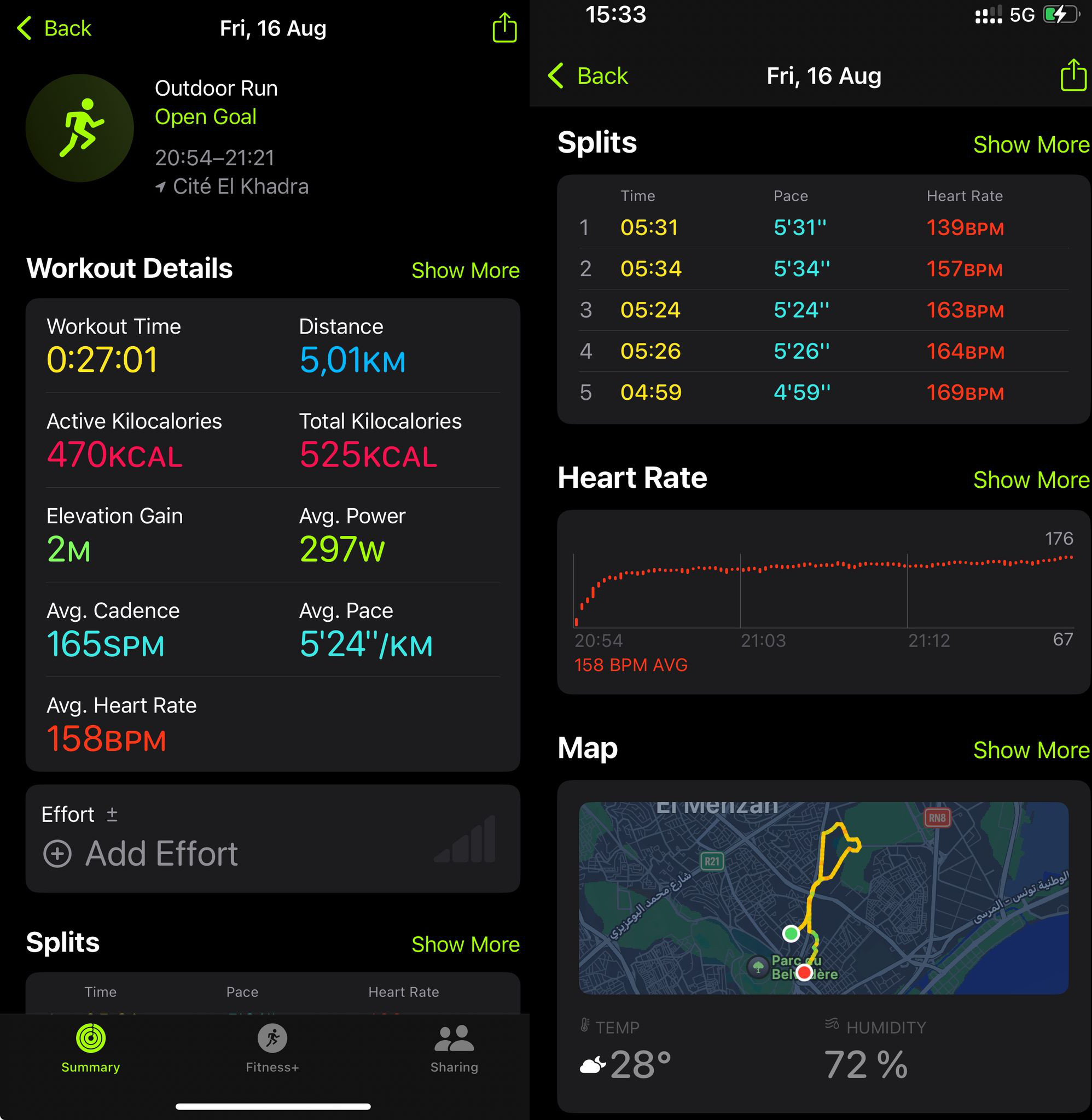
For a "non-tech" user, the level of detail and data presentation during an exercise is very satisfying. Here's, for example, a breakdown of what happens during a run: GPS positions, heart rate, and zones throughout the workout...

apple-activity-dashboard

The watch also provides tons of other data on sleep quality, resting heart rate, calories burned... but there’s always been one thing that frustrates me compared to other models I’ve used in the past, like Fitbit watches: no webservice nor API for developers. And yet, I’d really like to fetch those data in order to process it with LLMs using the CWCloud low-code FaaS engine.

However, no online API doesn’t necessarily mean it’s impossible to retrieve the data: we can see that many apps on the iPhone still manage to access the watch’s data, like Strava, MyFitnessPal...

Most of the time, these apps access data directly from the iPhone using Apple’s HealthKit framework and by requesting the proper permissions in Apple’s security settings.

Still, it requires quite a bit of effort for someone who’s not an iOS mobile developer to build and validate a Swift app just to send data to a webhook. So I looked to see if someone had already done that job — and someone had, with the Health Auto Export app.

The app has pretty bad reviews, but once you read the comments, it’s clear why: people didn’t understand what it’s for. It’s not about creating pretty statistical dashboards, but about exporting Apple health data in developer-friendly formats (CSV or JSON), and scheduling those exports to external connectors (REST/HTTP webhooks, MQTT files, Dropbox...).

In our case, that’s exactly what we needed. Here’s how to configure an HTTP webhook, for instance, to send the data to CWCloud in an automation that runs every minute:

health-auto-export

Every minute, the CWCloud serverless function receives a JSON payload in the following format:

{
"data" : {
"metrics" : [
{
"units" : "count\/min",
"data" : [
{
"Min" : 79,
"date" : "2025-06-30 23:17:40 +0200",
"Avg" : 79,
"Max" : 79,
"source" : "Idriss’s Apple Watch"
},
{
"Min" : 66,
"Max" : 66,
"Avg" : 66,
"source" : "Idriss’s Apple Watch",
"date" : "2025-06-30 23:23:45 +0200"
},
{
"Max" : 66,
"date" : "2025-06-30 23:26:52 +0200",
"source" : "Idriss’s Apple Watch",
"Min" : 66,
"Avg" : 66
}
],
"name" : "heart_rate"
}
]
}
}

In the automation, you'll notice I filtered only the heart_rate metric, because otherwise it would send many others — not just from the Apple Watch, but also from apps like MyFitnessPal, which tracks your macros (kcal, proteins, fats, carbs, calcium, etc.) from your diet. So there’s a lot of room for very interesting usecases here 😁.

That been said, this payload isn’t compatible with the interface contract of our serverless engine with the standard endpoints we’ve documented in several demos, where we expect function parameters in advance.

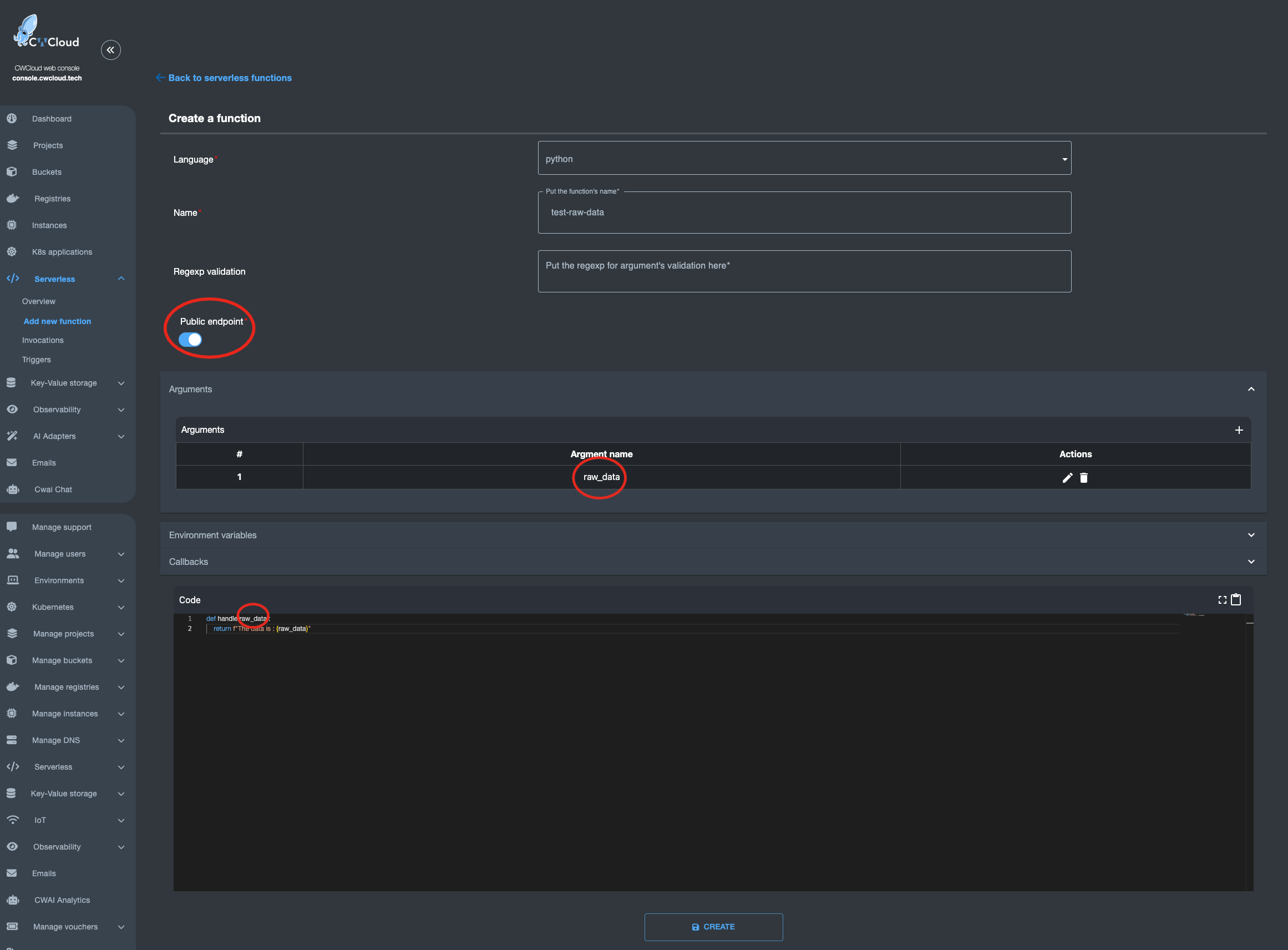
However, there is an endpoint /v1/faas/webhook/{function_id} (or /v1/faas/webhook/{function_id}/sync if you want to receive the function’s response directly in the HTTP response). In this case, your function just needs to be defined with a single raw_data argument like this:

faas-raw-data-arg

Once that’s done, it becomes very easy to invoke the function by passing whatever body you want — which you can then parse directly in your code:

$ curl "https://api.cwcloud.tech/v1/faas/webhook/ecb10330-02bf-400b-b6a8-d98107324ac3/sync" -X POST -d '{"foo":"bar"}' 2>/dev/null | jq .
{
"status": "ok",
"code": 200,
"entity": {
"id": "78774026-f75e-4c7c-850a-9b9eb2cb2ec0",
"invoker_id": 3,
"updated_at": "2025-07-05T14:39:53.119780",
"content": {
"args": [
{
"key": "raw_data",
"value": "{\"foo\":\"bar\"}"
}
],
"state": "complete",
"result": "The data is : {\"foo\":\"bar\"}\n",
"user_id": null,
"function_id": "ecb10330-02bf-400b-b6a8-d98107324ac3"
},
"created_at": "2025-07-05T14:39:52.443918"
}
}

As you’ve probably guessed, in the Health Auto Export app automation, it’s a URL like https://api.cwcloud.tech/v1/faas/webhook/{function_id} that you’ll need to define (no need for /sync at the end since you don’t care about waiting for the result).

Note: We also exposed the function as public so it could be called without authentication, but that’s not necessarily what you want. Don’t forget that you’re billed per token consumed — for example, if you use public LLMs — so you probably don’t want just anyone calling your webhook. You can totally keep the function private and add an X-User-Token header in the Health Auto Export app automation.

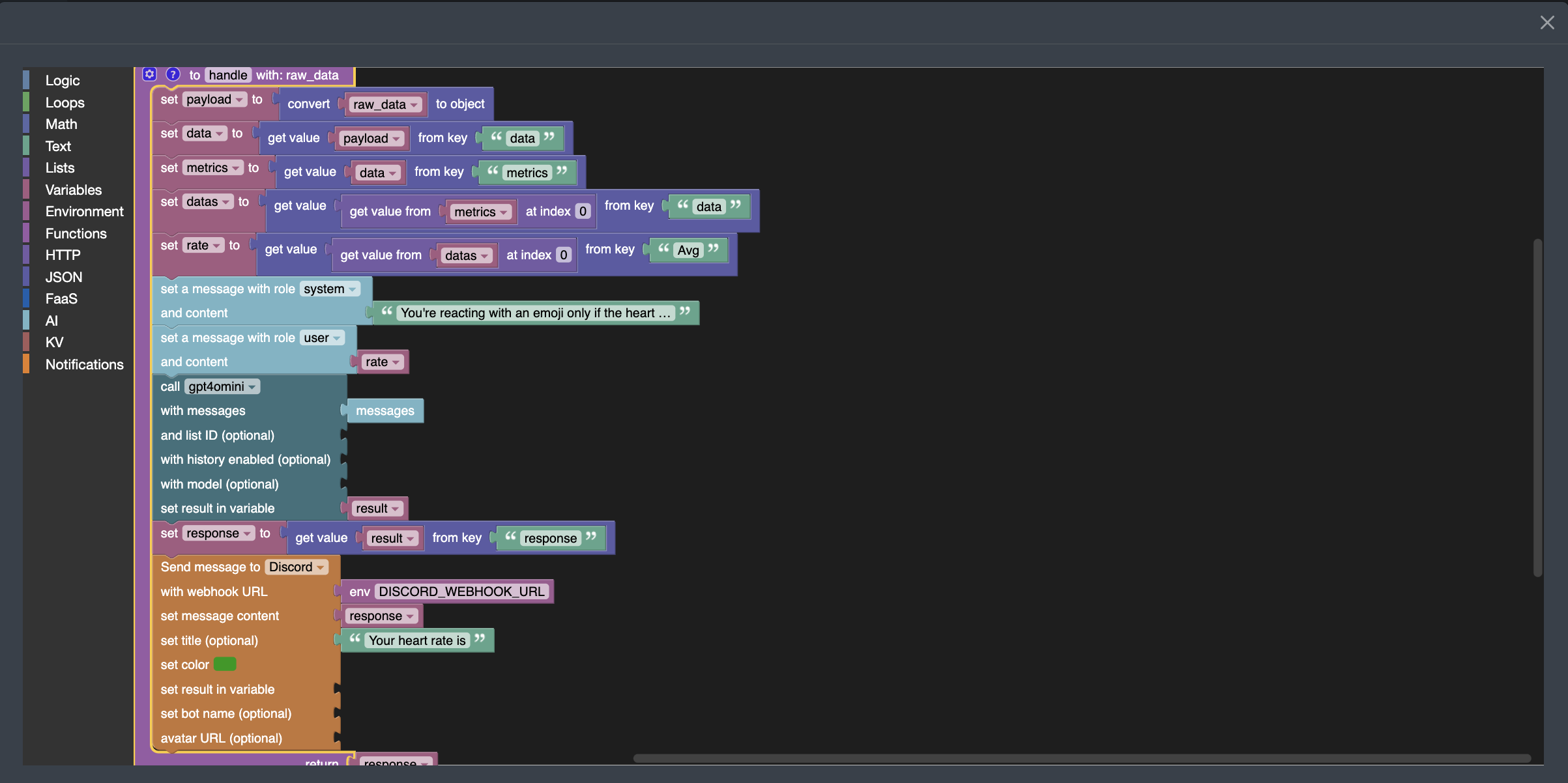
Now that we know how to create a webhook, here’s the Blockly3 code to extract the average heart rate, send it to the gpt4omini LLM. In this case, we asked the LLM to react with an emoji based on the value it receives, and send the result to Discord:

faas-blockly-heart-rate

You can see that I'm passing the following sentence "You're reacting with an emoji only if the heart rate is too slow or to high" as a system prompt and the fetched heart rate metric as a user prompt.

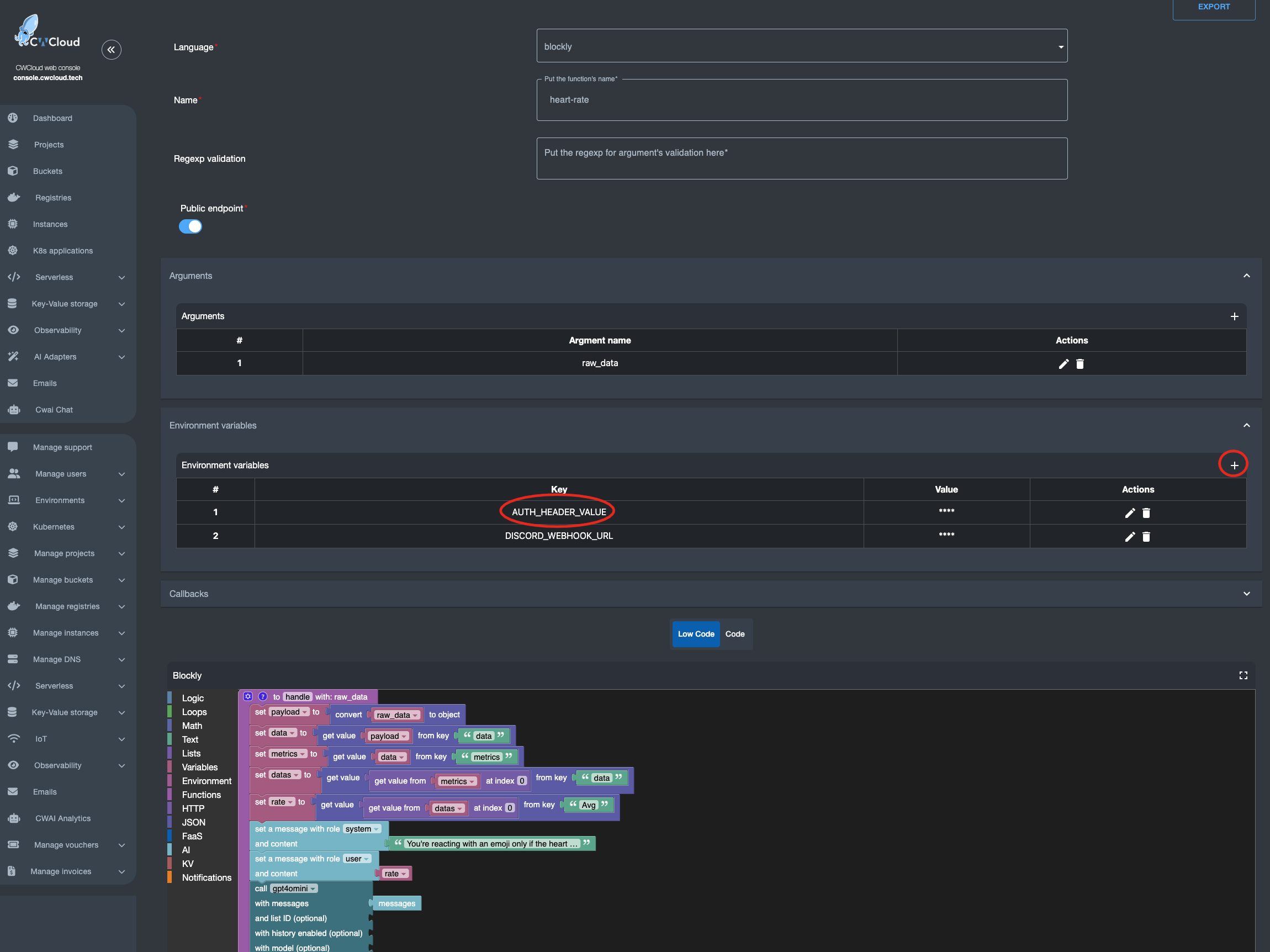
Moreover, you should know that AI blocks require authentication to invoke the CWCloud AI API. If you want to keep this webhook open to anyone, you’ll need to create an API key following this tutorial, and inject it into an environment variable called AUTH_HEADER_VALUE like this:

faas-authentication-cwai

In this case, anyone is able to invoke your webhook and your account will be billed for usage in the case you’re using public AI models. You can also choose to use your own LLM hosted on your own infrastructure instead — in which case it makes more sense to keep the webhook public 😇.

Also note: if the AUTH_HEADER_VALUE variable is set, it takes priority over user authentication when calling the webhook with an authenticated request.

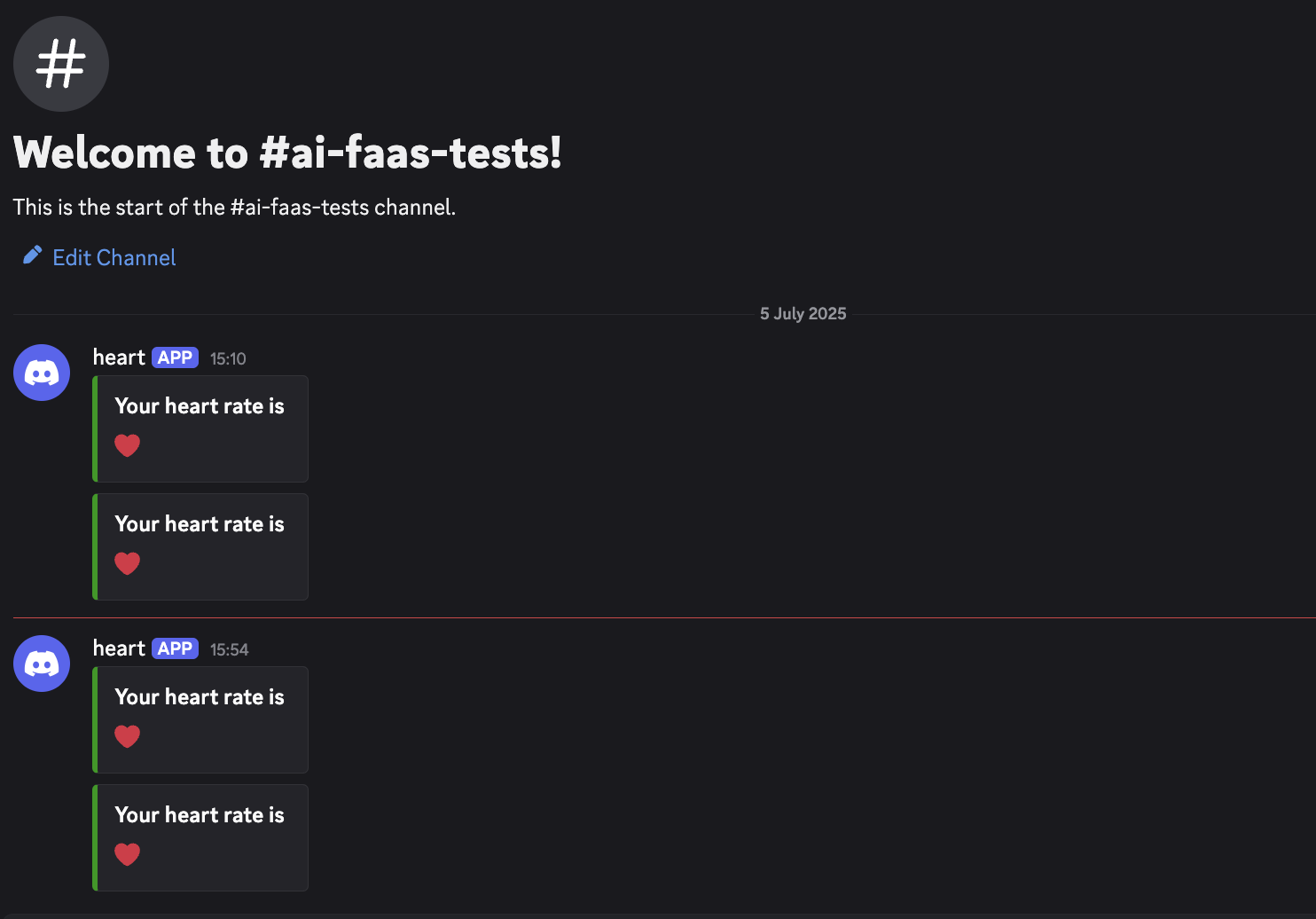
You can also see in the screenshot above that a Discord webhook was defined in another environment variable DISCORD_WEBHOOK_URL so it can be used to send the LLM’s response into Discord. Here’s the result:

faas-discord-heart-rate

We can see that so far, everything’s going just fine with my heart 😅

Footnotes

  1. Function as a Service

  2. Large Language Model

  3. Blockly is low-code language we're providing with CWCloud

Fork It Tunisia 2025, day summary

· 2 min read
Idriss Neumann
founder cwcloud.tech

We made it! Tunisia 🇹🇳 had his first developer and tech conference at the city of culture on the 5th of April.

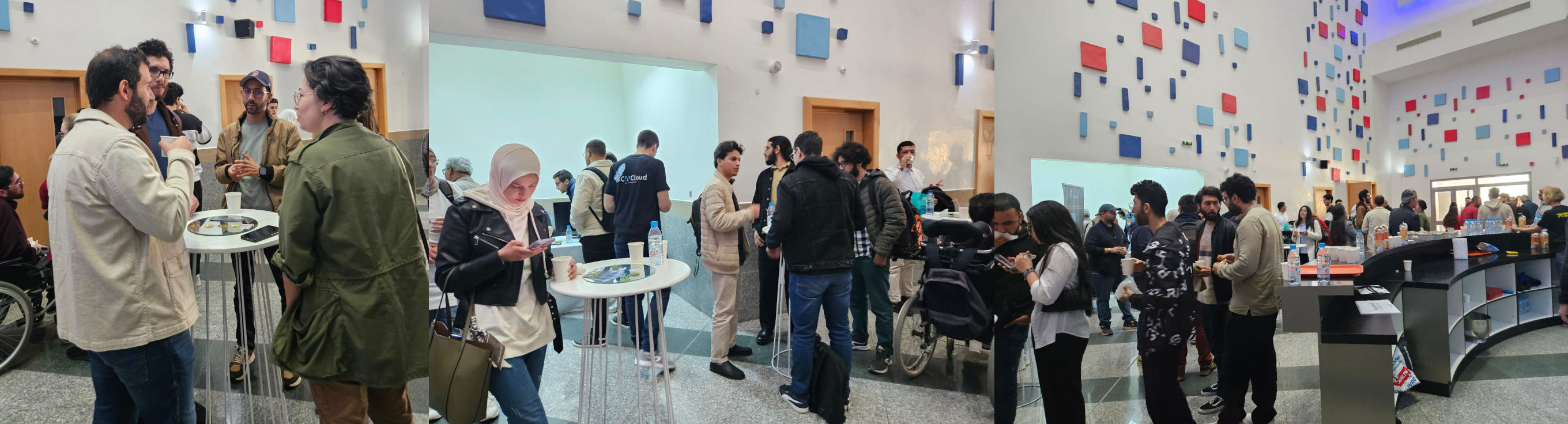
forkit-tn-2025-hall

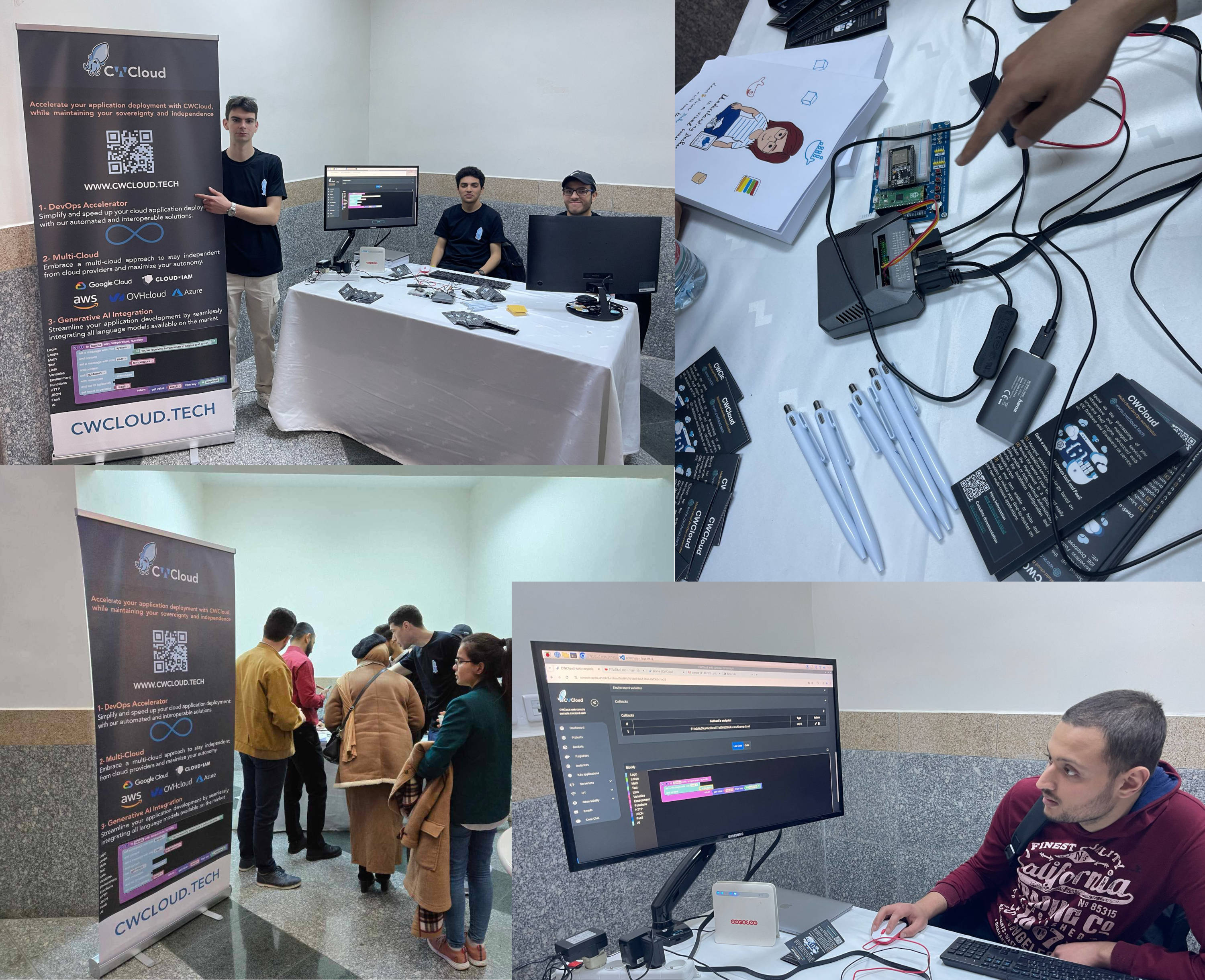
As we planned with a previous blogpost we had a beautiful booth in order to challenge attendees with a AI, serverless and IoT competition. We had lot of contenders who participated.

forkit-tn-2025-cwcloud-booth

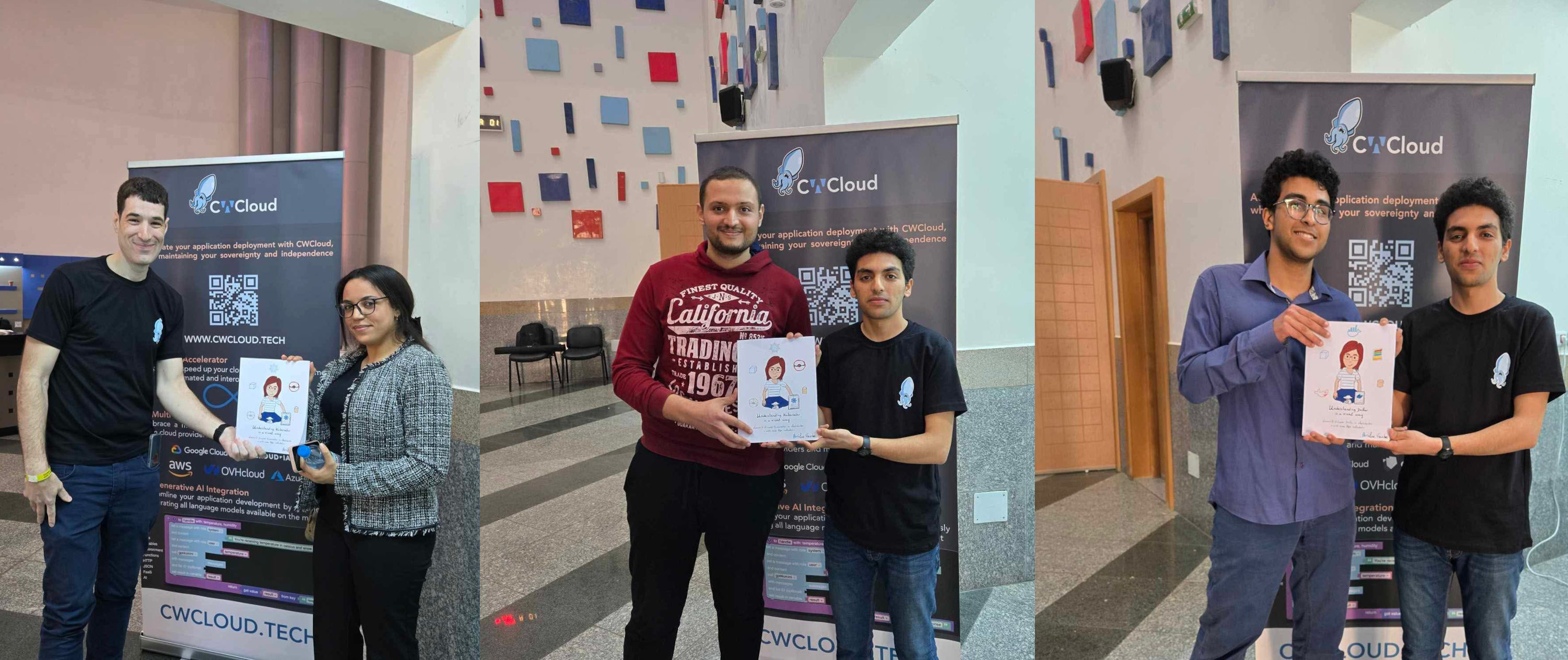
Let's congratulate again the winners: Zayneb, Ala Eddine and Yassmine1!

forkit-tn-2025-winners

The source code of the challenge is available on github and if you want more explanation, you can watch this short video (you can enable the English subtitles):

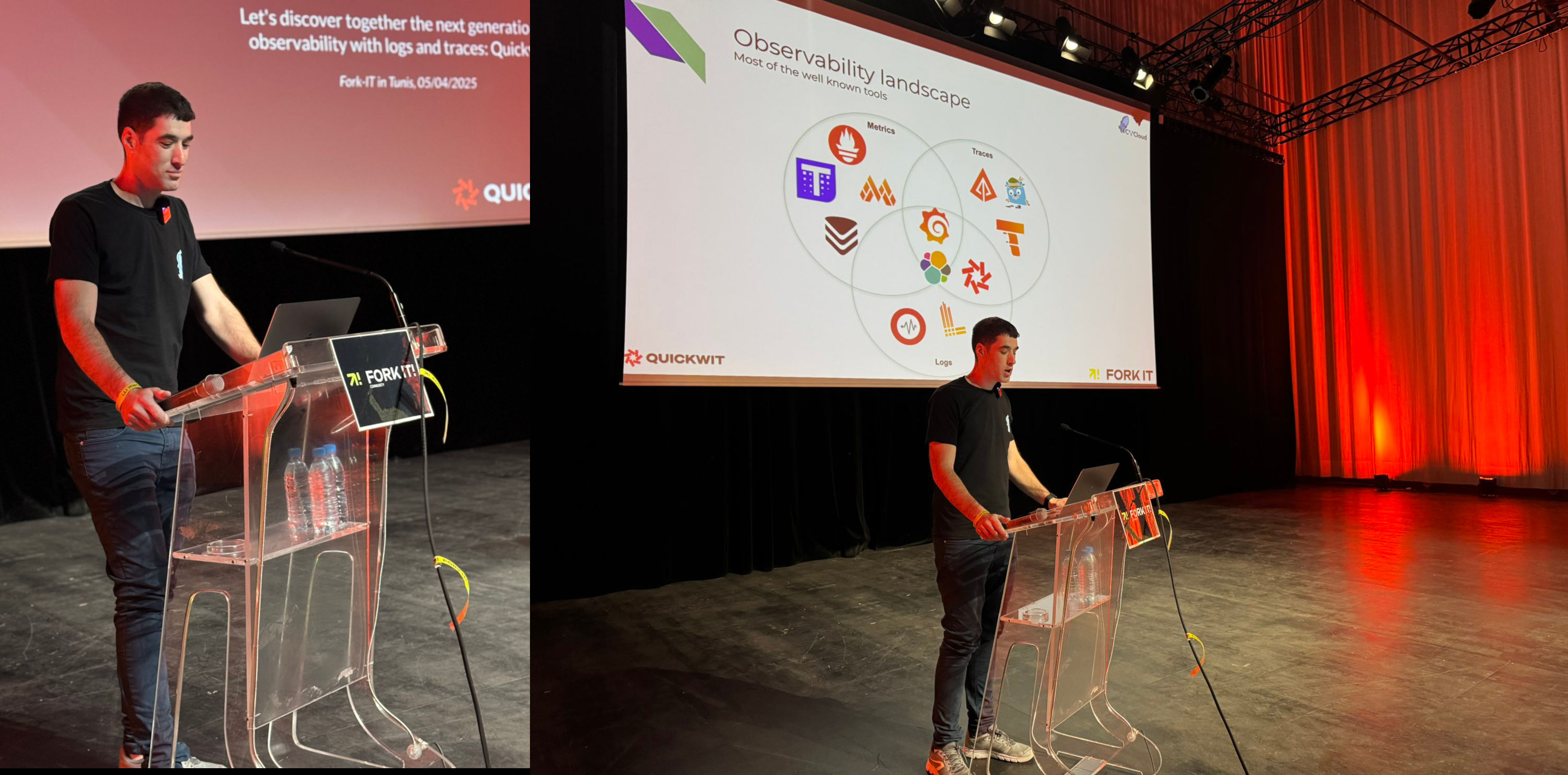
I also had the chance to get on stage and talk about Quickwit, Grafana, Jaeger and OpenTelemetry with another demo. It was planned to be in English but finally the public wanted to be in French. Sorry for those who want to get an English replay, there'll be other occasions 😅

forkit-tn-2025-talk-quickwit

There will be a replay, the slides and materials are available on github as well and if you want to get more informations about it, you can read this blogpost.

I also attended the great and inspiring keynote "how do you learn" with Olivier and Sonyth Huber and recommand you to watch the replay when it will be published.

And finally I also get my speaker friend Yacine to Sidi Bou Saïd, the most beautiful place in Tunis area. Yacine who also gave an amazing conference about how he ported Doom on a web browser using WASM (WebAssembly) which is an amazing technology.

forkit-tn-2025-sidibou

Now if you want to stay in touch especially if you enjoyed the CWCloud's demo and competition, we have a community discord server you can join.

Next events for me will be DevoxxFR as an attendee, SunnyTech and RivieraDev as a speaker. I hope to see many of you there 🤩.

Footnotes

  1. Yassmine couldn't stay to get the prize so her friend took it for here 😅.