3 posts tagged with "mcp"

View All Tags

CWCloud AI agent as Gitlab webhook for issue's comments

· 2 min read
Idriss Neumann
founder cwcloud.tech
warning

The cwc is OpenSource but for the on premises instances of CWCloud, you need to have the Enterprise Edition (EE) to use the AI agent features. Please contact us for more information.

In our previous blogpost, we explained how to use the cwc CLI as a web agent and how to use it in the CWAI features like the chat or the FaaS engine.

In this blogpost, we will see how to use the cwc CLI as a web agent as Gitlab webhook triggered by issue's comments and keywords.

So first, we need to configure the cwc with the following environment variables:

  • CWC_AGENT_NAME: the name of the agent which will be used as trigger (e.g: cwc-prod to be triggered by comments containing !cwc-prod in Gitlab issues)
  • CWC_GITLAB_TOKEN: a Gitlab token with the permission for pushing comments on issues
  • CWC_GITLAB_BASE_URL: the URL of the Gitlab instance (e.g: https://gitlab.cwcloud.tech)

Of course you can also use the CLI configure command like this:

$ cwc configure set agent_name cwc-prod
$ cwc configure set gitlab_token <your_gitlab_token>
$ cwc configure set gitlab_base_url https://gitlab.cwcloud.tech

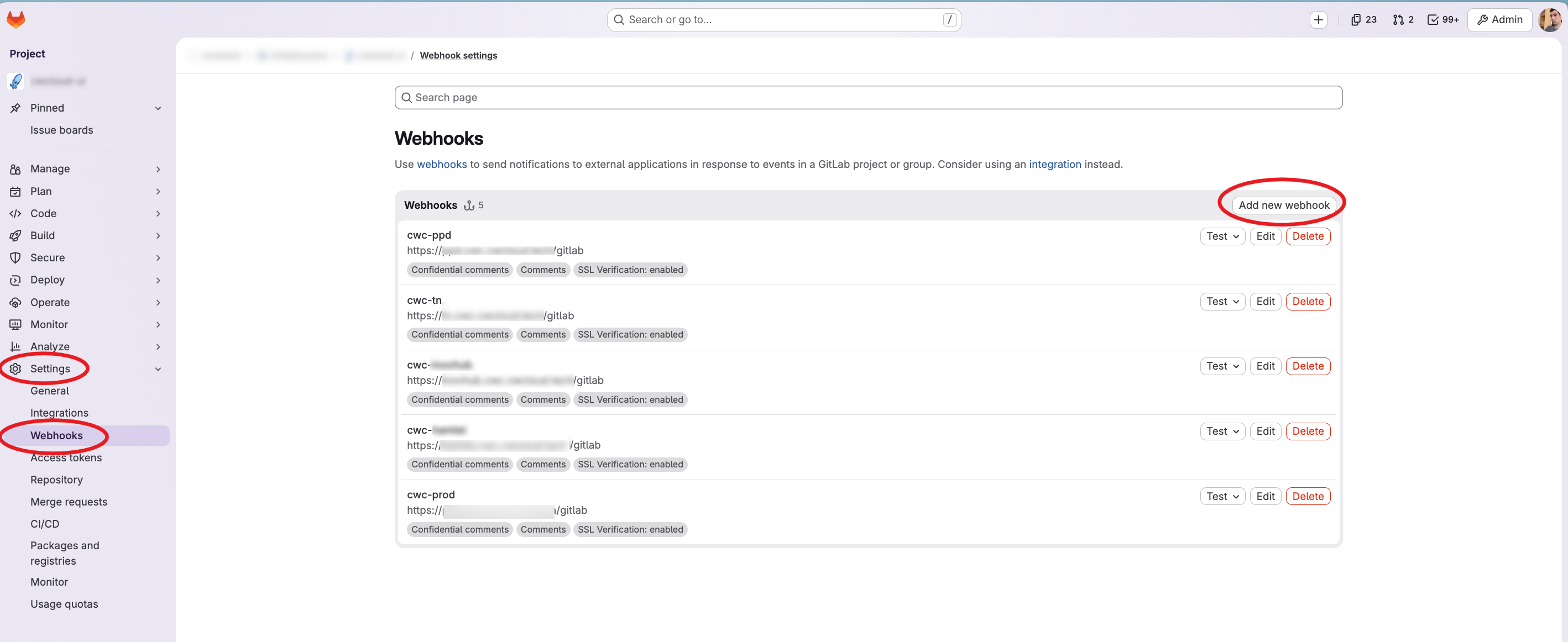
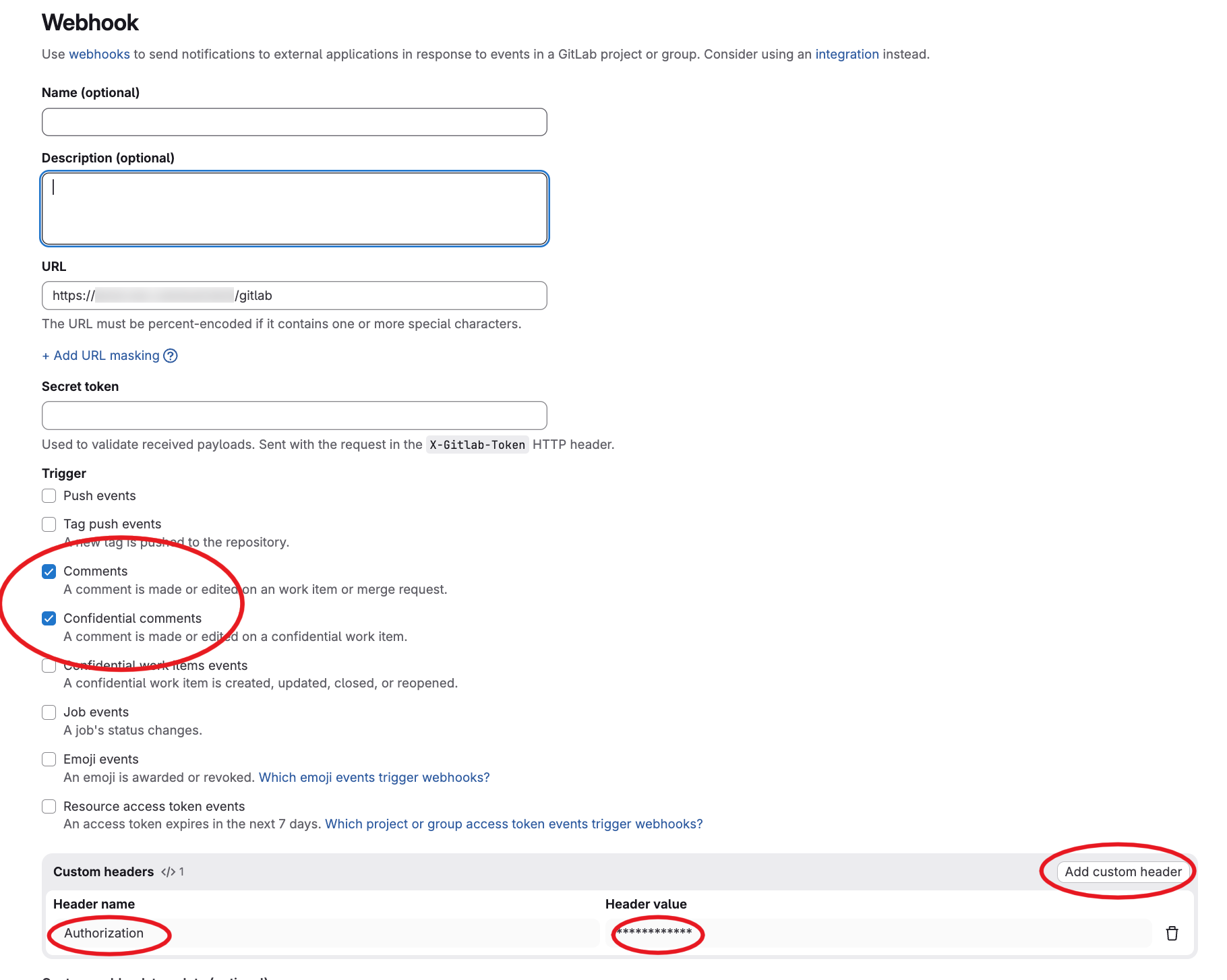
Then you have to configure the webhook in Gitlab like this:

gitlab-webhooks

gitlab-webhook-config

As you can see we configured the /gitlab endpoint path and we set also an Authorization header set with our reverse proxy. However, the web agent is also supporting the gitlab webhook secret for authentication (it's optional but remind that you have to setup an authentication one way or another).

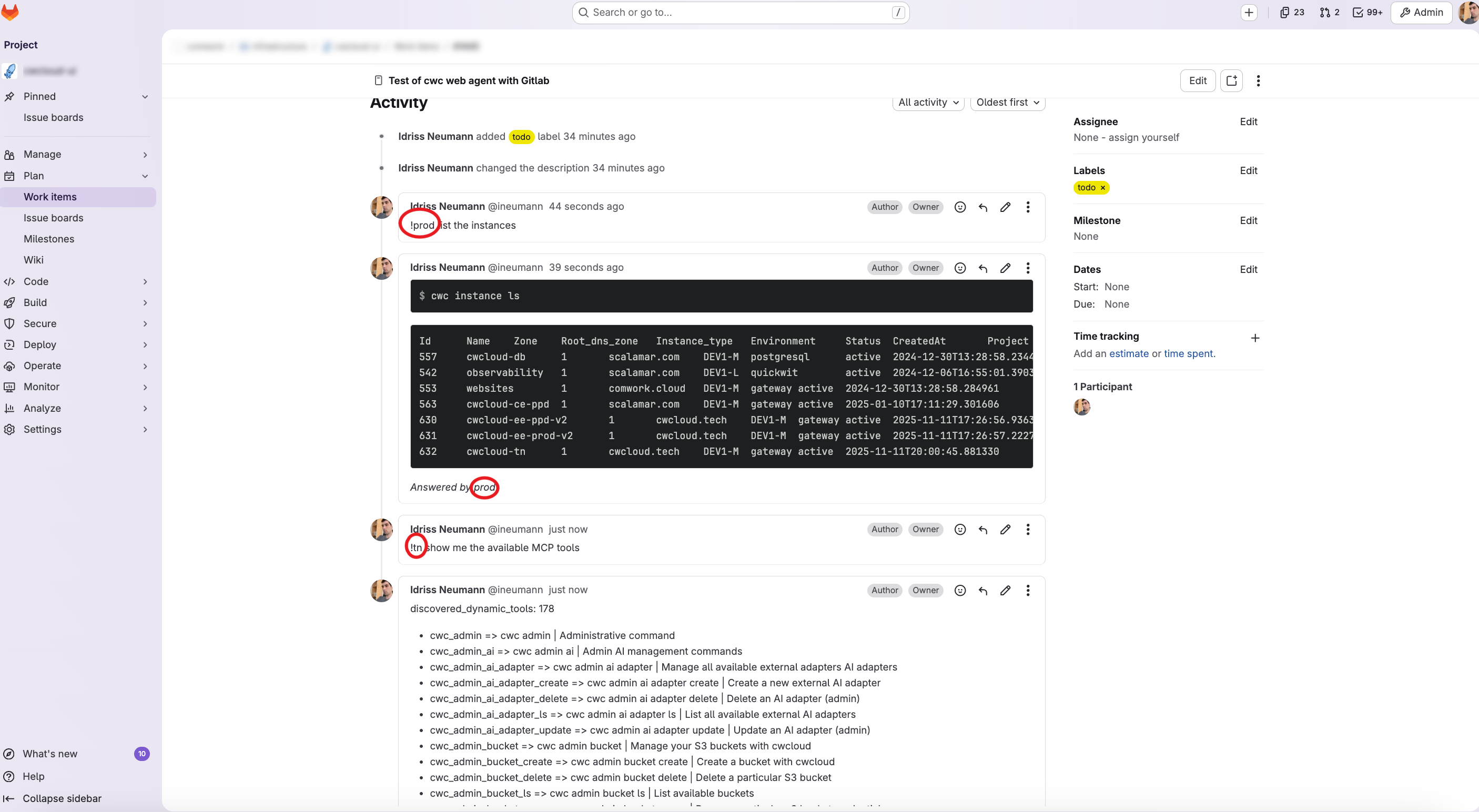
And finally here's what we got in the Gitlab issue's when we comment !{agent name}:

gitlab-issue-agent

warning

Again be caution with what you will prompt. In the coming release we will add a confimation mode in our agent.

In conclusion, users can work and intervene in production while staying in the central ticket board.

CWCloud AI agent as a Restful adapter for CWAI API

· 2 min read
Idriss Neumann
founder cwcloud.tech
warning

The cwc is OpenSource but for the on premises instances of CWCloud, you need to have the Enterprise Edition (EE) to use the AI agent features. Please contact us for more information.

In our previous blogpost, we introduced the CWCloud MCP server and agent. We explained how we implemented the MCP server and how to use it with an AI agent in cli mode.

In this blogpost, we will see how to use cwc as an external web agent compliant with CWAI API.

First, here's how the cwc CLI can be started as a web agent:

$ cwc ai web-agent

We can also specify the port and listen address:

$ cwc ai web-agent -a 0.0.0.0 -p 8081 -s http://localhost:8080/mcp

And then we can send http POST query like this to the web agent:

$ curl -X POST http://localhost:8081 -H "Content-Type: application/json" -d '{ "settings": { "max_tokens": 500 }, "message": "Hello"}'

The web agent will answer like this (following the external adapter contract):

{
"status": "ok",
"message": "Hello! How can I assist you today?",
"usage": {
"prompt_tokens": 8,
"completion_tokens": 10,
"total_tokens": 18
}
}

In order to host the cli as MCP server and web agent at the same time, here's an example of docker compose file:

services:
cwc_mcp:
image: "rg.fr-par.scw.cloud/cwcloud-ce-u7u1q0/cwc:1.19.13"
restart: always
container_name: cwc_mcp
env_file:
- .env.cwc
volumes:
- "/etc/ssl/certs/ca-bundle.crt:/etc/ssl/certs/ca-bundle.crt:ro"
- "/etc/ssl/certs/ca-bundle.trust.crt:/etc/ssl/certs/ca-bundle.trust.crt:ro"
command: ["ai", "mcp", "-l", "0.0.0.0", "-p", "8080"]
networks:
- cwc_network
cwc_agent:
image: "rg.fr-par.scw.cloud/cwcloud-ce-u7u1q0/cwc:1.19.13"
restart: always
container_name: cwc_agent
env_file:
- .env.cwc
volumes:
- "/etc/ssl/certs/ca-bundle.crt:/etc/ssl/certs/ca-bundle.crt:ro"
- "/etc/ssl/certs/ca-bundle.trust.crt:/etc/ssl/certs/ca-bundle.trust.crt:ro"
command: ["ai", "web-agent", "-a", "0.0.0.0", "-p", "8081", "-s", "http://cwc_mcp:8080"]
ports:
- "8081:8081"
networks:
- cwc_network

networks:
cwc_network:
driver: bridge

In the .env.cwc you can set all the required environment variables for the cwc CLI, such as the API key and the default model to use. You can refer to this documentation to get more details.

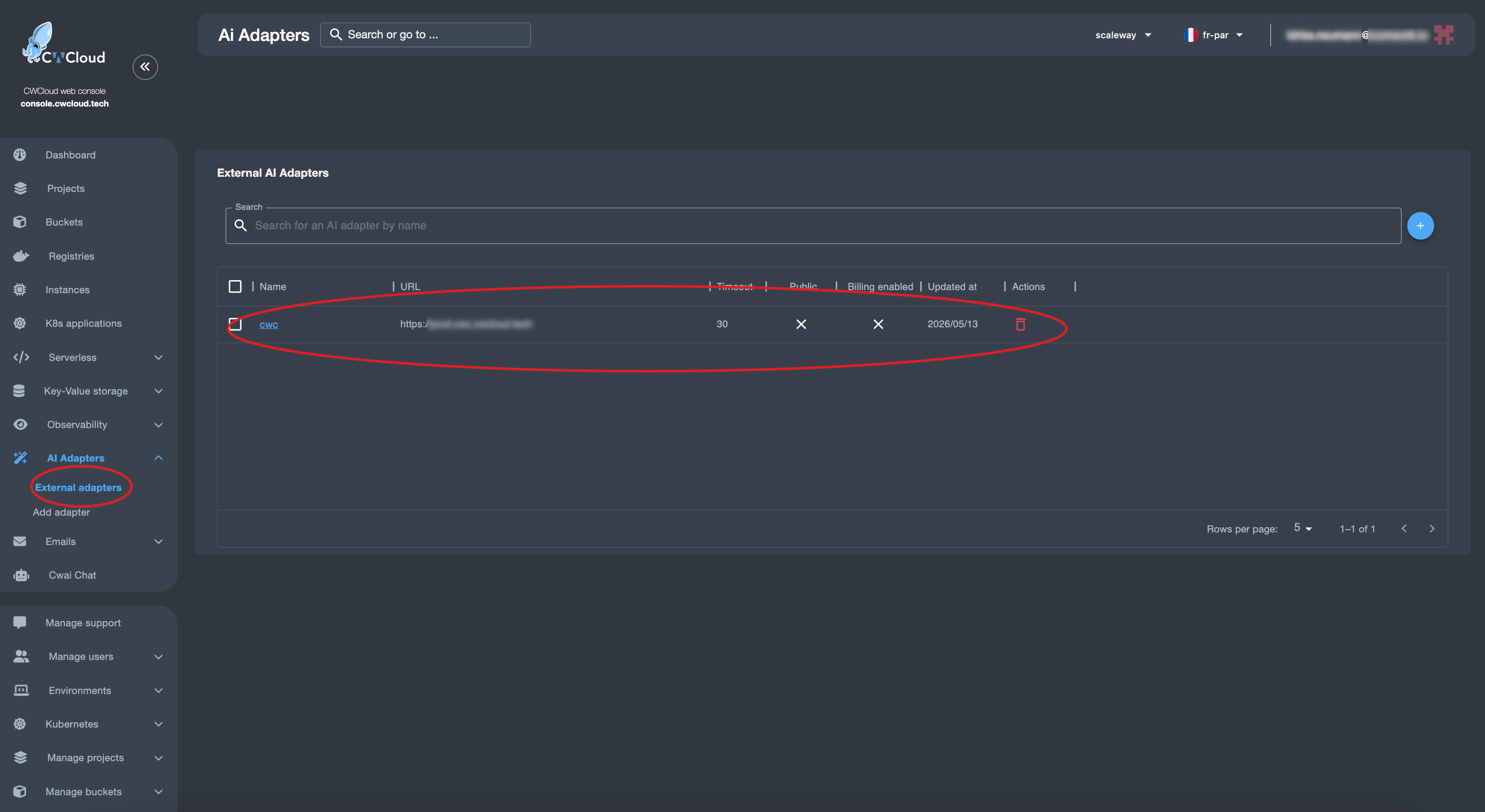
Then we can add the web agent as an external adapter:

cwc-external-adapter

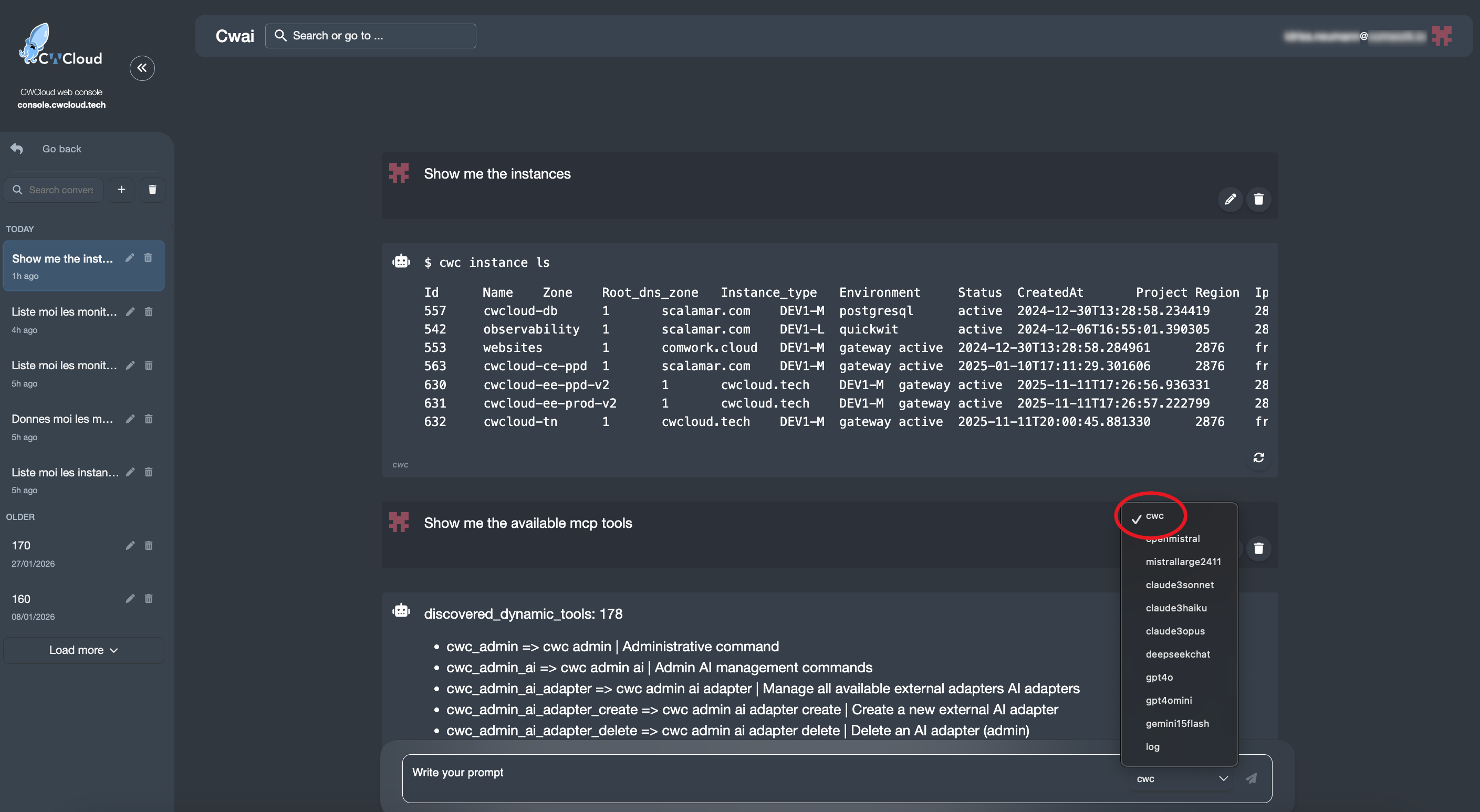
And then we can use it with the CWAI's chat:

cwc-web-agent-chat

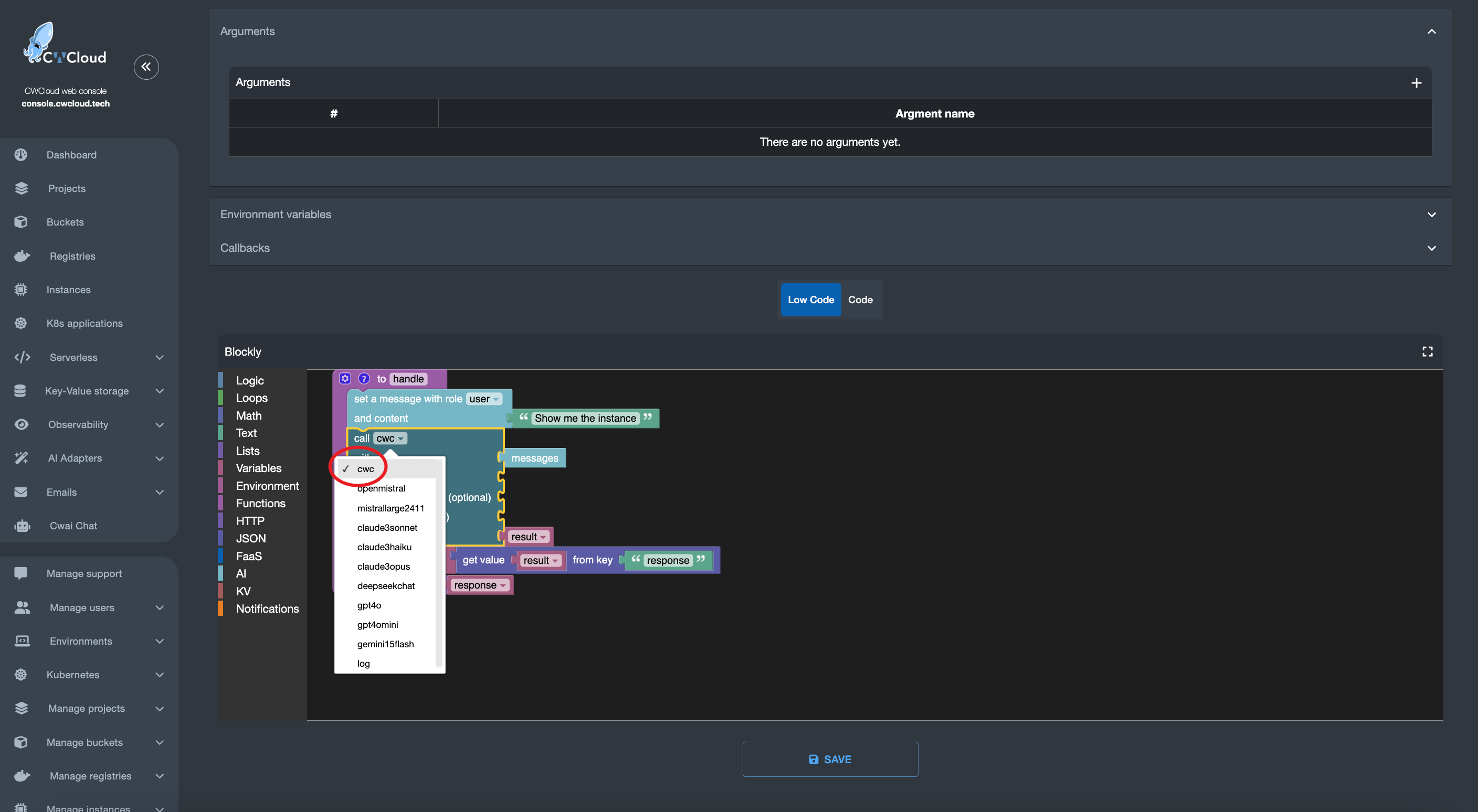
And of course you'll also be able to use it in the FaaS engine like this:

cwc-web-agent-faas

And that's how you can use cwc web agent as an external adapter for CWAI!

CWCloud MCP server and AI agent

· 4 min read
Idriss Neumann
founder cwcloud.tech

You might ask why we're still discussing MCP1 in 2026 when a lot of people repeatedly mention it's no longer useful and that AI agents can easily use the CLI instead of maintaining MCP servers.

That's the main reason it took us so long to deliver an MCP server: we already maintain the cwc CLI2 and didn't want to duplicate the work by maintaining both a CLI and an MCP server.
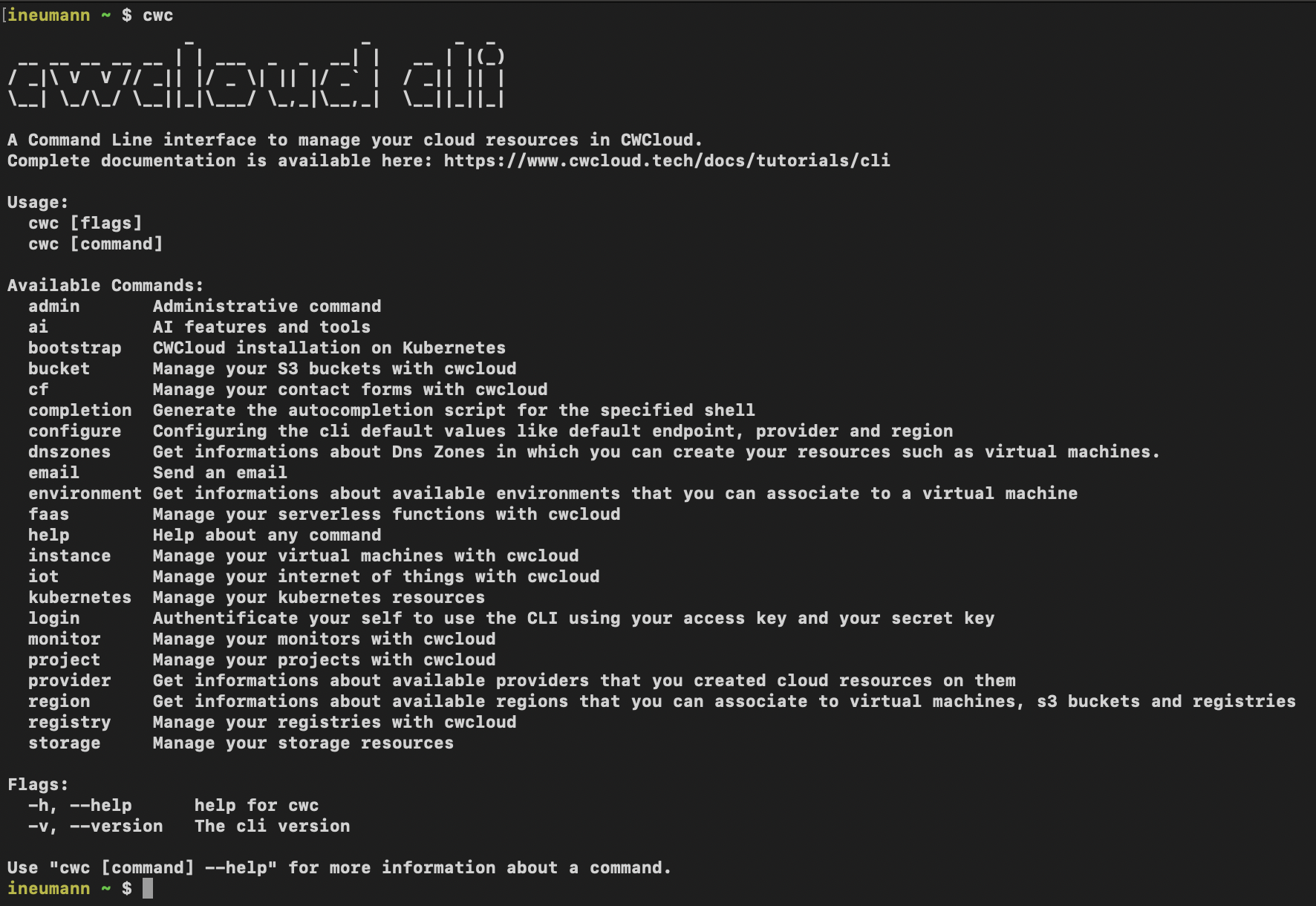
cli

Initially, we tried to package all CLI features in Go packages that could be included in the MCP server. However, we quickly realized it was too much work and would require maintaining both artifacts each time we added a new feature.

After a few attempts, we realized we could dynamically generate the MCP server with tool definitions directly from the CLI, which is implemented in Go and Cobra. This way, we could compute all tool definitions from the CLI documentation and generate the MCP server on the fly without maintaining two separate codebases.
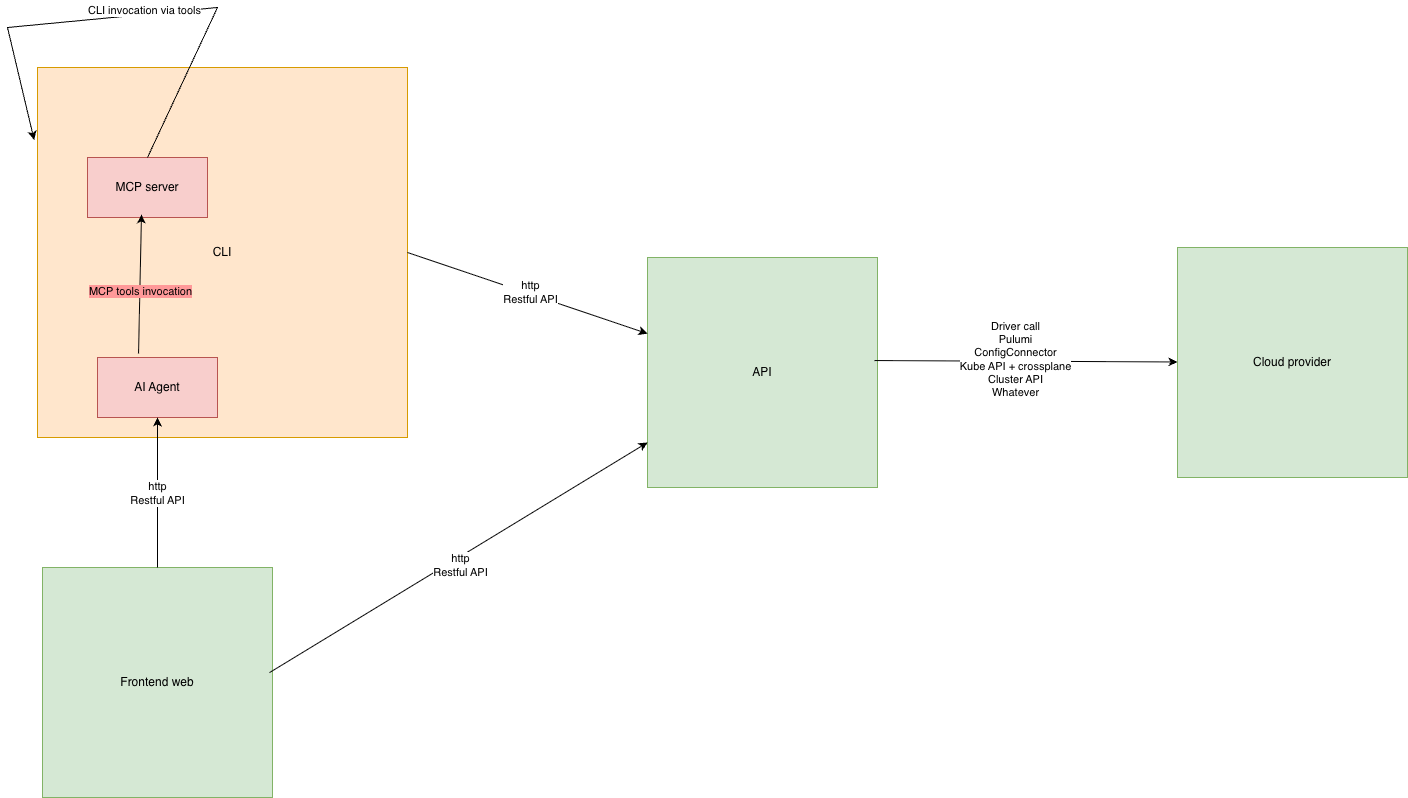
ai-cwc

Even better: developers can add subcommands and the MCP server will dynamically use them without any extra work.

And that's it, you just run this subcommand to start the MCP server:

$ cwc ai mcp
Starting cwc MCP server on http://127.0.0.1:8080/mcp

Of course, you can change the port and listen address like this:

$ cwc ai mcp -p 8081 -l 0.0.0.0
Starting cwc MCP server on http://0.0.0.0:8081/mcp

And we have a tool list_mcp_dynamic_tools that is listing all the available tools on the server.

Now you might ask, "OK, fine, but why should I use the MCP server instead of directly using the CLI with an agent?". In our opinion, they're compatible and can work together. We believe providing MCP tools for your agents requires less effort than implementing a custom agent that calls the CLI and parses its output.

And of course we also provide a way to create agents that are able to call the MCP server with the cwc ai agent command:

$ cwc ai agent -p "your prompt"

The command works with OpenAI's gpt4omini by default but also supports any models from OpenAI, Anthropic, Google Gemini, Deepseek, Mistral or OpenRouter (which provides open-source models from Meta):

$ cwc ai agent -p "your prompt" --provider openrouter --model "meta-llama/llama-3.3-70b-instruct"

Here's a demo on how to use the MCP server with an agent to list the projects and instances and available MCP tools:
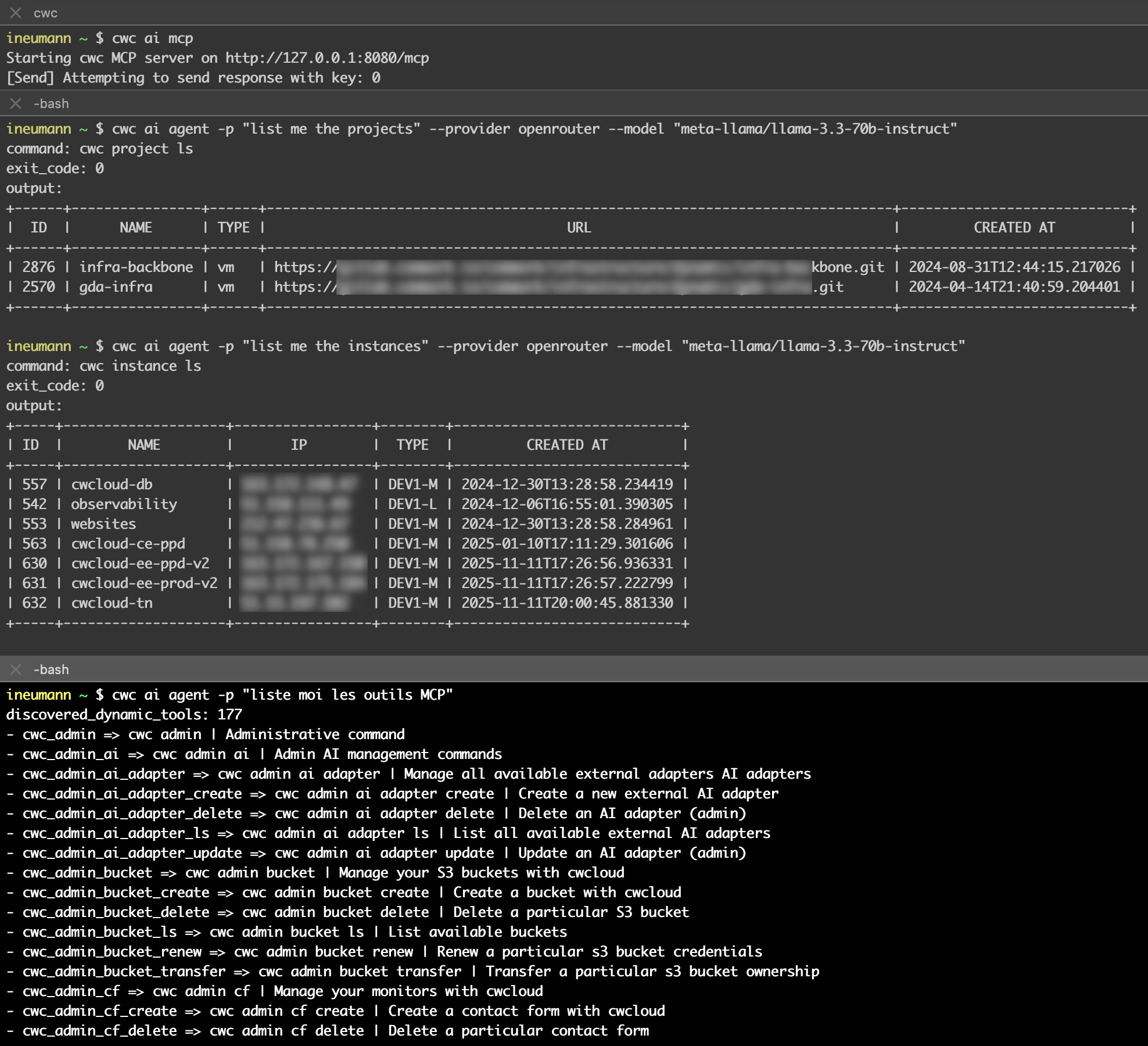
demo-mcp

Notes:

  • You can prompt in other languages like French, as shown in the demo.
  • You must expose the MCP server in a separate terminal. This allows you to target a remote MCP server using the -s flag (we'll add authentication later):
    cwc ai agent -p "list me the projects" -s "http://127.0.0.1:8081/mcp"
  • Complete documentation is available here.
warning

Don't forget that the CLI can also update or delete resources like instances, monitors, projects and anything else. So be careful with your prompts !

We also provide an interactive/REPL3 mode for the agent that allows execute multiple prompts in the same session (with -i or --interactive flag):

$ cwc ai agent -i
Using model: gpt-4o-mini (provider: openai)
Interactive mode enabled. Type your prompt and press Enter.
Type 'exit' or 'quit' to leave.
> get me the monitors
> list me all the available MCP tools

Demo:
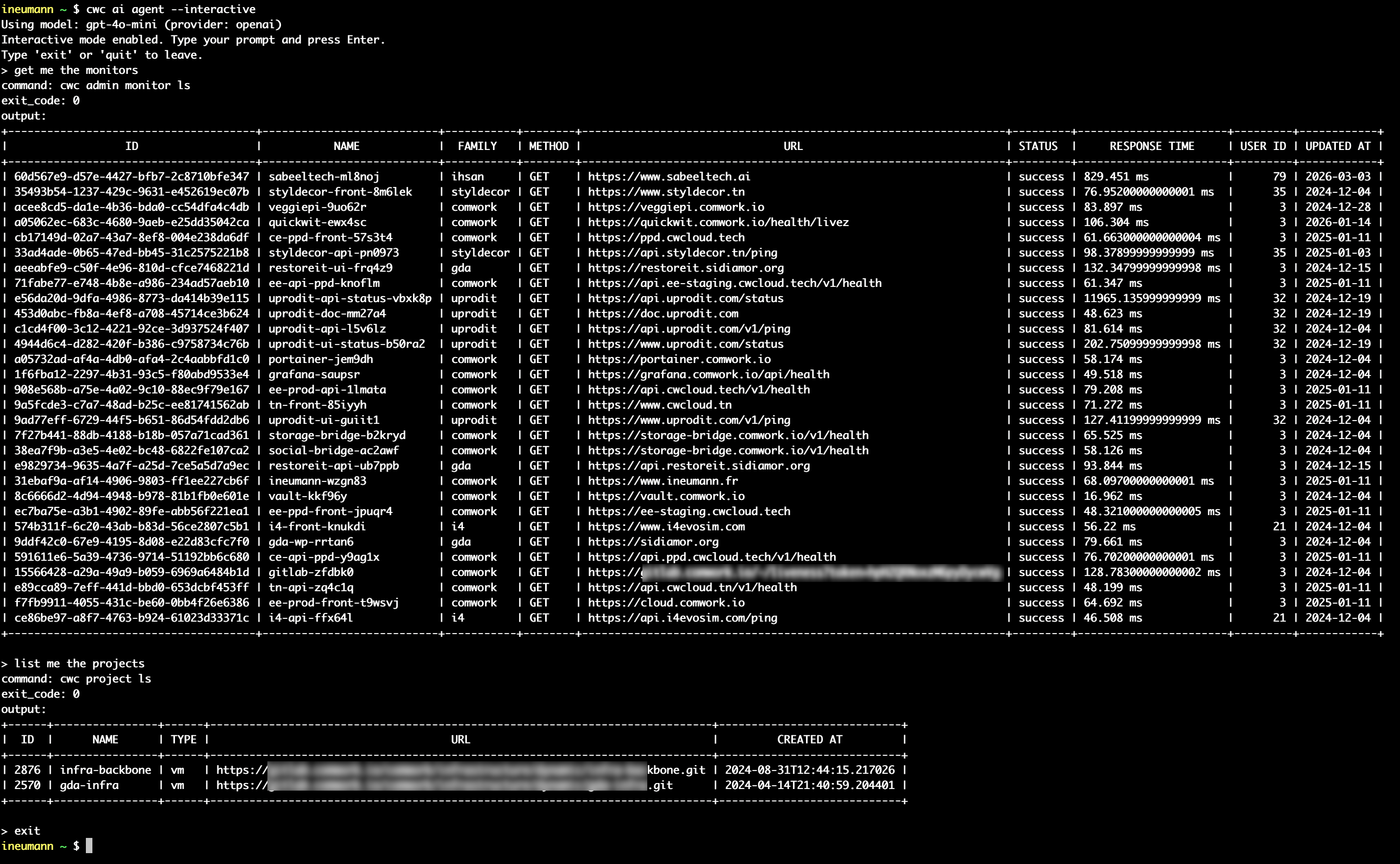
demo-agent-repl

Conclusion: we anticipate that AI agents are the future face of platform engineering. Therefore, it seems important to us in this context that they are embedded in your CLI and prefer to invoke repeatable and understandable commands (in order to have them confirmed by the human) rather than opaque MCP tools that would be directly associated with your API endpoints definition or SDK (which are most of the time not easily repeatable).

Moreover, having the MCP server and the Agent in the same binary but running in different processes allows us to provide simple execution agents that can work with the least powerful and cheapest models on the market such as gpt-4o-mini, mistral-small, gemini-1.5-flash, deepseek (the cheapest) or a self-hosted llama. Indeed, these agents don't need a lot of reasoning capability to interpret language and transform it into command line invocation by selecting the right MCP tool. However it also allows to invoke this same MCP server in more complex agents that work with more powerful models that would produce more advanced troubleshooting reasoning and workflows coupled with possibly other MCP servers for observability tools for example.

We'll add many more features so stay tuned!
Footnotes​

  1. MCP stands for "Model-Context Protocol" documented here. ↩

  2. You can find here the installation documentation for cwc with our operating system. ↩

  3. REPL stands for "Read-Eval-Print Loop", an interactive interface that allows you to execute commands and see the results in real-time. ↩