CWMerch

CWMerch is a lighter remake of WooCommerce written in Go (the API, cwmerch-api) and React (the shop and its back office, cwmerch-ui).
It's OpenSource MIT licensed and you can host it yourself, the repo is on our gitlab.
cwmerch works directly on a WordPress/WooCommerce MySQL or MariaDB database (or on PostgreSQL, see below) and has no other link with WordPress: no PHP, no plugin, no WordPress REST API. It reads and writes the same tables as WooCommerce (products, orders with HPOS or the legacy shop_order posts, coupons, taxes, shipping zones, settings, analytics lookup tables...) and the same users (WordPress password hashes). So it can:
- run alone, as a complete shop on a fresh database (Flyway creates the WooCommerce schema);
- run alongside an existing WooCommerce: both see each other's changes in real time;
- run your WooCommerce shop on PostgreSQL — something we've dreamed of for years: the same schema exists for PostgreSQL, and Clone data moves your shop from MySQL/MariaDB to PostgreSQL (or back) in a few clicks (see PostgreSQL and clone data);
- run API only, as an AI agent (plus API keys, MFA and accounting exports) for an existing WooCommerce that stays your shop (see API only mode);
- run as an internal information system, with the public shop switched off (see Shop switch).
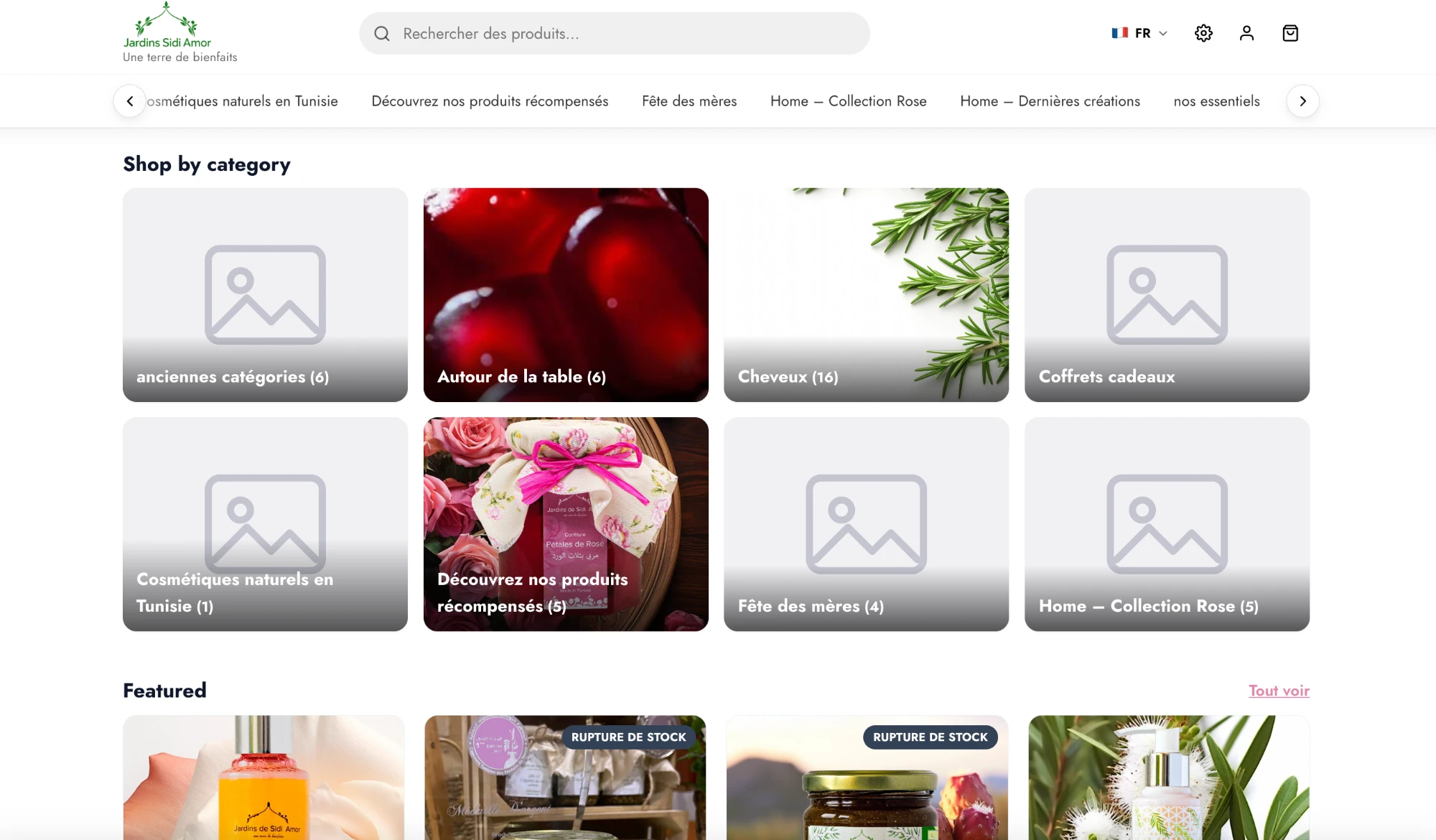
Features summary
What it shares with WooCommerce:
- Storefront: catalogue with categories, tags, attributes, search, filters and sorting, simple / variable / grouped / external products, reviews and ratings, cart, coupons, taxes, shipping zones and methods (flat rate, free shipping, local pickup), checkout with the offline payment methods (bank transfer, cheque, cash on delivery), guest checkout, the customer's account (orders, addresses, downloads)
- Back office: dashboard, products and variations (with generation of every combination), categories, tags, attributes, shipping classes, media, orders (manual orders, notes, refunds with restock, status changes), customers, coupons, reviews moderation, WooCommerce settings, taxes, payment gateways, emails, reports (sales, top products and categories, stock, customers)
- The WooCommerce customer emails (new order, processing, completed, invoice, refunded...) are replicated for the orders cwmerch changes, and sent through the CWCloud email API
What it adds over WooCommerce:
- Long-term API keys (
X-Api-Keyheader) - Google sign-in (OIDC)
- MFA with a TOTP application or a YubiKey (WebAuthn)
- An AI assistant with an agentic loop calling cwmerch's own API with the signed-in user's token, subscriptions to OpenAI, Anthropic, Mistral, Gemini, OpenRouter, DeepSeek or CWCloud shareable with other users, embedded Markdown skills, and writes only after an explicit confirmation
- The CWCloud CWAI external adapter endpoint
POST /v1/ai/cwcloud/adapter - French accounting PDF exports (chiffre d'affaires, balance des comptes, grand livre), also usable as AI tools
- Forgotten password and contact form through CWCloud
- Discord notification on every user action, OpenTelemetry logs, metrics and traces, Prometheus
/metrics - Swagger UI at the API root
/with the OpenAPI document at/openapi.json(payloads and query parameters) - SEO: server-rendered meta tags, Open Graph and JSON-LD for the product and category pages,
sitemap.xml,robots.txt - Shop appearance settings: logo, home hero banner slides, 8 colour theme presets, fonts and custom CSS; each colour and font is your override if you set one, else Divi's, else WooCommerce's, else your WordPress theme's, else cwmerch's blue default. The logo is detected the same way (only an https:// URL). The editor shows the inherited values as placeholders and only saves your overrides, so you can still change the look once Divi or WordPress are gone
- Users administration, audit log and IP bans
- A public shop switch, to use cwmerch as an internal information system (back office, accounting, AI) with the registration closed if wanted
- Online payments with pluggable adapters: Stripe, Konnect and Flouci, configured from the administration with sealed credentials; without any payment partner, the checkout gives an order number and asks for a phone number to confirm the order by phone
- Invoices from an editable Markdown / Go template rendered to PDF, numbered without gaps, with VAT and/or timbre fiscal (fiscal stamp), and per-country defaults from an editable decision table
- I18N, light/dark mode
Architecture
| Component | Image / technology | Role |
|---|---|---|
api | Go (cwmerch-api), port 8080 | The REST API (/v1/...), Swagger UI at /, /openapi.json, /metrics, sitemap.xml, robots.txt and the SEO rendering of the product and category pages |
ui | React served by nginx (cwmerch-ui), port 80 (published on 3000) | The storefront and the back office; nginx loads the SEO pages, sitemap.xml and robots.txt from the API's public URL (CWMERCH_API_URL) and serves them under its own address |
flyway | flyway/flyway:10-alpine | Runs the SQL migrations of cwmerch-db/mysql or cwmerch-db/postgresql (following DB_TYPE) once, then exits |
db / postgres | MySQL 8.4 (or MariaDB 11.8) / PostgreSQL 17 | The WordPress/WooCommerce database, shared with WordPress if it runs alongside (MySQL/MariaDB only) |
The API is stateless: the only state is in the database (WooCommerce's tables plus cwmerch's own cwmerch_* tables for API keys, MFA, AI subscriptions and conversations, audit, IP bans, appearance, payment providers, invoices and the invoicing country defaults...) and in the uploads folder (wp-content/uploads).
Installation with Docker Compose
Clone the repository:
git clone https://gitlab.cwcloud.tech/oss/cwcloud/cwmerch.git
cd cwmerch
cp .env.example .env # then edit the secrets
docker compose up -d --build
This will:
- Start a MySQL 8.4 database (or PostgreSQL 17 with
DB_TYPE=postgresandCOMPOSE_PROFILES=postgresin the.env). - Run the Flyway migrations (WooCommerce schema, cwmerch tables, WooCommerce defaults).
- Build and start the Go API on
http://localhost:8080(Swagger UI at/). - Build the React UI and serve it through nginx on
http://localhost:3000.
Then open http://localhost:3000 and register: on a fresh install, the first account becomes the shop's administrator.
No need to build: the images are published on the rg.fr-par.scw.cloud/cwmerch-eesgg6 registry (cwmerch-api and cwmerch-ui, tagged with the version, e.g. 1.4.0, and latest):
docker pull rg.fr-par.scw.cloud/cwmerch-eesgg6/cwmerch-api:latest
docker pull rg.fr-par.scw.cloud/cwmerch-eesgg6/cwmerch-ui:latest
With the compose file below, run docker compose pull api ui && docker compose up -d instead of docker compose up -d --build (set VERSION=1.4.0 in the .env to pin a version).
docker-compose.yml
services:
  db:
    image: mysql:8.4
    profiles: ["mysql"]
    environment:
      MYSQL_DATABASE: ${DB_NAME:-${MYSQL_DATABASE:-wordpress}}
      MYSQL_USER: ${DB_USER:-${MYSQL_USER:-wordpress}}
      MYSQL_PASSWORD: ${DB_PASSWORD:-${MYSQL_PASSWORD:-wordpress}}
      MYSQL_ROOT_PASSWORD: ${MYSQL_ROOT_PASSWORD:-root}
    volumes:
      - db-data:/var/lib/mysql
    ports:
      - "127.0.0.1:3306:3306"
    healthcheck:
      test: ["CMD", "mysqladmin", "ping", "-h", "127.0.0.1", "-uroot", "-p${MYSQL_ROOT_PASSWORD:-root}"]
      interval: 5s
      timeout: 5s
      retries: 20

  postgres:
    image: postgres:17-alpine
    profiles: ["postgres"]
    environment:
      POSTGRES_DB: ${DB_NAME:-wordpress}
      POSTGRES_USER: ${DB_USER:-wordpress}
      POSTGRES_PASSWORD: ${DB_PASSWORD:-wordpress}
    volumes:
      - pg-data:/var/lib/postgresql/data
    ports:
      - "127.0.0.1:${PG_PUBLISH_PORT:-5432}:5432"
    networks:
      default:
        aliases: [db]
    healthcheck:
      test: ["CMD-SHELL", "pg_isready -U ${DB_USER:-wordpress} -d ${DB_NAME:-wordpress}"]
      interval: 5s
      timeout: 5s
      retries: 20

  flyway:
    image: flyway/flyway:10-alpine
    depends_on:
      db:
        condition: service_healthy
        required: false
      postgres:
        condition: service_healthy
        required: false
    entrypoint: ["/bin/sh", "/migrate.sh"]
    environment:
      DB_TYPE: ${DB_TYPE:-mysql}
      DB_HOST: ${DB_HOST:-${MYSQL_HOST:-db}}
      DB_PORT: ${DB_PORT:-${MYSQL_PORT:-}}
      DB_NAME: ${DB_NAME:-${MYSQL_DATABASE:-wordpress}}
      DB_USER: ${DB_USER:-${MYSQL_USER:-wordpress}}
      DB_PASSWORD: ${DB_PASSWORD:-${MYSQL_PASSWORD:-wordpress}}
      DB_TABLE_PREFIX: ${DB_TABLE_PREFIX:-${WP_TABLE_PREFIX:-wp_}}
      DB_SSLMODE: ${DB_SSLMODE:-disable}
    volumes:
      - ./cwmerch-db:/flyway/sql:ro
      - ./.docker/flyway/migrate.sh:/migrate.sh:ro

  api:
    build:
      context: .
      target: api
    image: ${REGISTRY:-rg.fr-par.scw.cloud/cwmerch-eesgg6}/cwmerch-api:${VERSION:-latest}
    depends_on:
      flyway:
        condition: service_completed_successfully
    env_file: .env
    environment:
      DB_HOST: ${DB_HOST:-${MYSQL_HOST:-db}}
    ports:
      - "8080:8080"
    volumes:
      - uploads:/uploads
    tmpfs:
      - /storage:size=128m,uid=10001

  ui:
    build:
      context: .
      target: ui
    image: ${REGISTRY:-rg.fr-par.scw.cloud/cwmerch-eesgg6}/cwmerch-ui:${VERSION:-latest}
    depends_on:
      - api
    environment:
      CWMERCH_API_URL: ${CWMERCH_API_URL:-http://localhost:8080}
    ports:
      - "3000:80"

volumes:
  db-data:
  pg-data:
  uploads:
The /storage tmpfs holds the files the AI assistant generates (accounting PDFs) until their download link expires.
.env
# --- database (the WordPress/WooCommerce one when running alongside) ---
# mysql (also: mariadb, my) or postgres (also: postgresql, pgsql, pg, psql).
# PostgreSQL is for new projects (WordPress itself only runs on MySQL/MariaDB);
# with docker compose also set COMPOSE_PROFILES=postgres.
DB_TYPE=mysql
COMPOSE_PROFILES=mysql
DB_HOST=db
# empty = 3306 for MySQL/MariaDB, 5432 for PostgreSQL
DB_PORT=
DB_NAME=wordpress
DB_USER=wordpress
DB_PASSWORD=wordpress
# WordPress' $table_prefix
DB_TABLE_PREFIX=wp_
# PostgreSQL only: disable, prefer, require, verify-full
DB_SSLMODE=disable
MYSQL_ROOT_PASSWORD=root

# --- security ---
# openssl rand -base64 48
JWT_SECRET=changeit
# bcrypt = WordPress >= 6.8 hash format; phpass for older WordPress sharing the DB
CWMERCH_PASSWORD_HASH=bcrypt
# auto (WooCommerce behaviour), email (confirmation link) or admin (approval)
CWMERCH_ACTIVATION_MODE=auto

# Seals payment providers' credentials stored from the administration
# (openssl rand -base64 32). Without it, credentials can only come from the
# environment variables below.
CWMERCH_SECRET_KEY=

# --- URLs ---
CWMERCH_API_URL=http://localhost:8080
CWMERCH_UI_URL=http://localhost:3000
CWMERCH_SHOP_URL=http://localhost:3000
CWMERCH_CORS_ENABLED=true
CWMERCH_CORS_ALLOWED_ORIGINS=http://localhost:3000

# --- uploads: mount WordPress' wp-content/uploads here to share images ---
CWMERCH_UPLOADS_DIR=/uploads
# Public URL of that folder (e.g. https://myshop.com/wp-content/uploads); empty = served by the API at /v1/media
CWMERCH_UPLOADS_URL=

# --- API only: cwmerch as an AI agent next to an unchanged WooCommerce ---
CWMERCH_API_ONLY=false

# --- Google sign-in (OIDC) ---
CWMERCH_OIDC_GOOGLE_CLIENT_ID=
CWMERCH_OIDC_GOOGLE_CLIENT_SECRET=

# --- CWCloud: emails (customer emails, password reset) and contact form ---
CWCLOUD_API_URL=https://api.cwcloud.tech
CWCLOUD_API_KEY=
CWCLOUD_CONTACT_FORM_ID=
CWMERCH_MAIL_FROM=noreply@cwcloud.tech

# --- observability ---
# Discord webhook "{id}/{token}" (blank or changeit = disabled)
DISCORD_TOKEN=changeit
# OTLP collector, e.g. otel-collector:4317 (traces, logs and metrics)
CWMERCH_OTEL_ENDPOINT=
CWMERCH_OTEL_PROTO=otlp/grpc

# --- online payments (optional: prefer the administration screens) ---
# Environment fallbacks used when nothing is stored in the administration.
STRIPE_PUBLISHABLE_KEY=
STRIPE_SECRET_KEY=
STRIPE_WEBHOOK_SECRET=
KONNECT_API_KEY=
KONNECT_WALLET_ID=
# test (sandbox) or live
KONNECT_MODE=test
FLOUCI_PUBLIC_KEY=
FLOUCI_PRIVATE_KEY=
In production, at least change JWT_SECRET (openssl rand -base64 48), the database passwords, set CWMERCH_SECRET_KEY (openssl rand -base64 32) if you plan to take online payments, and set the public URLs (CWMERCH_API_URL, CWMERCH_UI_URL, CWMERCH_SHOP_URL, CWMERCH_CORS_ALLOWED_ORIGINS) to your domains behind a TLS reverse proxy.
Database
The migrations are in the cwmerch-db/ folder, in two equivalent sets: mysql/ (MySQL/MariaDB, the reference) and postgresql/ (generated from it), and are run by a standalone Flyway (flyway/flyway:10-alpine). They are tested on MySQL 8.4, MariaDB 11.8 and PostgreSQL 17. The tables below are the same in both folders.
| File | Content |
|---|---|
V1__woocommerce_schema.sql | The schema only of the 52 tables of WordPress core + WooCommerce (core, Admin/Analytics, HPOS order tables, Action Scheduler), captured from a fresh WordPress + WooCommerce install with HPOS on. CREATE TABLE IF NOT EXISTS, InnoDB, utf8mb4_unicode_520_ci. |
V2__cwmerch_tables.sql | cwmerch's own cwmerch_* tables (with the WordPress prefix, e.g. wp_cwmerch_api_keys). |
V3__woocommerce_defaults.sql | An idempotent seed of a fresh install's defaults: core options, the roles and capabilities, WooCommerce settings, the product type / visibility terms and the "Uncategorized" product category. It only inserts the missing rows and never overwrites anything. |
init-existing-instance.sql | To run by hand, once, to adopt an existing WooCommerce database. |
The table prefix
Every WordPress/WooCommerce/cwmerch table name is written ${table_prefix}<name> in the migrations. The placeholder is given to Flyway with -placeholders.table_prefix=..., which the compose file fills from DB_TABLE_PREFIX. Set it to the $table_prefix of your wp-config.php (usually wp_), and give the same value to the API (DB_TABLE_PREFIX).
The prefix also names the roles option (wp_user_roles for wp_, shop_user_roles for shop_), like WordPress does. Flyway's own flyway_schema_history table is never prefixed.
Fresh install
On an empty database, Flyway runs V1 (the WooCommerce schema), V2 (the cwmerch tables) and V3 (the WooCommerce defaults) in this order. That's what docker compose up does.
Without compose:
docker run --rm -v "//cwmerch-db/mysql:/flyway/sql:ro" flyway/flyway:10-alpine \
  '-url=jdbc:mysql://HOST:3306/DB?allowPublicKeyRetrieval=true&useSSL=false' \
  -user=USER -password=PASS -placeholders.table_prefix=wp_ \
  -locations=filesystem:/flyway/sql migrate
After a fresh install, adjust the placeholder values V3 seeds from the back office settings (siteurl, home, blogname, admin_email, the WooCommerce email sender, the store address). V3 deliberately differs from a stock WooCommerce install on a few values (only when they are missing): currency EUR, default country FR, kg/cm units, UTC timezone, and the HPOS compatibility sync disabled.
The first account registered becomes the administrator (as long as the database has no administrator yet).
Existing WooCommerce instance
The WordPress/WooCommerce tables already exist, so V1 must not run: it has to be recorded as already applied.
1/ Back up the database first:
mysqldump --single-transaction wordpress > backup.sql
Note: to dump the MySQL database of a WordPress instance deployed with CWCloud's WPaaS, run this from the instance's host (change the credentials if you changed them):
docker exec wp_db mysqldump -u root -pchangeit --single-transaction --routines --triggers wordpress > wp-dump.sql
2/ Check that every table of V1 exists in your database (a reasonably recent WooCommerce, the HPOS tables included even if your orders are still stored as posts). V1 is never executed here, so cwmerch won't create a missing table for you.
3/ Give a MySQL user access to the WordPress database. cwmerch needs to read and write the WooCommerce data and Flyway needs to create its history table and the cwmerch_* tables:
CREATE USER 'cwmerch'@'%' IDENTIFIED BY 'a-strong-password';
GRANT SELECT, INSERT, UPDATE, DELETE, CREATE, ALTER, INDEX, REFERENCES ON wordpress.* TO 'cwmerch'@'%';
FLUSH PRIVILEGES;
You can also reuse the DB_USER of your wp-config.php.
4/ Run the adoption script, connected to the WordPress database:
mysql wordpress < cwmerch-db/mysql/init-existing-instance.sql
It creates flyway_schema_history exactly as Flyway 10 creates it and inserts row 1: version 1, script V1__woocommerce_schema.sql, checksum = 1318371643, success = 1. It's idempotent: you can safely run it again.
The checksum 1318371643 is the CRC32 Flyway 10 computes for V1__woocommerce_schema.sql. Flyway checksums the file before replacing the placeholders, so the value is the same whatever your table prefix is (verified with wp_ and shop_ on MySQL 8.4 and MariaDB 11.8).
5/ Run Flyway with your prefix:
docker run --rm -v "//cwmerch-db/mysql:/flyway/sql:ro" flyway/flyway:10-alpine \
  '-url=jdbc:mysql://HOST:3306/wordpress?allowPublicKeyRetrieval=true&useSSL=false' \
  -user=cwmerch -password=a-strong-password -placeholders.table_prefix=wp_ \
  -locations=filesystem:/flyway/sql migrate
Flyway reports Current version of schema: 1, then applies V2 and V3. V2 only adds the cwmerch_* tables, and V3 only adds the default options that are missing: your existing settings, roles and terms are kept. Expect harmless Duplicate entry ... (1062) warnings from its INSERT IGNOREs.
6/ Check with validate instead of migrate: it must answer Successfully validated N migrations.
Notes on the JDBC URL:
- MySQL 8:
allowPublicKeyRetrieval=trueis required when the user authenticates withcaching_sha2_passwordover a non-TLS connection, anduseSSL=falsewhen the server has no TLS. - MariaDB: the same
jdbc:mysql://...?allowPublicKeyRetrieval=true&useSSL=falseURL works (jdbc:mariadb://HOST:3306/DBtoo).
Then start cwmerch without a database service, the DB_* variables pointing at the WordPress database and DB_TABLE_PREFIX set to its prefix: set COMPOSE_PROFILES= (empty) in the .env so compose starts no local database, then run docker compose up -d --build. WordPress' administrators become cwmerch's administrators (superuser), WooCommerce's shop managers become manager and every other role customer.
Note: since the history now exists, the flyway service of the compose file can stay: on each start it applies the new migrations of an upgrade and does nothing otherwise.
Sharing wp-content/uploads
When WordPress runs alongside, cwmerch must use the same images. Mount WordPress' wp-content/uploads folder in the API container instead of the uploads named volume (the API runs with the uid 10001, which must be able to write in it):
  api:
    volumes:
      - /var/www/html/wp-content/uploads:/uploads
CWMERCH_UPLOADS_DIR: the folder inside the container (/uploads).CWMERCH_UPLOADS_URL: the public URL of that folder, e.g.https://myshop.com/wp-content/uploads, so the image URLs stored in the database are the same as WordPress'. When it's empty, the API serves the folder itself at/v1/media.
Password hashes
cwmerch signs in the WordPress users with their existing passwords: it checks the WordPress bcrypt hashes (WordPress 6.8 and later), the phpass hashes (older WordPress) and the legacy MD5 ones. The format it writes (registration, password change or reset) is chosen with CWMERCH_PASSWORD_HASH:
bcrypt(default): the WordPress 6.8+ format;phpass: for an older WordPress sharing the database, which wouldn't be able to check a bcrypt hash.
API only mode: an AI agent for your WooCommerce
You don't have to replace your WooCommerce to use cwmerch. You can keep WooCommerce as your shop and only run cwmerch's API next to it, to get:
- the AI assistant that manages your WooCommerce data (products, orders, customers, coupons, reports...) through cwmerch's API, from a chat or from the CWCloud CWAI external adapter;
- long-term API keys and MFA for that API;
- the French accounting exports (chiffre d'affaires, balance, grand livre).
In this mode there's no ui container: set CWMERCH_API_ONLY=true and the API disables its storefront routes (cart, checkout, order received page, the customer's orders, addresses and downloads). The back office endpoints the agent uses stay available to the administrators and shop managers, and the users are WordPress' (sign in with your WordPress email or username and password).
1/ Initialise Flyway's history on the WooCommerce database, as described in Existing WooCommerce instance (backup, MySQL user, init-existing-instance.sql).
2/ Write a docker-compose.yml without the db and ui services:
services:
  flyway:
    image: flyway/flyway:10-alpine
    entrypoint: ["/bin/sh", "/migrate.sh"]
    env_file: .env
    volumes:
      - ./cwmerch-db:/flyway/sql:ro
      - ./.docker/flyway/migrate.sh:/migrate.sh:ro

  api:
    build:
      context: .
      target: api
    image: ${REGISTRY:-rg.fr-par.scw.cloud/cwmerch-eesgg6}/cwmerch-api:${VERSION:-latest}
    depends_on:
      flyway:
        condition: service_completed_successfully
    env_file: .env
    ports:
      - "8080:8080"
    volumes:
      - /var/www/html/wp-content/uploads:/uploads
    tmpfs:
      - /storage:size=128m,uid=10001
3/ In the .env, point the database at WooCommerce's and enable the API only mode:
DB_TYPE=mysql
DB_HOST=my-woocommerce-db-host
DB_PORT=3306
DB_NAME=wordpress
DB_USER=cwmerch
DB_PASSWORD=a-strong-password
DB_TABLE_PREFIX=wp_
JWT_SECRET=a-long-random-secret
CWMERCH_API_ONLY=true
CWMERCH_API_URL=https://cwmerch-api.myshop.com
CWMERCH_UPLOADS_DIR=/uploads
CWMERCH_UPLOADS_URL=https://myshop.com/wp-content/uploads
# phpass if your WordPress is older than 6.8
CWMERCH_PASSWORD_HASH=bcrypt
4/ Start it:
docker compose up -d flyway api
Flyway adds the cwmerch_* tables (and the missing default options), then the API starts. The Discord start notice says API only (AI agent for WooCommerce).
5/ Sign in with a WordPress administrator or shop manager through the API (POST /v1/users/login, or the Swagger UI at the API root), create an AI subscription and an API key, then use the agent from POST /v1/ai/chat or from CWCloud.
PostgreSQL and clone data
cwmerch runs on PostgreSQL too — something we've dreamed of during years: a WooCommerce shop on PostgreSQL. Set DB_TYPE=postgres in the .env (the port defaults to 5432), plus COMPOSE_PROFILES=postgres to have compose start a PostgreSQL 17 instead of MySQL, and the flyway service runs cwmerch-db/postgresql: the same WordPress/WooCommerce + cwmerch schema, with text columns in citext so searches and comparisons stay case-insensitive as on MySQL.
DB_TYPE=postgres
COMPOSE_PROFILES=postgres
DB_HOST=db
DB_NAME=cwmerch
DB_USER=cwmerch
DB_PASSWORD=a-strong-password
DB_TABLE_PREFIX=wp_
The API has a single set of queries, written in the MySQL dialect WooCommerce uses, translated at the driver level on PostgreSQL, so every feature works the same on both engines. WordPress itself only runs on MySQL/MariaDB: on PostgreSQL, cwmerch runs your shop alone (storefront, back office, AI agent).
Clone data
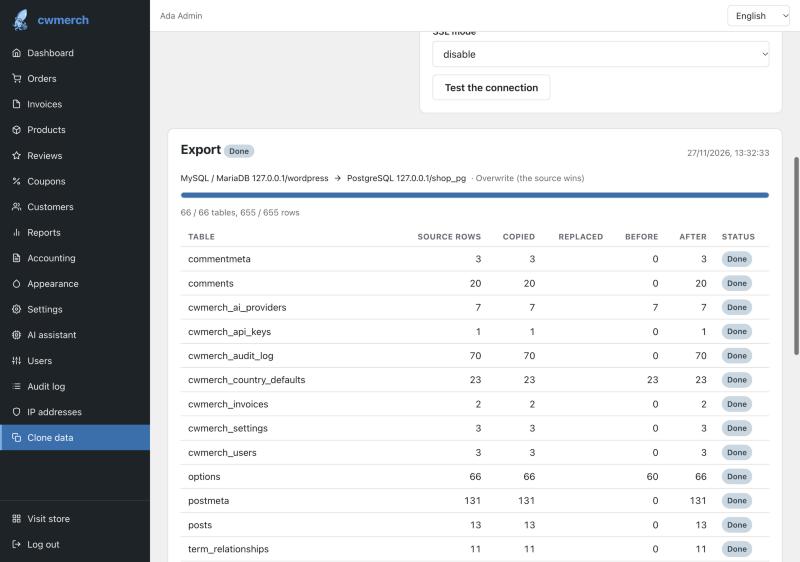
Administration → Clone data (WordPress administrators only) copies all the shop's data from one database to another, in any direction: MySQL/MariaDB → PostgreSQL, PostgreSQL → MySQL/MariaDB, or between two databases of the same engine. That's how you move an existing WooCommerce shop to PostgreSQL: run cwmerch on the WooCommerce database, create and migrate an empty PostgreSQL database, export, then switch cwmerch to PostgreSQL.
- Export: main → target copies the main database (the one cwmerch runs on) into another database.
- Import: remote → main copies a remote database into the main one (the shop runs on the result right away).
Pick the direction and enter the other database (engine, host, port, database, table prefix, user, password):
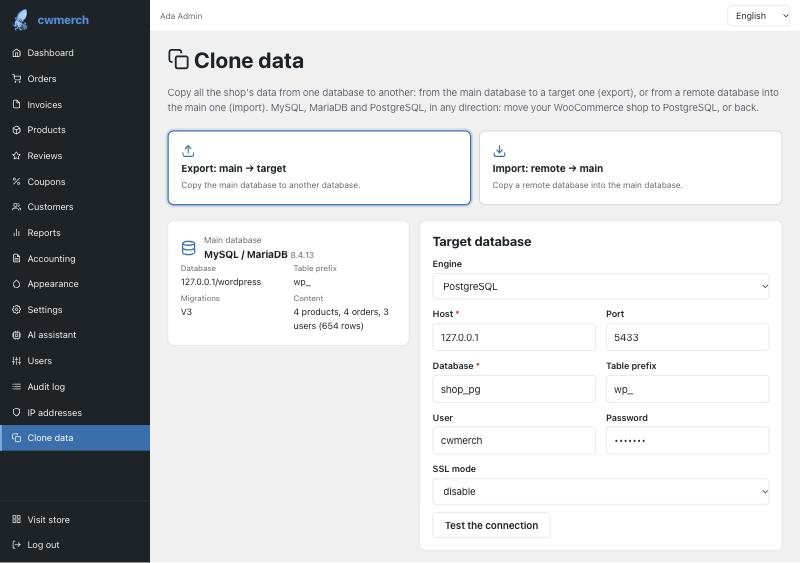
Test the connection connects to it and compares both sides: engines and versions, content, and the Flyway migrations. The destination must already be migrated with cwmerch's migrations (cwmerch-db/mysql or cwmerch-db/postgresql, run by Flyway) at least up to the source's version:
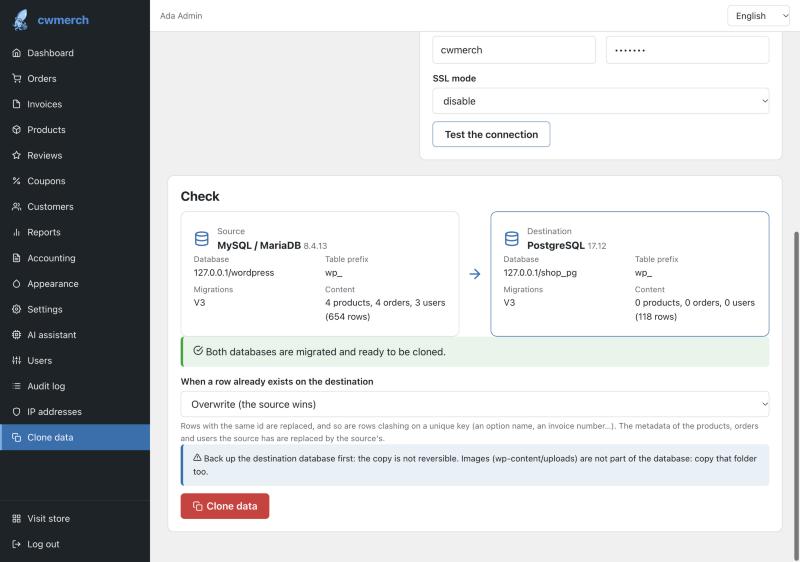
The destination can already hold data. Choose what happens when a row already exists there:
- Overwrite (the source wins): rows are upserted by primary key; destination rows clashing with a source row on another unique key (an option name, an invoice number...) are replaced; and the metadata of the products, orders, users, comments and terms the source has (postmeta, usermeta, order items...) are replaced by the source's, never mixed. Rows only the destination has are kept.
- Keep the destination's rows: existing rows are left untouched, only the missing ones are added.
Clone data asks you to type the destination database's name to confirm:
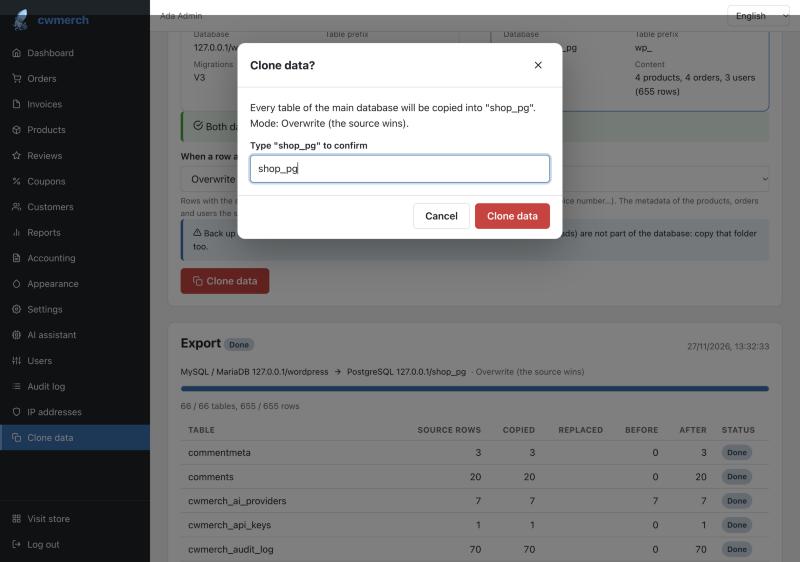
The copy runs in the background, table by table (parents first, in batches), and the page follows it: rows copied, rows replaced, the destination's row count before and after:
Good to know:
- Back up the destination database first: the copy is not reversible.
- Images (
wp-content/uploads) are not in the database: copy that folder too. - The two databases may use different table prefixes: the prefix-named rows (
<prefix>user_roles, the users'<prefix>capabilities...) are renamed. - MySQL's zero dates and PostgreSQL's identity sequences are taken care of.
- The AI assistant can run it too: it tests the connection, sums it up and only starts the clone after your explicit yes. Prefer typing database passwords in the administration screen rather than in a chat.
- API:
GET /v1/admin/clone,POST /v1/admin/clone/test,POST /v1/admin/cloneandGET /v1/admin/clone/job.
Languages
cwmerch speaks English, French and Arabic (right-to-left layout): the storefront, the
customer account, the back office, the customer emails and the AI assistant. In
Settings → Shop → Languages, tick the languages your shop offers (at least one) and choose the default
one; the language switcher only shows the ticked languages. The customer emails use WordPress' WPLANG
when it is set, else the shop's default language.
PDF exports are never in Arabic: invoices are in English or French (the invoicing locale), the accounting exports in French.
Permalinks
Product, category, tag and shop pages keep the same addresses as on WordPress, so links and search
engine rankings survive switching the storefront to cwmerch. cwmerch reads WooCommerce's permalinks
(WordPress → Settings → Permalinks: product base, %product_cat%, category and tag bases) and the slug
of the WooCommerce shop page, with WooCommerce's localized defaults (/produit/…,
/categorie-produit/…, /boutique on a French WordPress). Sub-categories have hierarchical addresses
(/product-category/clothing/hoodies).
Settings → Permalinks in cwmerch edits the same WordPress option; WordPress rebuilds its rewrite rules on its next request. The sitemap and the server-rendered SEO pages follow.
Shop switch: cwmerch as an internal information system
cwmerch doesn't have to be a public shop. In Administration → Settings → Shop, you can switch the public shop off and use cwmerch as an internal information system: the back office (products, stock, orders, customers), the accounting exports, the invoices and the AI assistant.
- With the public shop off, the storefront endpoints (products, categories, tags, reviews, cart, checkout, sitemap) answer
403(errors.shopDisabled) and the UI shows a "closed" page with the message of your choice. The sign-in, the back office, the accounting exports and the AI assistant keep working. - The customer registration can be closed too (
POST /v1/users/then answers403errors.registrationDisabled), so that only the accounts you create can sign in.
The same settings are available from the API: GET / PUT /v1/admin/shop-config with {"shopEnabled": true, "closedMessage": "", "registrationEnabled": true}.
Online payments
Besides WooCommerce's offline payment methods (bank transfer, cheque, cash on delivery), cwmerch takes online payments in Administration → Settings → Payments → Online payments. Each provider is an adapter (cwmerch-api/internal/payments: an Adapter interface, one file per provider), so adding another payment system is just one more adapter.
| Provider | Credentials | Webhook to register at the provider | Currencies |
|---|---|---|---|
| Stripe | Publishable key, secret key, webhook signing secret | <API URL>/v1/payments/stripe/webhook (events payment_intent.succeeded and payment_intent.payment_failed) | Any |
| Konnect | API key and wallet id (sandbox or production) | None: it's sent automatically with each payment (<API URL>/v1/payments/konnect/webhook) | TND, EUR, USD |
| Flouci | Public key and private key | None: it's sent automatically with each payment (<API URL>/v1/payments/flouci/webhook, signed) | TND |
For each provider, the administration screen lets you enable it, pick the test or live mode, set the title and the description shown at checkout, enter the credentials and test them (POST /v1/admin/payment-providers/{id}/test). It also shows the webhook URL to register.
Getting the keys
Stripe:
1/ In the Stripe dashboard, Developers → API keys: copy the publishable key (pk_test_... or pk_live_...) and the secret key (sk_test_... or sk_live_...).
2/ In Developers → Webhooks, add an endpoint with the URL <API URL>/v1/payments/stripe/webhook (e.g. https://cwmerch-api.myshop.com/v1/payments/stripe/webhook) and the events payment_intent.succeeded and payment_intent.payment_failed.
3/ Copy the endpoint's signing secret (whsec_...): cwmerch checks the Stripe-Signature header of each webhook call with it.
The customer pays on the checkout page itself with Stripe.js (Payment Element).
Konnect: in your Konnect dashboard (the sandbox one for the test mode), get your API key and your wallet id. You can also choose the accepted payment methods (wallet, bank card, e-DINAR), the payment link lifespan and whether the payment fees are added to the amount. The customer is redirected to Konnect's hosted payment page and comes back to the shop.
Flouci: in the Flouci developers space, create an application and get its public key and private key (Flouci only accepts TND). The customer is redirected to Flouci's hosted payment page and comes back to the shop.
Credentials storage
The secrets entered in the administration are sealed with CWMERCH_SECRET_KEY (AES-256-GCM) before being stored in the database, and never sent back by the API (it only tells whether each secret is set). Generate the key once and keep it: without it, the stored credentials can't be read anymore.
openssl rand -base64 32
The credentials can also come from the environment, used as fallbacks when nothing is stored in the administration: STRIPE_PUBLISHABLE_KEY, STRIPE_SECRET_KEY, STRIPE_WEBHOOK_SECRET, KONNECT_API_KEY, KONNECT_WALLET_ID, KONNECT_MODE (test for the sandbox or live; STRIPE_MODE and FLOUCI_MODE work the same way), FLOUCI_PUBLIC_KEY, FLOUCI_PRIVATE_KEY. Without CWMERCH_SECRET_KEY, the credentials can only come from the environment.
Order lifecycle
An order paid online is created pending. It stays pending until the provider confirms the payment, either with its webhook or when the customer comes back to /checkout/payment/{id} (cwmerch then asks the provider, idempotently). The order then moves to processing with the provider's transaction id, and the usual WooCommerce emails are sent. A still pending order can be paid again (POST /v1/shop/orders/{id}/pay).
No payment partner: confirmation by phone
When no online payment partner (Stripe, Konnect or Flouci) is enabled and configured for the shop's currency, cwmerch switches to a phone confirmation:
- the checkout requires the customer's phone number (8 to 15 digits;
+,.,-,(,)and spaces allowed), and no offline payment method is needed; - the order is placed on hold, with the note "To confirm by phone with the customer at ..." and the payment method "Confirmation by phone";
- the customer gets their order number with a "we will call you to confirm it" message;
- the shop then calls the customer back and moves the order on from the back office.
Invoices
cwmerch issues invoices from Administration → Settings → Invoicing (and lists them in Administration → Invoices).
Settings
- Numbering:
prefix + year + sequence(e.g.FAC-2026-00001, the sequence restarting each year) or a continuous sequence, always without gaps, with the padding of your choice. - Tax mode:
- VAT (TVA): the taxes of the order lines, with the standard rate of the country;
- timbre fiscal (fiscal stamp): a fixed amount per invoice (e.g. 1 TND in Tunisia), which can be charged to the customer at checkout (a fee line on the order);
- VAT + timbre fiscal;
- none, with the exemption mention (e.g. "TVA non applicable, art. 293 B du CGI").
- Seller block: name, address, email, phone, registration number (SIRET, matricule fiscal, ...), VAT number, IBAN and BIC.
- Legal mentions, payment terms and footer.
- Automatic issuing: never, or as soon as an order is processing or completed.
Country defaults
"Apply country defaults" fills all of this (tax mode, VAT label and standard rate, stamp amount, currency, registration and VAT number labels, numbering prefix, language, exemption and legal mentions) from a decision table keyed by ISO 3166 country code, and can create the standard VAT rate in WooCommerce's taxes when there's none for that country.
The table is pre-filled for AE, AU, BE, CA, CH, CI, CM, DE, DZ, EG, ES, FR, GB, IT, LU, MA, NL, PT, SA, SN, TN and US, plus a * fallback used for any other country. It's editable from the Country defaults tab: change any country's row or add a missing one (the * fallback can be changed but not deleted). From the API: GET, PUT and DELETE /v1/admin/invoicing/country-defaults/{iso}, and POST /v1/admin/invoicing/apply-defaults with {"country": "TN", "createTaxRate": true}.
Template
The invoice is a Go template producing Markdown, then rendered to PDF. The editor shows the default template with every available variable (the invoice, the seller, the buyer, the lines, the taxes, the totals, the settings and the translated labels), and can preview the result as a PDF on a real order. For example:
# {{.T.Invoice}} {{.Invoice.Number}}

**{{.Seller.Name}}**

| {{.T.InvoiceDate}} | {{.T.Order}} |
|---|---|
| {{.Invoice.IssuedAt}} | #{{.Invoice.OrderNumber}} |

## {{.T.BilledTo}}

**{{.Buyer.Name}}**

| {{.T.TotalHT}} | {{.Totals.HT}} |
|---|---:|
{{- if .HasStamp}}
| {{.Settings.StampLabel}} | {{.Totals.Stamp}} |{{end}}
| **{{.T.TotalTTC}}** | **{{.Totals.TTC}}** |
Leave the template empty to use the default one.
Issuing and sending
- An invoice is issued from the order page (one invoice per order), or automatically when enabled.
- An issued invoice is frozen (a JSON snapshot plus its Markdown): later changes to the order or the settings don't alter it.
- It can be downloaded as PDF or Markdown, and emailed to the customer with the PDF attached (through the CWCloud email API).
- The customer can download it from their account (Orders).
Configuration
Every environment variable of the API:
| Variable | Default | Description |
|---|---|---|
PORT | 8080 | Listening port of the API |
MAX_WORKERS | 5 | Size of the background workers pool |
DB_TYPE | mysql | mysql (also mariadb, my) or postgres (also postgresql, pgsql, pg, psql) |
DB_HOST | localhost (db in compose) | Database host |
DB_PORT | 3306 for MySQL/MariaDB, 5432 for PostgreSQL | Database port |
DB_NAME | wordpress | Database name |
DB_USER | wordpress | Database user |
DB_PASSWORD | Database password | |
DB_TABLE_PREFIX | wp_ | WordPress' $table_prefix (also given to Flyway) |
DB_SSLMODE | disable | PostgreSQL SSL mode (disable, prefer, require, verify-full) |
DB_POOL_SIZE | 10 | Database connections pool size |
COMPOSE_PROFILES | mysql | Compose only: mysql or postgres starts that database service, empty starts none |
MYSQL_ROOT_PASSWORD | root | Root password of the compose db service only |
JWT_SECRET | Secret signing the session tokens (openssl rand -base64 48) | |
CWMERCH_SECRET_KEY | Key sealing the payment providers' credentials stored from the administration (openssl rand -base64 32); without it, the credentials can only come from the environment | |
CWMERCH_PASSWORD_HASH | bcrypt | Hash format written: bcrypt (WordPress 6.8+) or phpass (older WordPress) |
CWMERCH_ACTIVATION_MODE | auto | New accounts: auto (active immediately, like WooCommerce), email (confirmation link) or admin (approval by an administrator) |
CWMERCH_CONFIRMATION_EMAIL_EXPIRATION | 24 | Validity of the confirmation and reset password links, in hours |
CWMERCH_API_URL | http://localhost:8080 | Public URL of the API (also given to the UI container) |
CWMERCH_UI_URL | http://localhost:3000 | Public URL of the UI (links in the emails, OIDC redirection) |
CWMERCH_SHOP_URL | CWMERCH_UI_URL | Public URL of the storefront (permalinks, canonical links, sitemap) |
CWMERCH_API_URL (UI container) | http://localhost:8080 | The only variable of the UI container: the public API URL the browser calls, substituted by envsubst in the built files at start; nginx also loads the SEO pages, sitemap.xml and robots.txt from it (the API fetches the UI's index.html from CWMERCH_UI_URL: both must be reachable from the containers) |
CWMERCH_CORS_ENABLED | false | Enables the CORS headers |
CWMERCH_CORS_ALLOWED_ORIGINS | * | Comma separated allowed origins |
CWMERCH_UPLOADS_DIR | Uploads folder (wp-content/uploads) inside the container | |
CWMERCH_UPLOADS_URL | API URL + /v1/media | Public URL of the uploads folder |
CWMERCH_MAX_IMAGE_SIZE | 2097152 (2 MiB) | Maximum size of an uploaded image, in bytes |
CWMERCH_MAX_UPLOAD_SIZE | 10485760 (10 MiB) | Maximum size of an uploaded file, in bytes |
CWMERCH_API_ONLY | false | API only mode (AI agent for an unchanged WooCommerce) |
CWMERCH_OIDC_GOOGLE_CLIENT_ID | Google sign-in client id | |
CWMERCH_OIDC_GOOGLE_CLIENT_SECRET | Google sign-in client secret | |
CWMERCH_OIDC_GITHUB_CLIENT_ID | GitHub sign-in client id | |
CWMERCH_OIDC_GITHUB_CLIENT_SECRET | GitHub sign-in client secret | |
CWMERCH_OIDC_KEYCLOAK_BASE_URL | Keycloak realm base URL | |
CWMERCH_OIDC_KEYCLOAK_CLIENT_ID | Keycloak client id | |
CWMERCH_OIDC_KEYCLOAK_CLIENT_SECRET | Keycloak client secret | |
CWMERCH_OIDC_KEYCLOAK_GROUPS | Comma separated Keycloak groups allowed to sign in | |
CWCLOUD_API_URL | https://api.cwcloud.tech | CWCloud API (override it for another CWCloud tenant) |
CWCLOUD_API_KEY | CWCloud API key for the emails and the contact form | |
CWCLOUD_CONTACT_FORM_ID | CWCloud contact form id | |
CWMERCH_MAIL_FROM | noreply@cwcloud.tech | Sender of the emails |
DISCORD_TOKEN | Discord webhook {id}/{token} (blank or changeit disables it) | |
CWMERCH_IPINFO_TOKEN | Optional ipinfo token to geolocate the visitors' IPs (audit and IP bans) | |
CWMERCH_OTEL_ENDPOINT | OTLP collector (e.g. otel-collector:4317), empty disables OpenTelemetry | |
CWMERCH_OTEL_PROTO | otlp/grpc | OTLP protocol |
CWMERCH_AI_DOWNLOAD_DIR | storage | Folder of the files generated by the AI assistant |
CWMERCH_AI_DOWNLOAD_TTL | 30m | Lifetime of a generated file's download link |
CWMERCH_AI_DOWNLOAD_MAX_BYTES | 26214400 (25 MiB) | Maximum size of a generated file |
CWMERCH_AI_DOWNLOAD_SWEEP_INTERVAL | 5m | Interval of the expired files cleanup |
STRIPE_PUBLISHABLE_KEY | Stripe publishable key (fallback when none is stored in the administration) | |
STRIPE_SECRET_KEY | Stripe secret key (fallback) | |
STRIPE_WEBHOOK_SECRET | Stripe webhook signing secret (fallback) | |
KONNECT_API_KEY | Konnect API key (fallback) | |
KONNECT_WALLET_ID | Konnect wallet id (fallback) | |
KONNECT_MODE | test | Konnect environment: test (sandbox) or live |
FLOUCI_PUBLIC_KEY | Flouci public key (fallback) | |
FLOUCI_PRIVATE_KEY | Flouci private key (fallback) | |
CWMERCH_MANIFEST_PATH | manifest.json | Build manifest (version, sha) |
APP_VERSION | 1.0.0 | Version reported when there's no manifest |
The former MYSQL_HOST, MYSQL_PORT, MYSQL_DATABASE, MYSQL_USER, MYSQL_PASSWORD, MYSQL_POOL_SIZE and WP_TABLE_PREFIX variables still work as fallbacks.
API
The API is documented by itself: the Swagger UI is at the API root (http://localhost:8080/) and the OpenAPI 3 document, with the payloads and the query parameters, at /openapi.json.
- Base path
/v1, JSON in and out. - Authentication:
Authorization: Bearer <jwt>(fromPOST /v1/users/login) orX-Api-Key: <api key>. - A 5xx error never carries its cause: the
X-Cidresponse header is the correlation id to give to the support.
API keys
Every user can create long-term API keys from their account (or with POST /v1/users/me/api-keys and a payload {"description": "...", "expiresAt": "..."}, the expiration being optional). The token is shown only once. Then:
curl -H "X-Api-Key: XXXXXX" http://localhost:8080/v1/admin/orders
MFA
From their account, the users can enable a TOTP application (scan the QR code, then confirm a code) and/or register YubiKeys or other WebAuthn security keys. The sign-in then asks for the second factor, OIDC included. An administrator can disable a user's MFA.
AI assistant
Any signed-in user can chat with an assistant which answers by calling cwmerch's own API with the user's own token: it can only see and do what the user is allowed to. It's guided by embedded Markdown skills describing the API, and it makes writes (creating a product, changing an order's status, a refund...) only after the user explicitly confirmed them. The accounting exports are available to it as tools: the generated PDFs are given back as temporary download links.
1/ Add a subscription in the AI settings of your account: a name, a provider (OpenAI, Anthropic, Mistral, Gemini, OpenRouter, DeepSeek or CWCloud), the API token, and optionally the model, the base URL and the max tokens.
2/ Optionally share it with other users (by email): they can use it in the chat without seeing its token. You can order your subscriptions, the first one is the default.
3/ Open the chat and ask, for example "What are my 5 best selling products this month?" or "Export the grand livre of 2025".
Note: a CWCloud subscription goes through the CWAI prompt API, which can't call tools: the assistant then answers without reading your shop's data and says so.
Use cwmerch from CWCloud (CWAI external adapter)
cwmerch exposes its AI subscriptions to CWCloud as a CWAI external adapter at POST /v1/ai/cwcloud/adapter. Like that, you can use the cwmerch agent from the CWCloud chat, the CWAI API or the serverless engine.
1/ Create an API key in cwmerch (with a user having the rights you want to give to the agent).
2/ In CWCloud, add an external adapter with:
- the URL
https://<your cwmerch API>/v1/ai/cwcloud/adapter; - a custom header
X-Api-Keywith the cwmerch API key as value.
3/ Prompt it from CWCloud. The adapter accepts {"message": "..."} or {"messages": [{"role": "user", "message": "..."}]}; the adapter field picks the cwmerch subscription by name (the default one otherwise). It answers:
{
  "status": "ok",
  "message": "The answer in Markdown",
  "usage": {
    "prompt_tokens": 8,
    "completion_tokens": 10,
    "total_tokens": 18
  }
}
You can test it directly:
curl -X POST "http://localhost:8080/v1/ai/cwcloud/adapter" \
  -H "X-Api-Key: XXXXXX" -H "Content-Type: application/json" \
  -d '{"message": "How many orders are waiting to be processed?"}'
Google sign-in (OIDC)
1/ In the GCP console, create an OAuth client of type Web application (see the CWClock's screenshots, it's the same procedure).
2/ Add this authorized redirect URI: <API URL>/v1/oidc/google/callback, e.g. https://cwmerch-api.myshop.com/v1/oidc/google/callback.
3/ Set the variables on the API:
CWMERCH_UI_URL=https://myshop.com
CWMERCH_API_URL=https://cwmerch-api.myshop.com
CWMERCH_OIDC_GOOGLE_CLIENT_ID=
CWMERCH_OIDC_GOOGLE_CLIENT_SECRET=
The "Sign in with Google" button then appears on the sign-in page. A Google account whose email matches an existing user signs in as that user, otherwise a customer account is created (following CWMERCH_ACTIVATION_MODE). The MFA still applies.
Emails and contact form
cwmerch sends its emails (the WooCommerce customer emails for the orders it changes, the confirmation and the reset password links) through the CWCloud email API, and forwards its contact form to a CWCloud contact form:
CWCLOUD_API_URL:https://api.cwcloud.techby default, override it for another CWCloud tenant;CWCLOUD_API_KEY: a CWCloud API key;CWCLOUD_CONTACT_FORM_ID: the CWCloud contact form id (the contact page is hidden when the contact form isn't configured);CWMERCH_MAIL_FROM: the sender of the emails.
Without them, cwmerch works anyway but sends no email.
The API key can also be set in Settings → Emails & contact (CWCloud): it is stored in WordPress'
cwcloud-api-secret option, the same as the CWCloud WordPress plugin, and wins over
CWCLOUD_API_KEY; a button sends a test email. The same screen sets the contact form: with a CWCloud
contact form id the messages go there, otherwise they are emailed (visitor as reply-to) to the recipient
read from WordPress — the Contact Form 7 form's recipient and subject when Contact Form 7 is installed
(updated in place), else WordPress' administration email.
Note: when WooCommerce runs alongside, it keeps sending its own emails for the orders it handles itself; cwmerch only sends the emails of the orders it changes, so a customer doesn't get them twice.
Observability
- Discord: set
DISCORD_TOKENto the{id}/{token}part of a Discord webhook URL (https://discord.com/api/webhooks/{id}/{token}). cwmerch posts a notice on the start of the API and on every user action (sign-up, sign-in, orders, back office changes, AI prompts with the tokens consumed...), and the 5xx errors with their correlation id. - OpenTelemetry: set
CWMERCH_OTEL_ENDPOINTto an OTLP collector (e.g.otel-collector:4317) to export the traces, logs and metrics. - Prometheus: the metrics are exposed in the OpenMetrics format at
/metrics(and/v1/metrics). GET /v1/health(liveness) andGET /v1/manifest(version and commit of the build).
Upgrading
git pull
docker compose up -d --build
The flyway service applies the new migrations before the API starts. Applied migrations are immutable: never edit a released V<n>__*.sql file (Flyway would refuse to migrate because of the checksum), the changes always come in a new, higher numbered file.
Back up the database before upgrading, especially when it's shared with WordPress.
Troubleshooting
- Flyway:
Validate failed: Migration checksum mismatch for migration version 1: theflyway_schema_historyrow 1 doesn't have the checksum1318371643, orV1__woocommerce_schema.sqlwas modified. Restore the original file and reruninit-existing-instance.sqlon a history that doesn't contain a wrong row 1. - Flyway runs V1 on an existing WooCommerce: Flyway's history was not initialised first. V1 uses
CREATE TABLE IF NOT EXISTS, so it doesn't break the existing tables, but initialise the history next time withinit-existing-instance.sql. - Flyway:
Public Key Retrieval is not allowed: addallowPublicKeyRetrieval=trueto the JDBC URL (anduseSSL=falseif the server has no TLS). Table 'wordpress.wp_...' doesn't exist:DB_TABLE_PREFIX(API) or-placeholders.table_prefix(Flyway) doesn't match your WordPress$table_prefix.- The WordPress users can't sign in to WordPress anymore after changing their password in cwmerch: your WordPress is older than 6.8 and can't check bcrypt hashes, set
CWMERCH_PASSWORD_HASH=phpass. - The images are broken: check that the uploads folder is mounted on
CWMERCH_UPLOADS_DIR, writable by the uid10001, and thatCWMERCH_UPLOADS_URLis the public URL of that folder. - No email is sent: check
CWCLOUD_API_KEYand that the email API is enabled on your CWCloud account. - The UI can't reach the API (CORS errors): set
CWMERCH_CORS_ENABLED=trueand add the UI's origin toCWMERCH_CORS_ALLOWED_ORIGINS. - A Stripe payment stays pending: check that the webhook
<API URL>/v1/payments/stripe/webhookis registered with thepayment_intent.succeededevent and that its signing secret is the one set in cwmerch. - The payment credentials can't be saved, or are lost after a restart: set
CWMERCH_SECRET_KEY, and keep the same value across restarts. - A 5xx error: the response only says it's an internal error; look for its
X-Cidcorrelation id in the API logs (or the Discord alert) to get the cause.